This article describes the steps for subscribing to the Metric Insights fully managed SaaS offering on AWS Marketplace. Currently, only Simple Install is supported, with three available environment sizes. The offering includes environment setup and maintenance, resource allocation based on the chosen subscription tier, patching, and software updates.
1. Access Metric Insights on AWS Marketplace
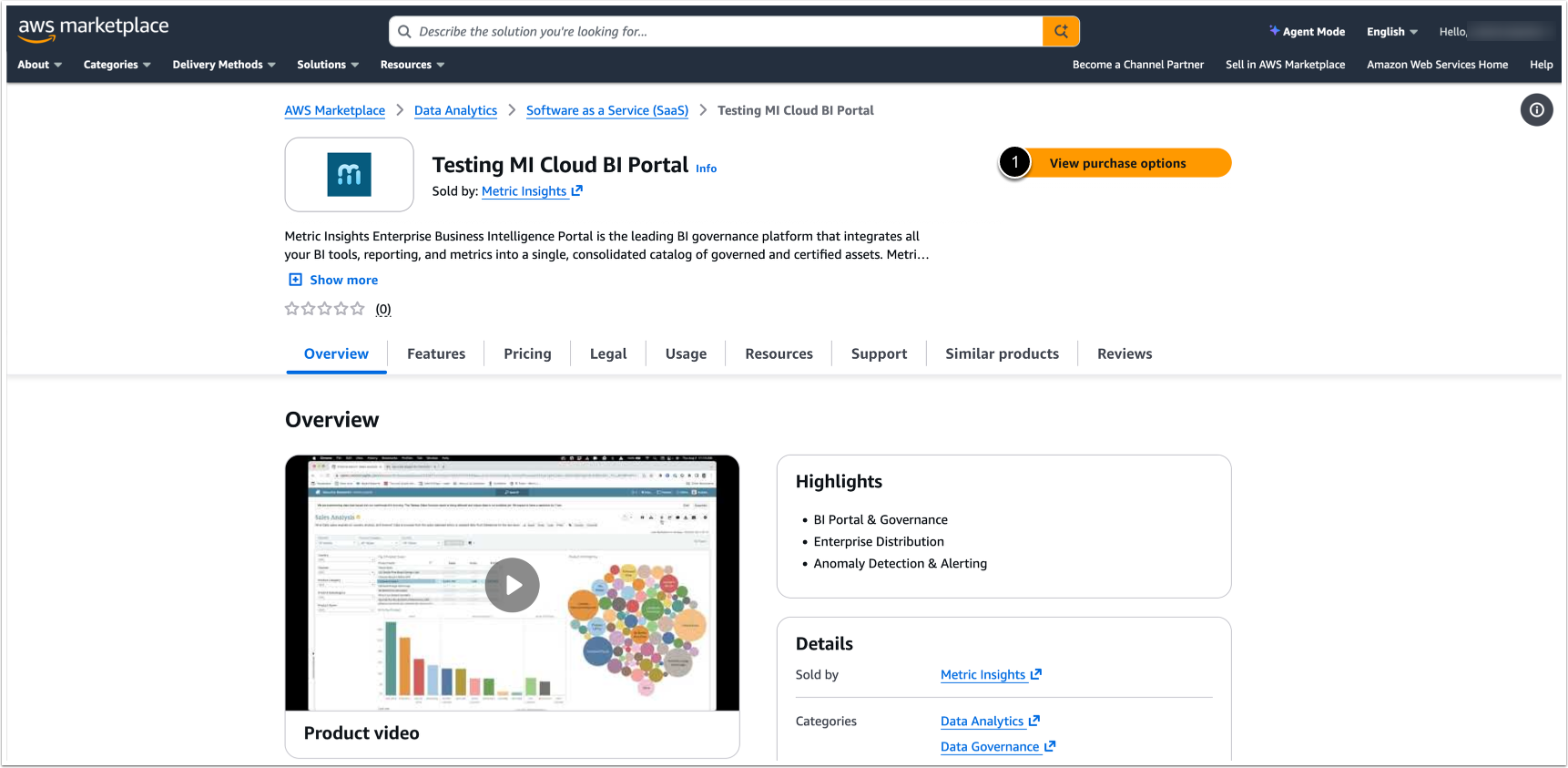
- Access https://aws.amazon.com/marketplace/pp/prodview-tgtyk4ivrtyyw
- [View purchase options]
2. Select Deployment Options
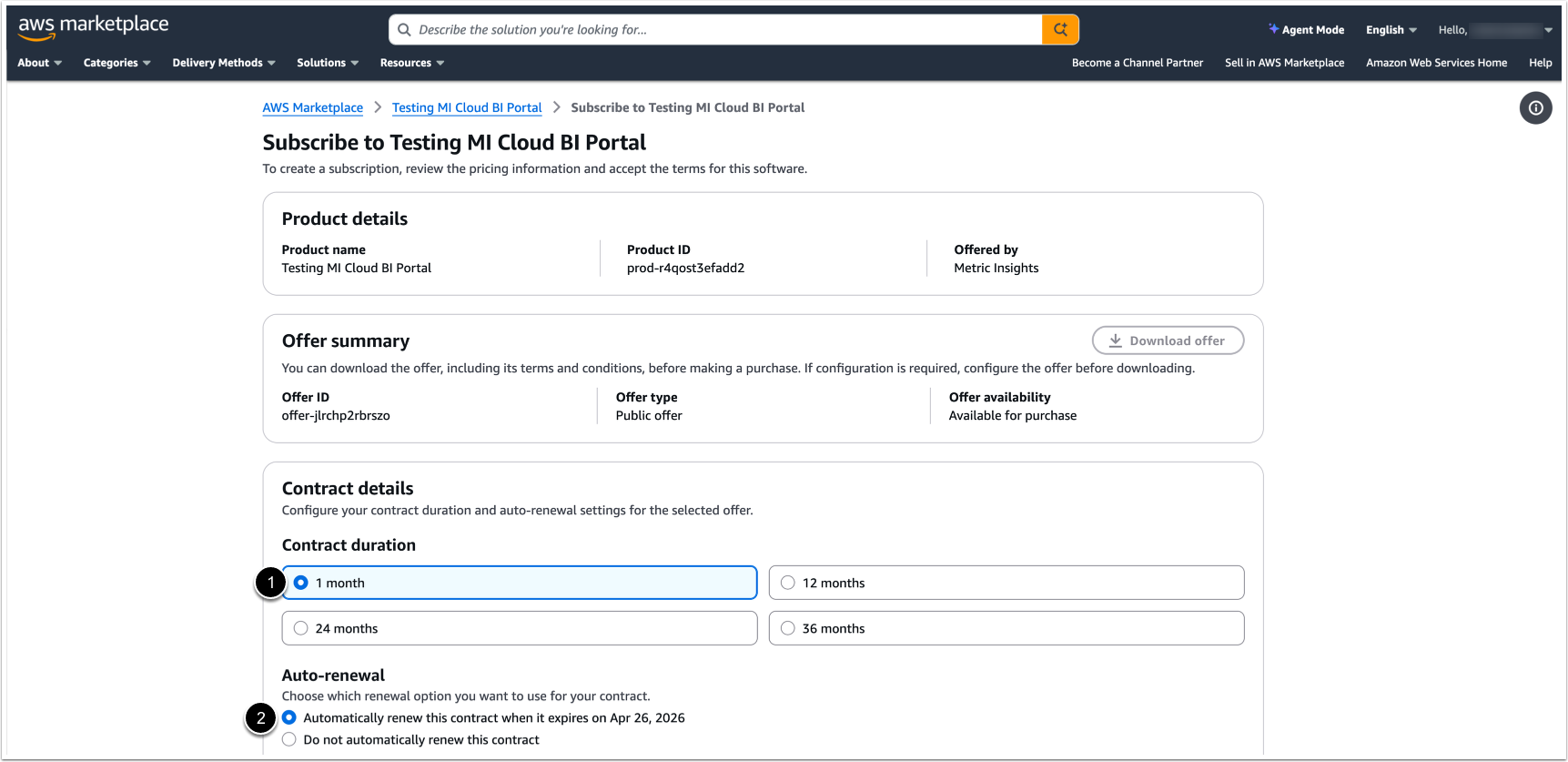
NOTE: Metric Insights offers contracts for 1, 2, or 3 years only. The screenshot above is an example only.
Select the following options:
- Contract Duration: Choose a contract term of 1, 2, or 3 years.
- Auto-Renewal: Choose whether to automatically renew the contract upon expiration.
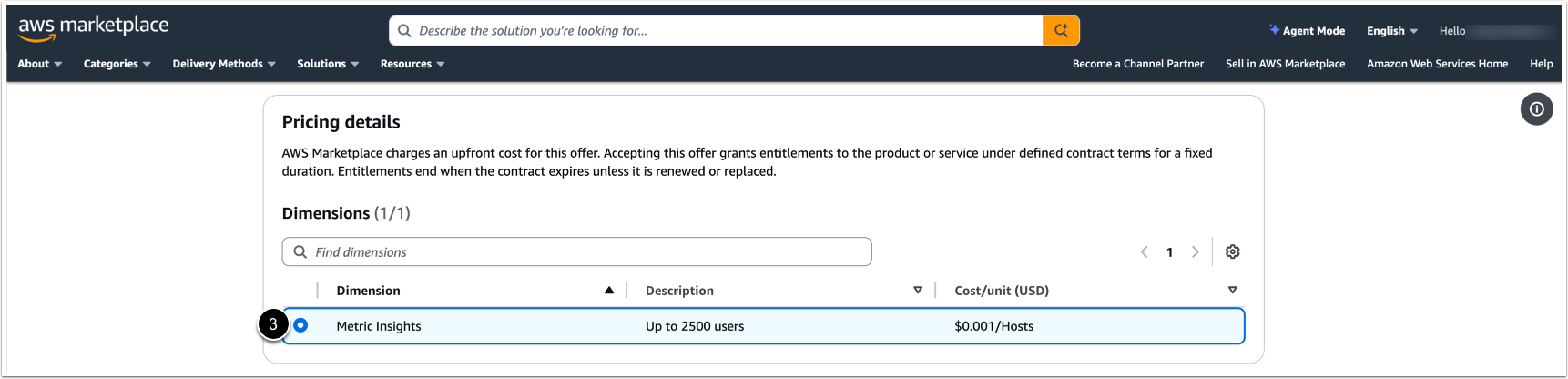
- Dimensions: Choose the environment size.
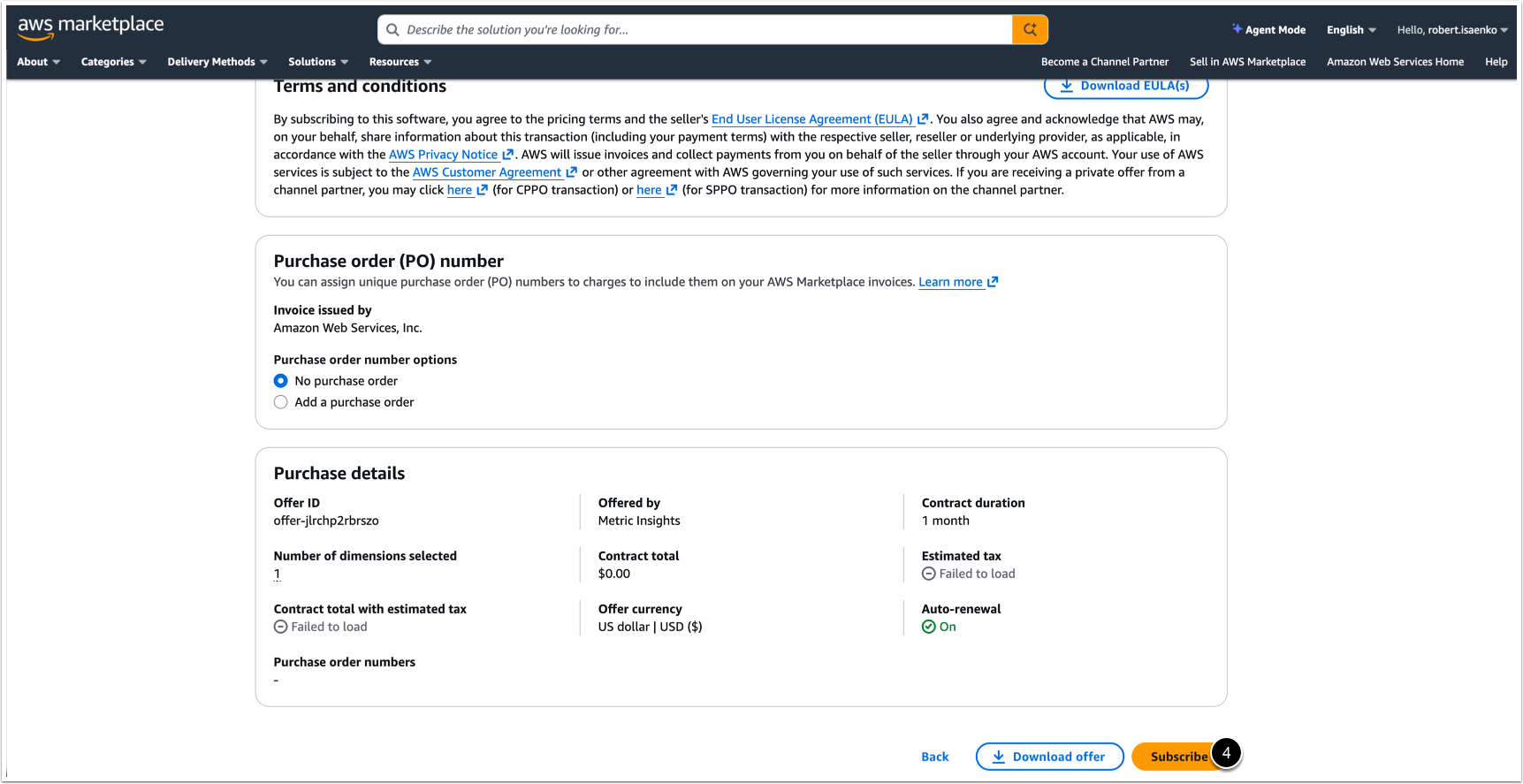
- After selecting the deployment details, select [Subscribe] at the bottom of the page to initiate payment.
NOTE: [Subscribe] immediately initiates the payment.
3. Proceed with Setting Up Your Account
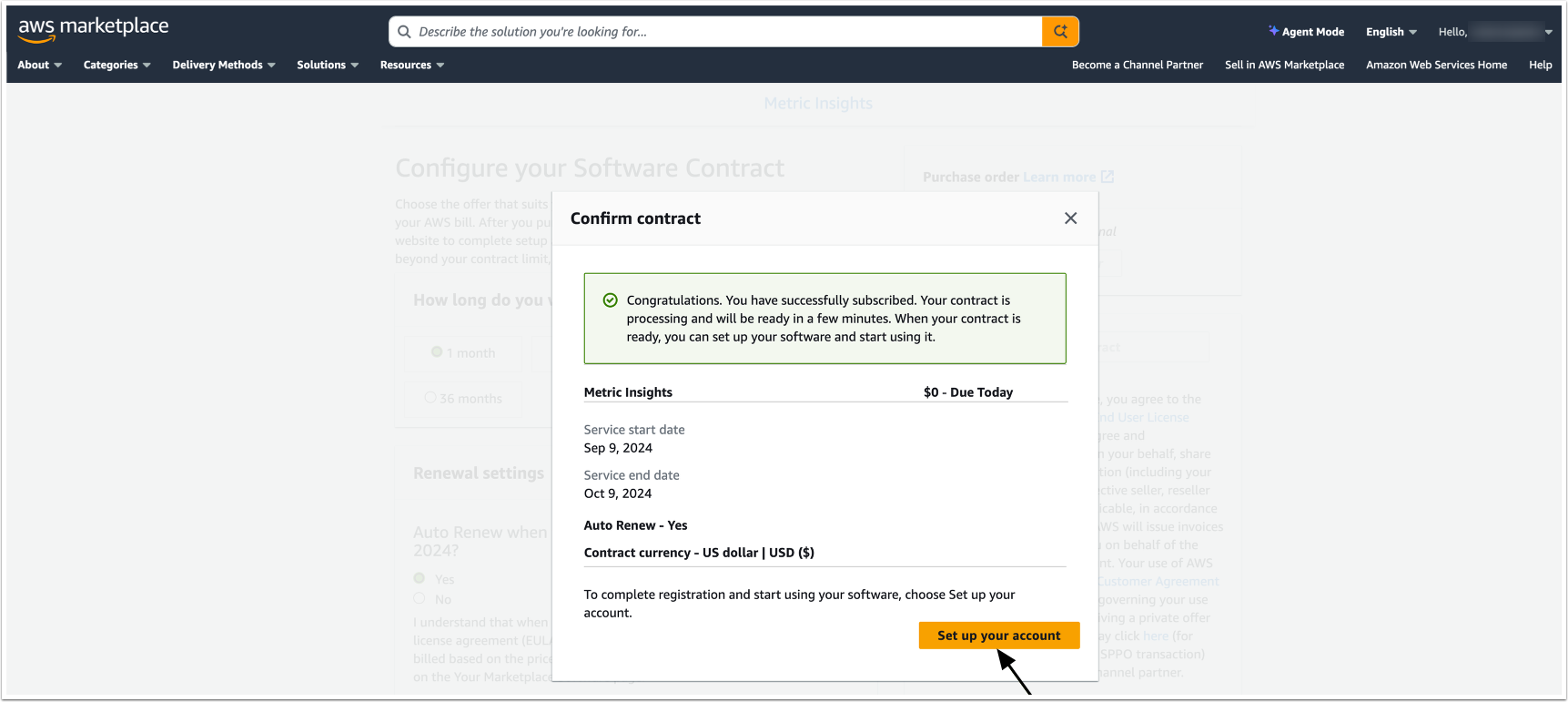
After the payment is processed, a confirmation message appears. Select [Set up your account] to access the sign-up page.
4. Enter Contact And Deployment Details
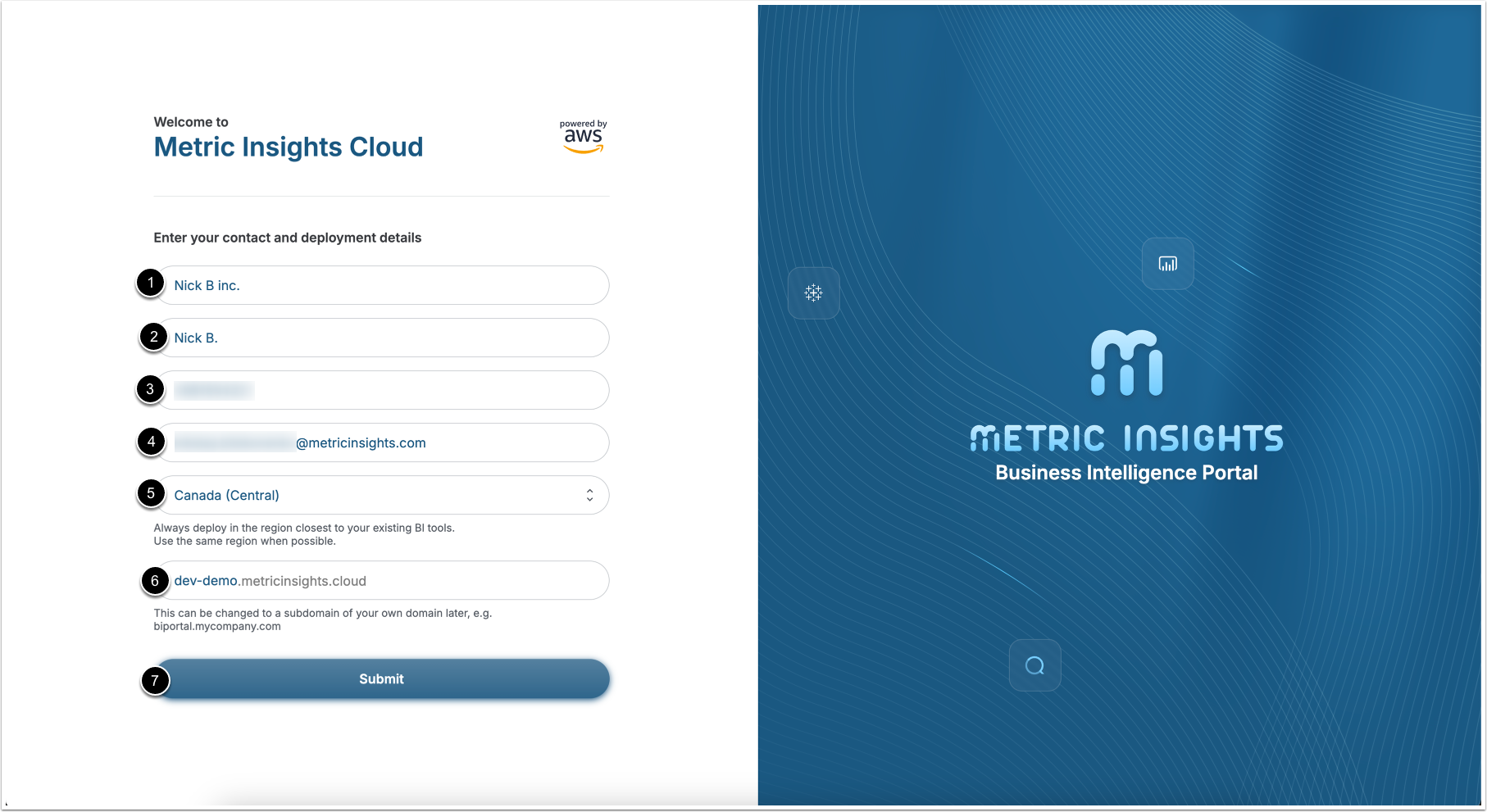
NOTE: The sign-up page is accessible only through a redirect from the AWS Marketplace.
Fill in all required fields:
- Company name
- Name
- Phone number
- Country
- Desired subdomain of the Metric Insights server
- Once all fields are finished, [Submit]
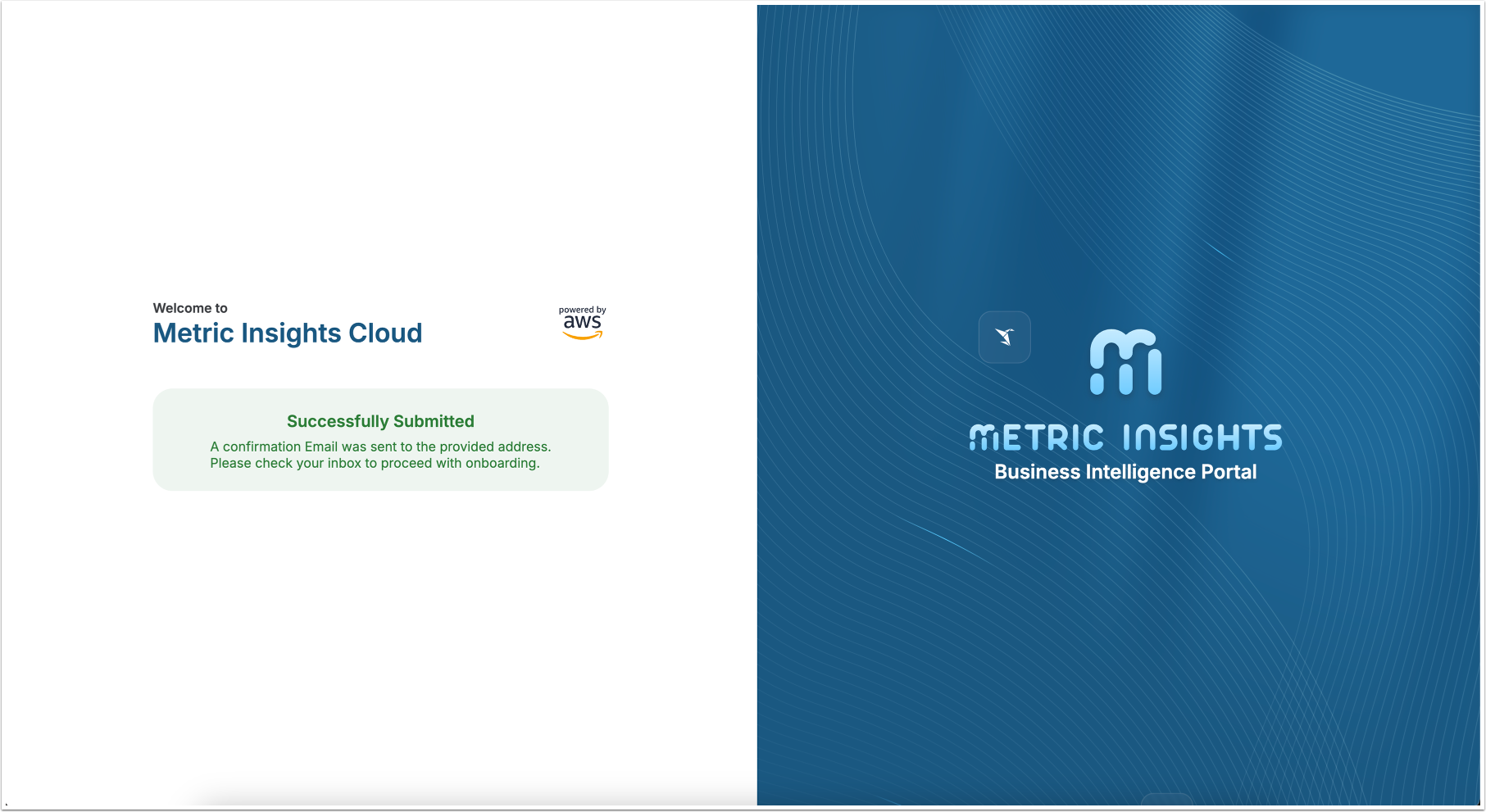
After the form is submitted, a confirmation message appears.
5. Confirm Email
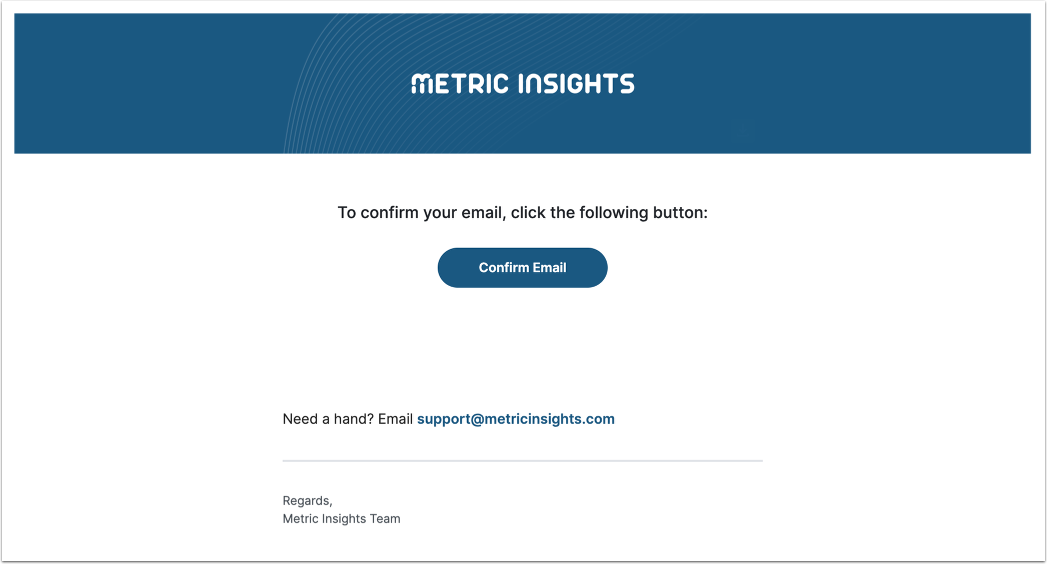
Check the inbox of the provided email address. Open the confirmation email and [Confirm Email]
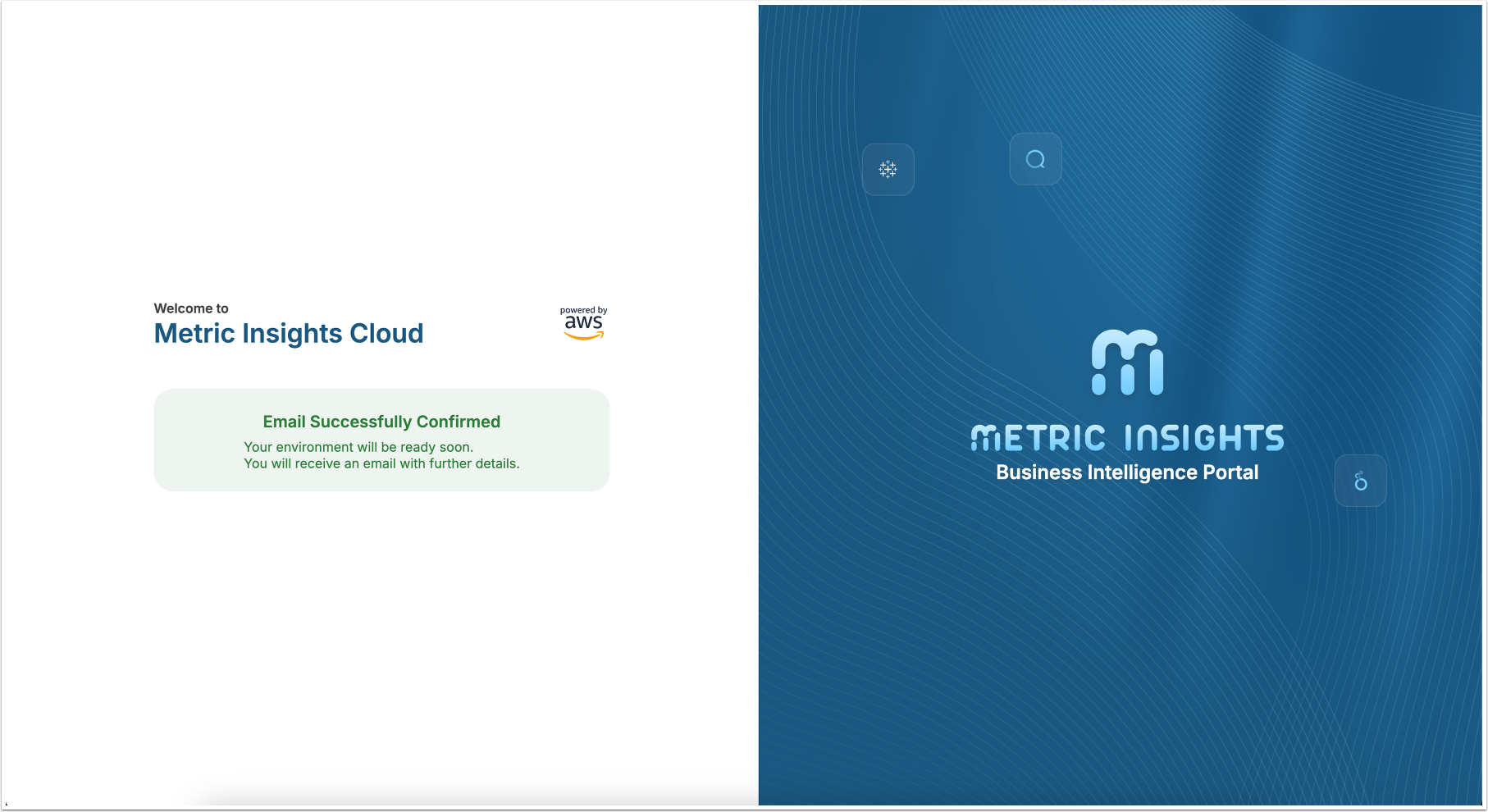
After the email is confirmed, the Metric Insights team will begin preparing the application environment.
6. Verify Environment Details
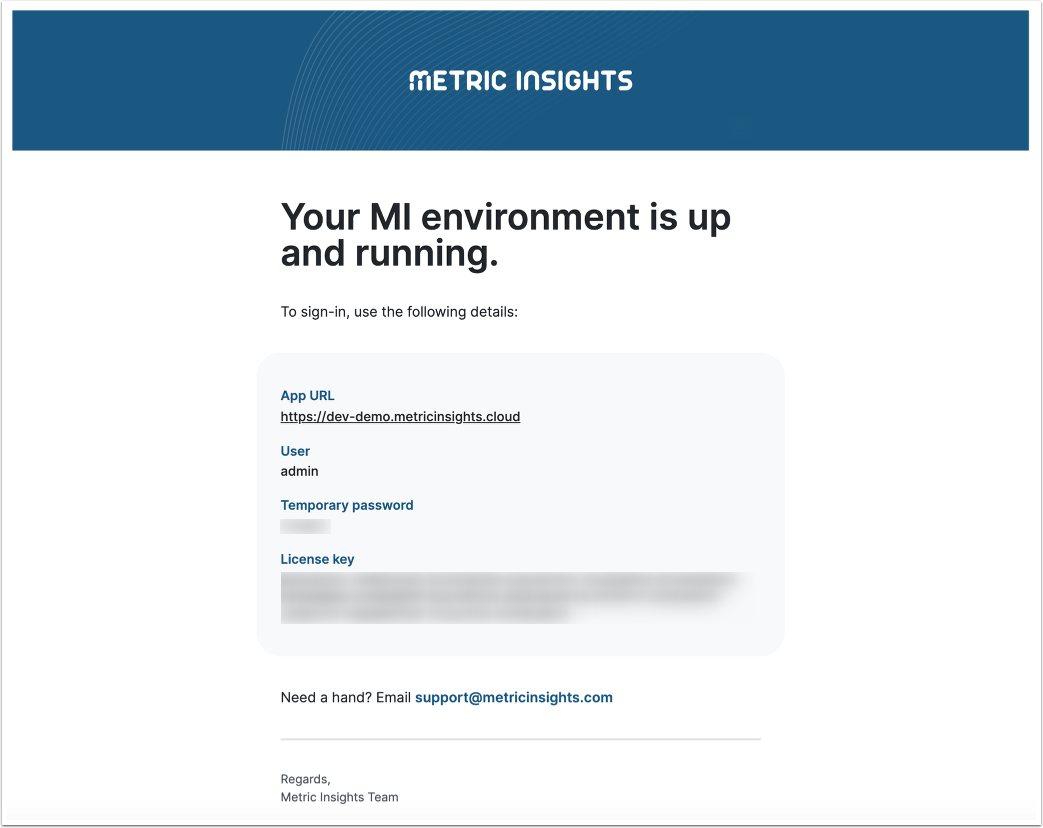
Once the Metric Insights team has prepared the environment, an email containing environment details will be sent. Navigate to the App URL and log in with the provided credentials.