BETA FEATURE: BI Optimizer is a beta feature. Functionality, configuration steps, and supported options are subject to change as the feature evolves.
IMPORTANT: Configuring Power BI User Permissions and Groups to Users requires the Microsoft Graph Tenant.Read.All, Group.Read.All, and User.ReadBasic.All permissions.
This article is intended for Azure administrators who set up the corresponding resources in Azure Portal for Power BI User Permissions and Groups to Users objects collection. Additional authentication-specific Azure setup steps are described in the prerequisite articles referenced below.
The process includes the following steps:
- Grant Tenant.Read.All, Group.Read.All, and User.ReadBasic.All permissions.
- Share Azure application details required for the selected Power BI authentication method with your organization's Metric Insights administrator.
- Metric Insights administrator will use these details to configure Power BI Data Source in Metric Insights for User Permissions and Groups to Users object collection.
PREREQUISITES:
- Ensure Prerequisites for Connecting to Microsoft Power BI Cloud are met for your selected Power BI authentication type.
- This includes the configuration referenced in the article above for the following auth types:
- Service Principal;
- OAuth (Create an App for Use in Azure AD and Grant Required Power BI Permissions to Service Account);
- Password (described in the Prerequisites for Connecting to Microsoft Power BI Cloud article).
- This includes the configuration referenced in the article above for the following auth types:
- The Azure application configured for the selected authentication type is the same Azure application used in this article.
1. Grant Group.Read.All and User.ReadBasic.All Permissions
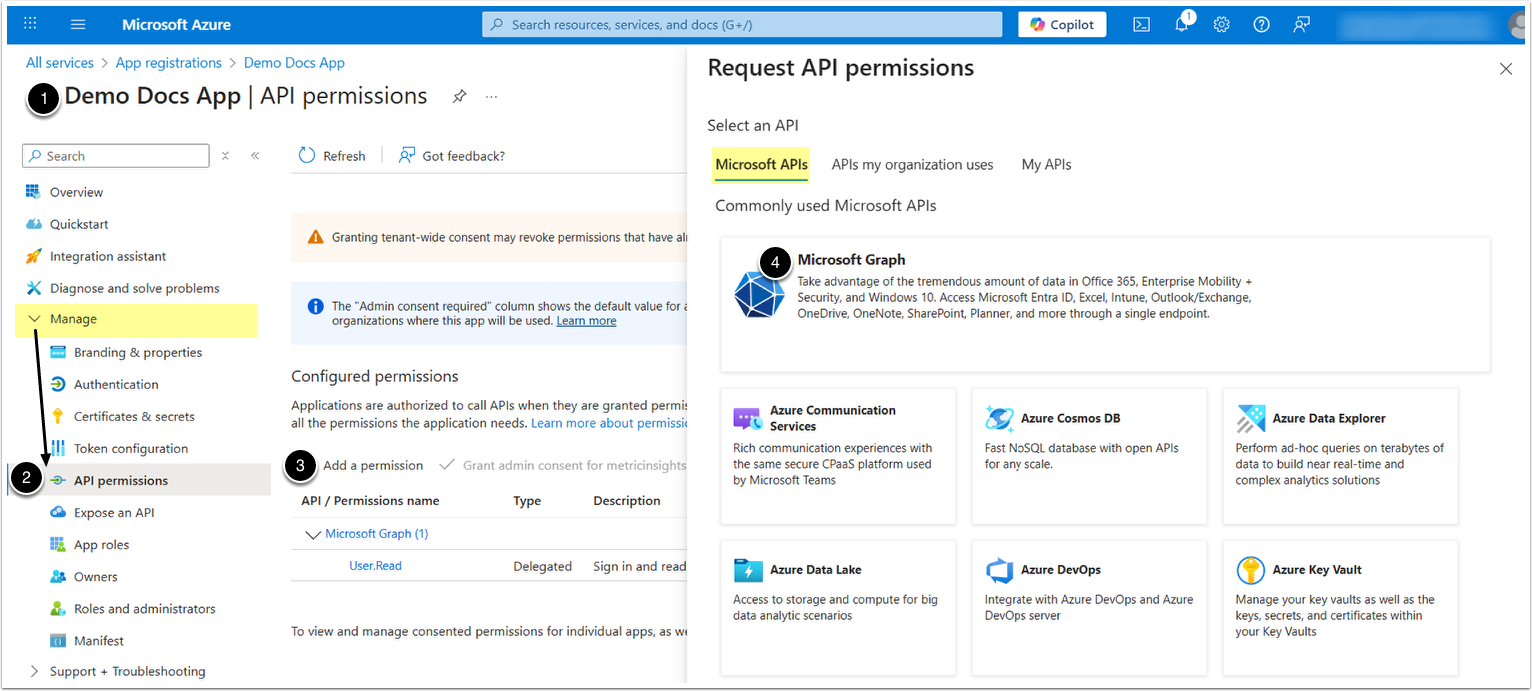
- From Azure portal, access your app that has been configured according to the PREREQUISITES section of this article.
- Under Manage, select API permissions.
- [+Add a permission]
- Under Microsoft APIs, proceed with Microsoft Graph.
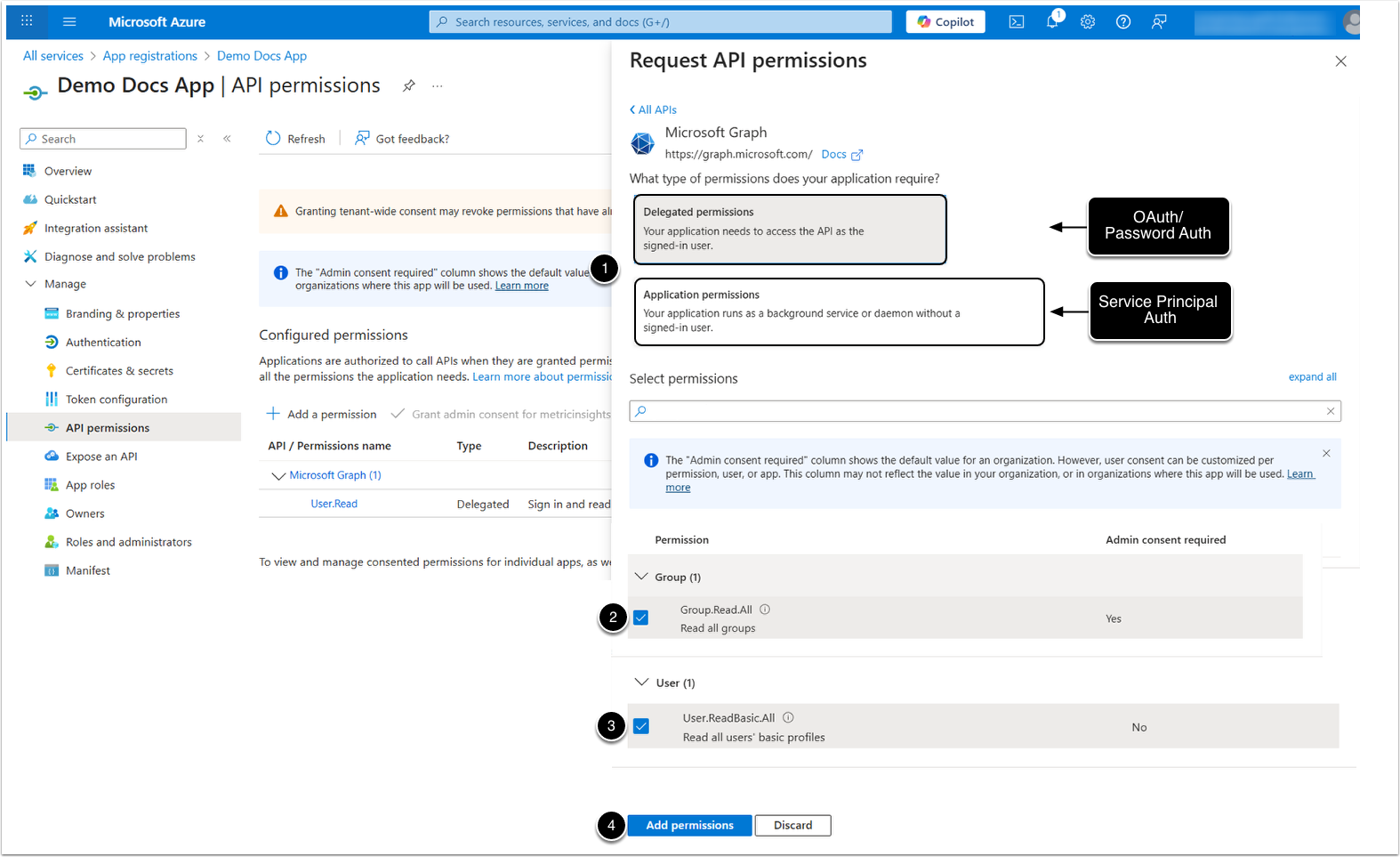
- Depending on your Auth type, select the corresponding type of permissions:
- OAuth/Password Auth: Delegated permissions.
- Service Principal: Application permissions.
- Add Group.Read.All.
- Add User.ReadBasic.All.
- [Add permissions]
2. Grant Tenant.Read.All Permission
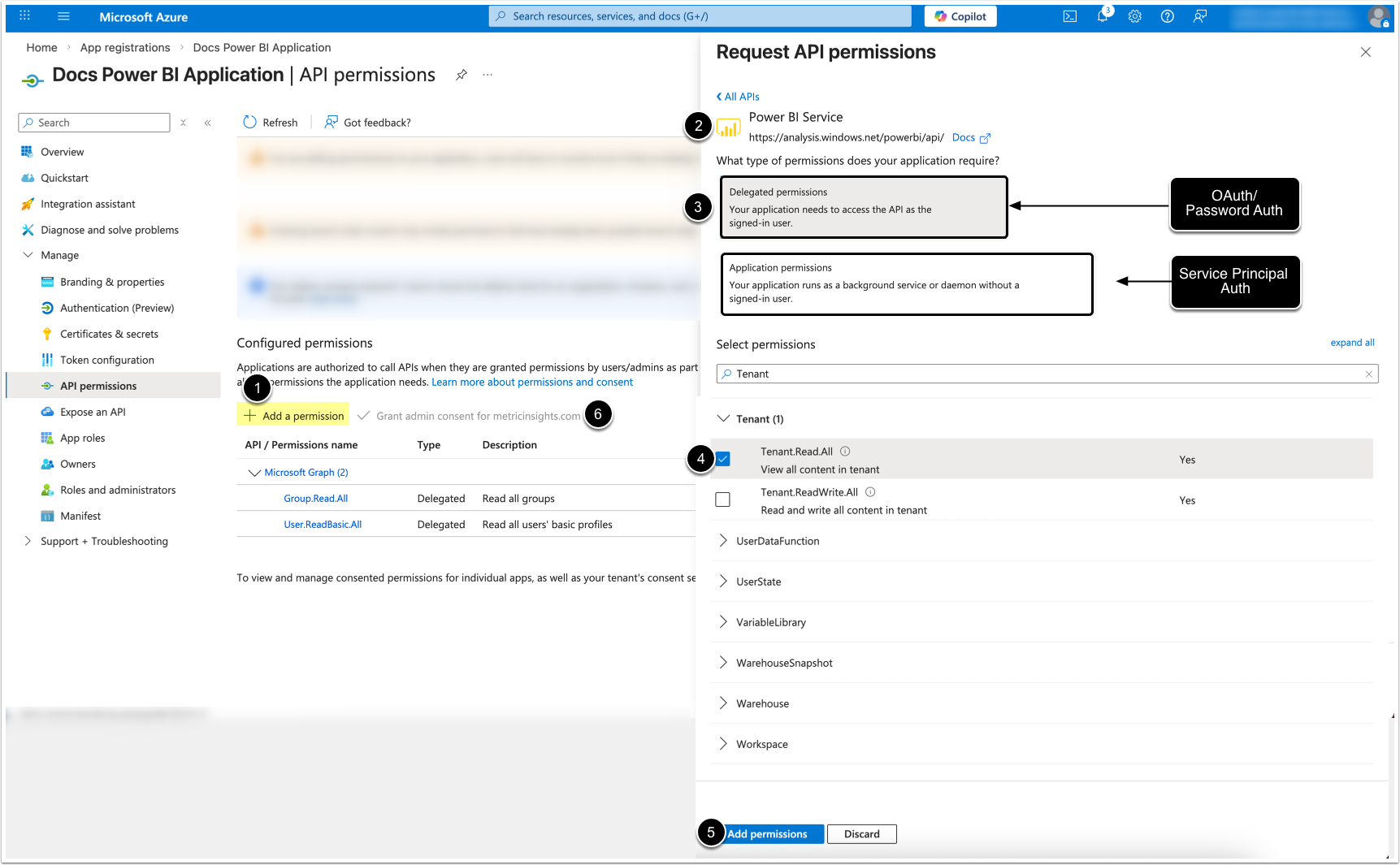
- [ + Add a permission]
- Scroll to and select Power BI Service.
- Depending on your Auth type, select the corresponding type of permissions:
- OAuth/Password Auth: Delegated permissions.
- Service Principal: Application permissions.
- Under "Tenant", find and check Tenant.Read.All.
- [Add permissions]
- [Grant admin consent]
3. Copy and Share Azure App Credentials with Metric Insights Administrator
Once you have finished the Azure app configuration, access this app's Overview tab.
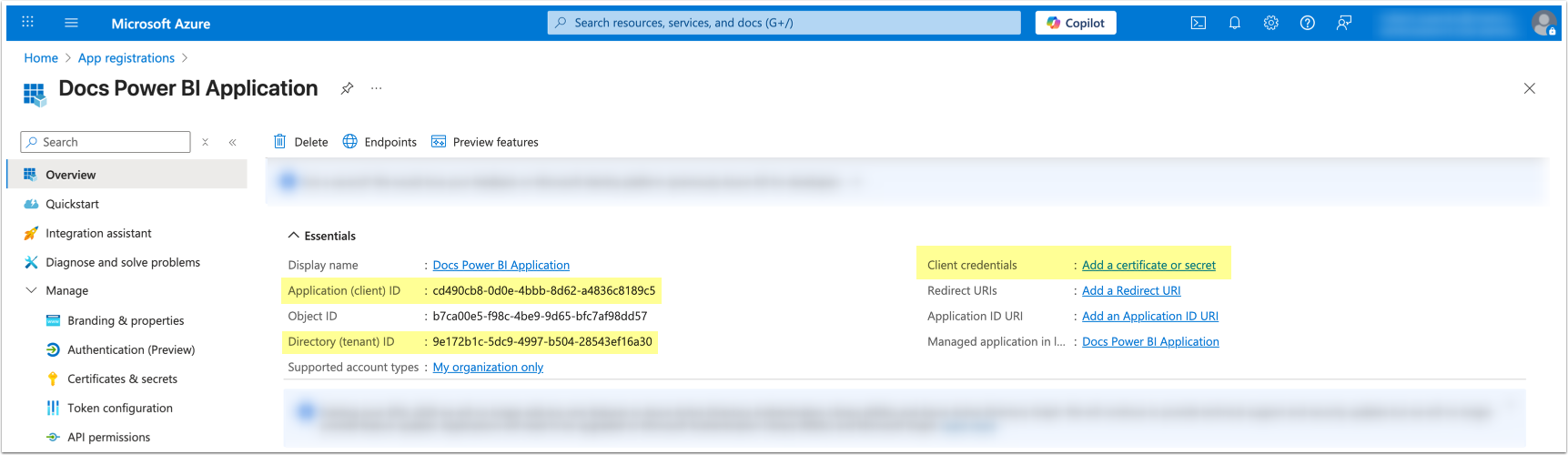
Depending on the selected Power BI authentication method for the MI Data Source, you may need to share the following credentials with your organization's MI admin:
- Service Principal:
- Application (client) ID: For Application ID of the MI Data Source.
- Directory (tenant) ID: For Directory (tenant) Id of the MI Data Source.
- Client Secret Value: For Client Secret of the MI Data Source.
- See Add Client Secret for details on creating a Client Secret and obtaining its value for Service Principal.
- OAuth:
- Application (client) ID: For Application ID of the MI Data Source.
- Directory (tenant) ID: For Directory (tenant) Id of the MI Data Source.
- Optionally: Client Secret Value: For Client Secret of the MI Data Source.
- See Add a Client Secret for details on creating a Client Secret and obtaining its value for OAuth.
- Password:
- Application (client) ID: For Application ID of the MI Data Source.