Beginning in v7.1.0, MI verifies the mail server's SSL/TLS certificate before sending emails. This requires additional configuration if:
- You use a self-signed certificate (where the internal Certificate Authority (CA) is not trusted by the MI server).
- You use a mail relay where the relay name does not match the mail server's name in the SSL certificate.
This article describes certificate configuration to ensure the web container can trust the mail server certificate and successfully send emails.
- See Setup Email for details on configuring System Variables for sending emails.
Table of contents:
NOTE: Although this article uses mail server certificates as its example, the same procedure (placing a .crt file (PEM format) in /opt/mi/ssl/ca-certificates/web/ inside the web container and restarting it) is the general mechanism Metric Insights uses to trust any external service's certificate authority (CA), not just a mail server's. Use it whenever MI needs to trust a self-signed or internally-issued certificate presented by an external service it connects to (for example, an LDAP directory, an SSO/OIDC identity provider, or a plugin/data source endpoint). For details on configuring the MI web server's own SSL certificate, see Set up Web SSL Certificate for Metric Insights.
1. Download Root and Intermediate Certificates from Mail Server
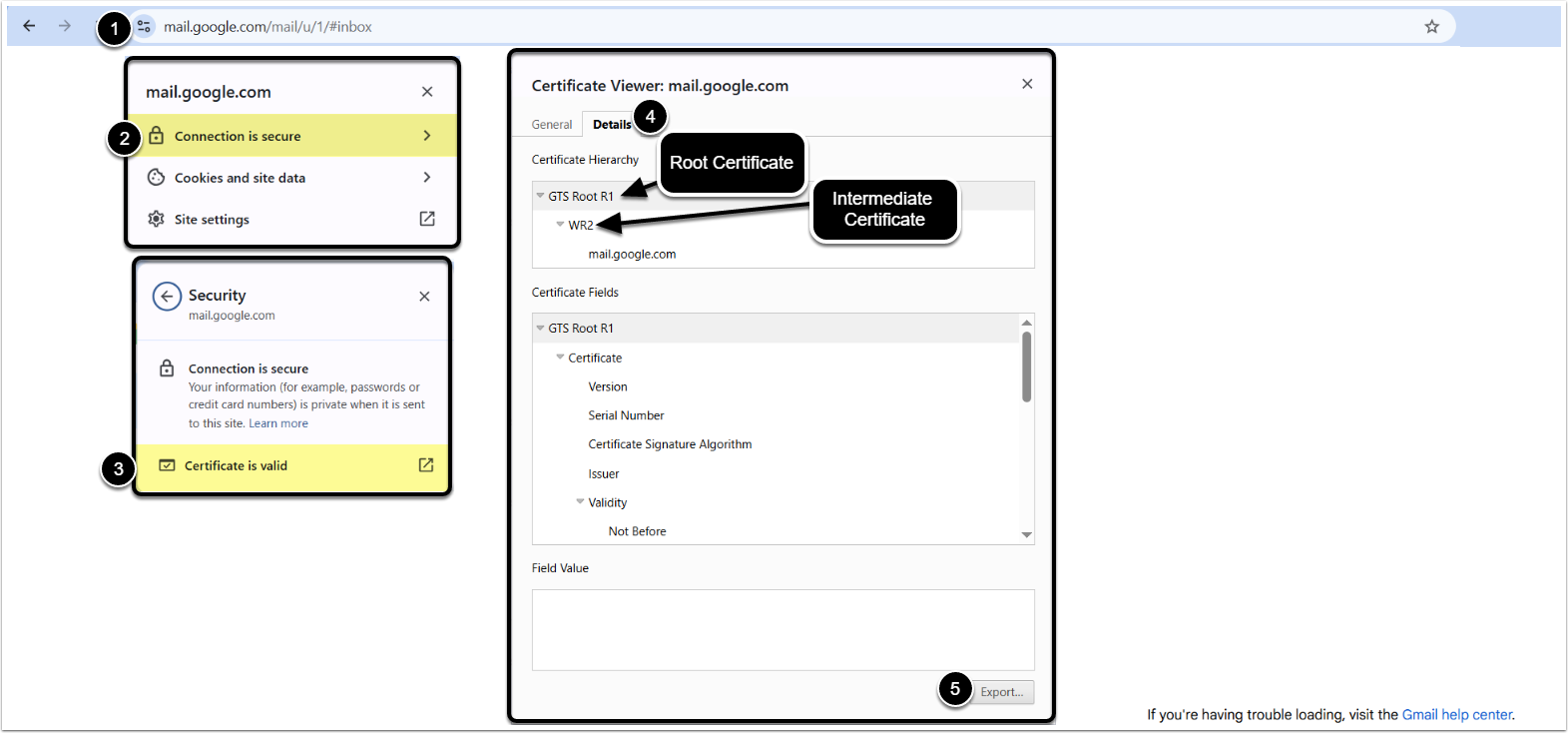
- Access your mail server, click [View site information] near the address bar
- [Show connection details]
- [Show certificate]
- [Details]
- [Export] both Root and Intermediate certificates
2. Combine Intermediate and Root Certificates
Access the command line, then concatenate the previously exported certificates into one file.
- NOTE: Place the intermediate certificate first, followed by the root certificate.
cat Intermediate_CA.pem Root_CA.pem > Root_CA_Inter_TLS.pemThis creates a combined certificate file named Root_CA_Inter_TLS.pem.
3. Place Combined Certificate in the Web Container
- Access the certificate directory inside the
webcontainer:
cd /opt/mi/ssl/ca-certificates/web- Remove any unused or miscellaneous certificates, keeping only the combined certificate file you just created.
4. Change File Extension of Combined Certificate
Change the combined certificate file's extension to .crt:
mv Root_CA_Inter_TLS.pem Root_CA_Inter_TLS.crt5. Restart Web Container
After making these changes, restart the web container to apply the updated certificates:
restart webOnce restarted, test email sending again.
- See Troubleshooting Mail Server Certificates for details on determining the missing certificates.
- For other tips on email troubleshooting, see Troubleshooting Email Connectivity - Sending Emails.
Troubleshooting Mail Server Certificates
Run the following command inside the web container to inspect the certificate chain:
openssl s_client -starttls smtp -crlf -connect <mail_host>:25This command will display the certificate chain and reveal any missing intermediate certificates.