Beginning in v7.2.2, Metric Insights supports login with 2FA: an optional, instance-wide, second authentication factor for local-password and LDAP logins. When enabled, a correct password no longer establishes a session on its own. Metric Insights generates a 6-digit code, emails it to the user's registered address, and requires the user to enter the code to complete login. A compromised or shared password is not enough on its own to access the account.
Single Sign-on logins are never challenged; an external identity provider already controls authentication for those users. A System Administrator configures Login with 2FA, and the setting applies to the whole instance.
Email 2FA depends on working email delivery and carries a real lockout risk if misconfigured. Read the Prerequisites section and the Verification section before enabling Login with 2FA in a production environment.
PREREQUISITES:
- Access to Admin > System > System Variables;
- A working email server (SMTP or Graph API);
- A current, correct email address for every password and LDAP user who must log in.
Table of Contents
1. Understanding Email 2FA
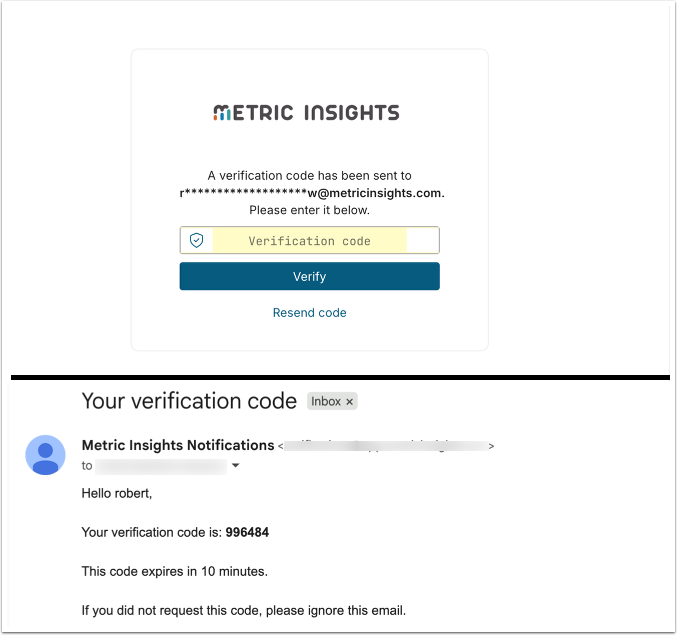
With email 2FA turned on, every successful password validation (local password or LDAP) triggers a second step instead of an immediate session. Metric Insights generates a single-use 6-digit numeric code, emails it to the address on the user's profile, and presents a code-entry step on the login page. The session is established only after the correct code is entered before it expires.
The code-entry step offers a [Resend code] option, rate-limited to a 60-second cooldown so it cannot be used to flood a mailbox. The code is required on every login: there is no "remember this device" or trusted-browser bypass.
NOTE: SSO users skip the code step entirely, regardless of the toggle. These methods are already governed by the external identity provider, so email 2FA does not apply to them.
Warning: Email 2FA protects interactive browser logins only. REST API and token-based authentication (API tokens, Bearer tokens) are NOT challenged by 2FA. Revoking a user's email does not invalidate existing API tokens or programmatic access on the same username and credentials.
2. Prerequisites
Because a broken configuration can lock out every password-based user, including the administrator who enables the feature, verify all of the following BEFORE setting ENABLE_EMAIL_2FA to Y:
- The Email Server card shows connected on the Status Monitor page (SMTP or Graph API). Metric Insights currently does not automatically block saving
ENABLE_EMAIL_2FA=Ywhile email is broken, so this is a manual check the administrator must perform. - Every local-password and LDAP user who will log in has a current, correct email address in their user profile. LDAP-synced addresses can go stale, and there is no bypass or fallback if a user's email is missing or incorrect.
- The environment actually sends email. Do not enable 2FA in a dev or staging instance where email notifications are globally disabled or the mail server is intentionally invalid; the code will never arrive and there is no trusted-device bypass to recover.
Warning: Email delivery is a hard dependency for login. If email breaks after 2FA is enabled, or if a code is spam-filtered or never received, affected users cannot complete login. Recovery requires SSH access to the MI server to set the variable back. See Troubleshooting for details.
3. Configure the 2FA System Variables
Access Admin > System > System Variables
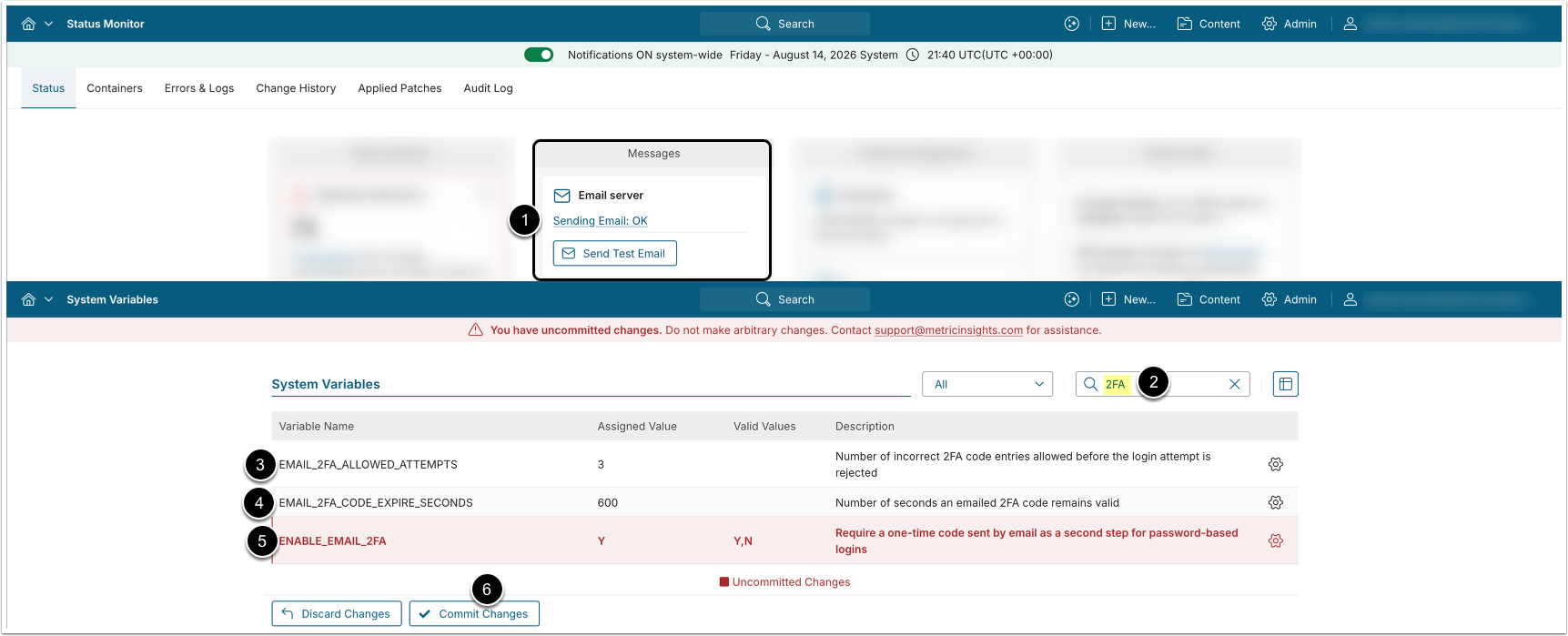
- Confirm the Email Server card shows connected on the Status Monitor page (see Prerequisites).
- Go to Admin >System > System Variables and search for or filter to the 2FA variables.
EMAIL_2FA_ALLOWED_ATTEMPTS: Controls how many incorrect code entries are allowed before the challenge is rejected and the user must restart from the password step.- The default is
3. Exceeding this limit also counts toward the existingFAILED_LOGIN_ALLOWED_ATTEMPTSaccount-lockout threshold.
- The default is
EMAIL_2FA_CODE_EXPIRE_SECONDS: Controls how many seconds an emailed code remains valid before it expires.- The default is
600(10 minutes), and the accepted range is 60 to 600 seconds. After a code expires, the user sees "Challenge expired. Please log in again." and must restart login.
- The default is
-
ENABLE_EMAIL_2FA: Set toYto require an emailed one-time code as a second step for local-password and LDAP logins.- Set to
Nto leave the login flow unchanged for all authentication methods. Allowed values areYandN; the default isN. This is an instance-wide setting.
- Set to
- [Save] and [Commit Changes]
4. Verify the Setup
Before relying on 2FA in production, test the full login flow end-to-end with a real password or LDAP test user:
- Confirm the Email Server card shows connected on the Status Monitor page.
- Verify the test user's profile has a current, correct email address.
- Open the login page and enter the test user's correct credentials.
- Confirm the code-entry step appears and a 6-digit code arrives at the user's email within the expiration window.
- Enter the code and confirm the start page opens.
- Log out and log back in to confirm the code is required again on every login.
NOTE: Entering wrong credentials shows "Invalid credentials." and never reaches the code step. If the code does not arrive, click [Resend code] (limited to one request per 60 seconds) and re-check email server connectivity and the user's email address.
5. Troubleshooting
The Prerequisites section above catches the most common lockout risk: enabling 2FA while email is already broken. It does not cover every way email 2FA can fail once it is already on. This section covers the other common scenarios:
The mail server was fine at setup, but breaks later. Metric Insights currently only checks that the Email Server is connected at the moment you test the setup and does not keep re-checking delivery once 2FA is on. If the mail server goes down, is misconfigured, or the code email starts landing in spam after that point, users stop receiving codes and cannot complete login even though ENABLE_EMAIL_2FA is still Y. Monitor the Email Server card on the Status Monitor page on an ongoing basis, not just before enabling 2FA.
Email configuration changes after setup. If SMTP/Graph API settings, credentials, or the sending domain change after 2FA has already been enabled, the same silent-failure risk applies: the login-time code is queued for delivery asynchronously, so a broken mail server raises no error at the moment of login. Re-check the Email Server card any time email configuration changes on an instance that has 2FA enabled.
A production backup is restored into a dev or staging environment. Dev and staging instances commonly have email notifications globally disabled or an intentionally invalid mail server. If a backup taken from an instance with ENABLE_EMAIL_2FA = Y is restored into one of these environments, the restored instance carries the 2FA-enabled state into an environment that cannot deliver codes, and every password-based login is blocked immediately. Check ENABLE_EMAIL_2FA and Email Server connectivity as a standard step after any backup restore.

Disabling notifications instance-wide also blocks 2FA codes. The Notifications ON/OFF system-wide switch on the Status Monitor page controls whether any queued email is sent, and the 2FA code goes through that same queue. With it switched OFF, 2FA codes are generated but never delivered, and affected users cannot complete login. Before enabling ENABLE_EMAIL_2FA, confirm this switch is ON and treat any environment where it's OFF (common in dev/staging) as unsafe for 2FA.
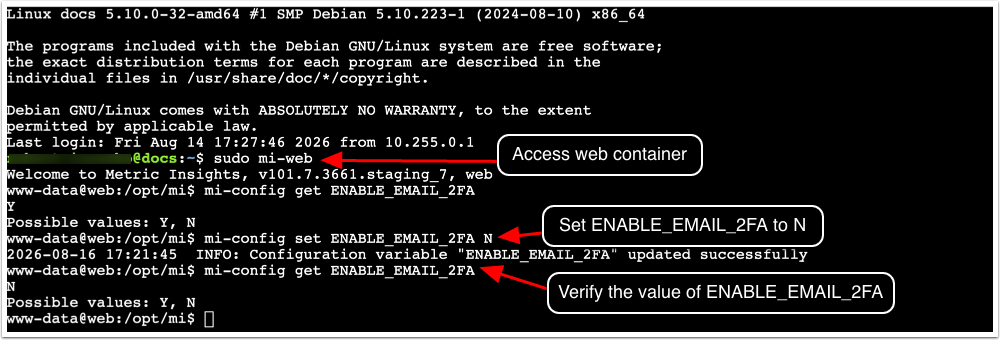
Recovering an instance where 2FA has locked out every user. If ENABLE_EMAIL_2FA = Y and no password-based user can complete login because codes aren't arriving, the variable has to be reset from outside the System Variables menu on the UI. An admin with SSH access to the MI server can do this with the mi-config CLI tool: mi-config set ENABLE_EMAIL_2FA N updates the variable and regenerates the constants file automatically, so the change takes effect immediately without going through the web UI. See Configure System Variables Using mi-config CLI Tool for the full procedure. If you don't have server access yourself, contact Metric Insights Support with the affected instance's details.