In Metric Insights, Apps are private by default, meaning that until you share an App, only its editors and Admins can open it. The Sharing tab controls which Users and Groups can view the App, whether it serves as a User's Start Page (web and mobile), which User types see it in their navigation bar, and the message shown to users who don't have access.
This article covers three ways to manage who can access an App:
- Share the App directly: Add Groups and Users on the App's Sharing tab.
- Share from a Group or User Editor: Grant access from the user/group side.
- Inherit access from another App: Reuse another App's access rules.
Restricting App Access
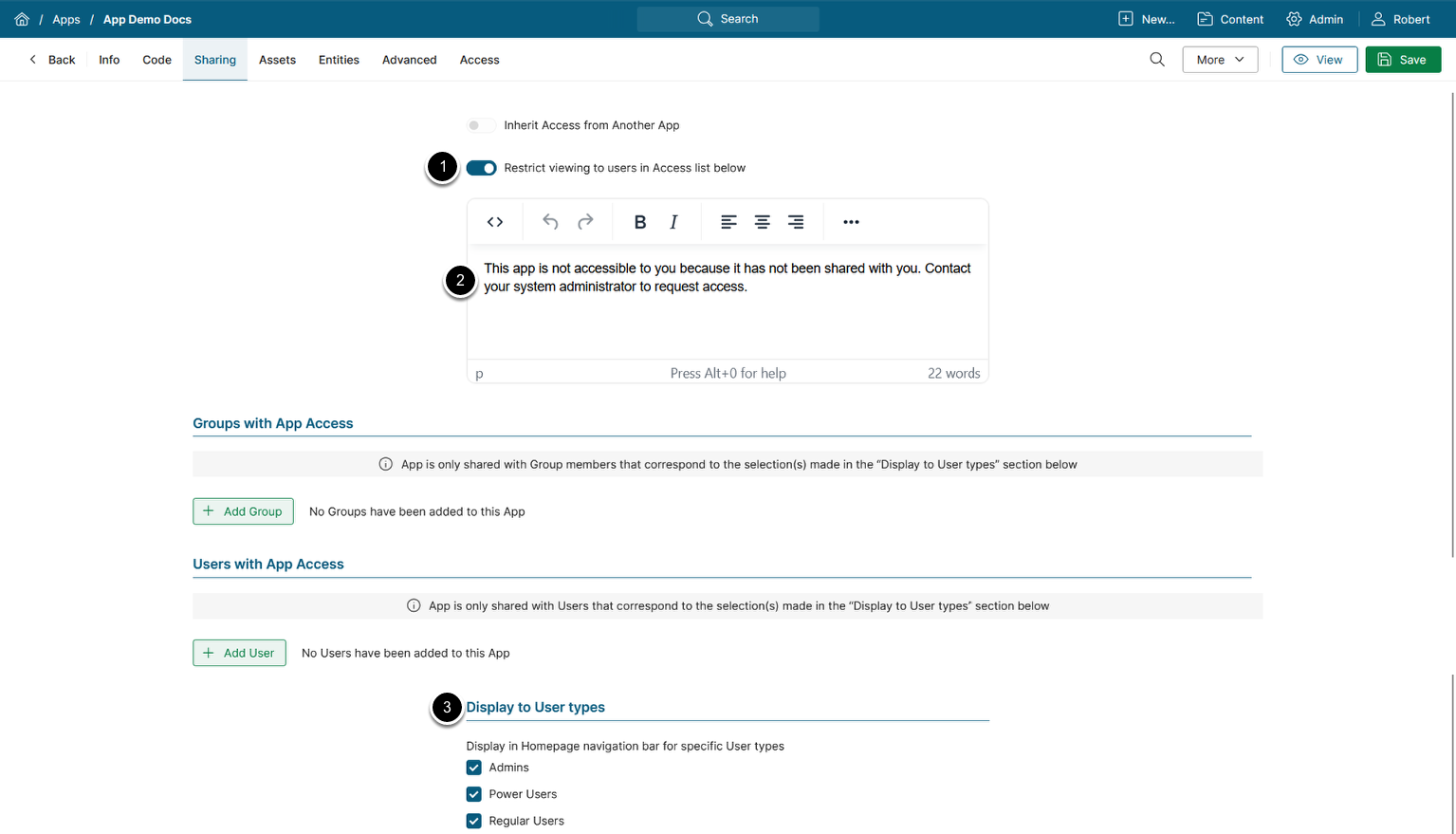
- The access restriction toggle is enabled by default, meaning that the User who:
- is not in share Access list (specified below), AND
- does not have edit access to the App, AND
- is not Admin
- Will see the Access Denied message that can be customized.
- Optionally, specify which User types will see the App in their navigation bar.
For more information on App security, refer to the Granting User Access to a Portal Page article.
1. Share an App Directly from its Sharing Tab
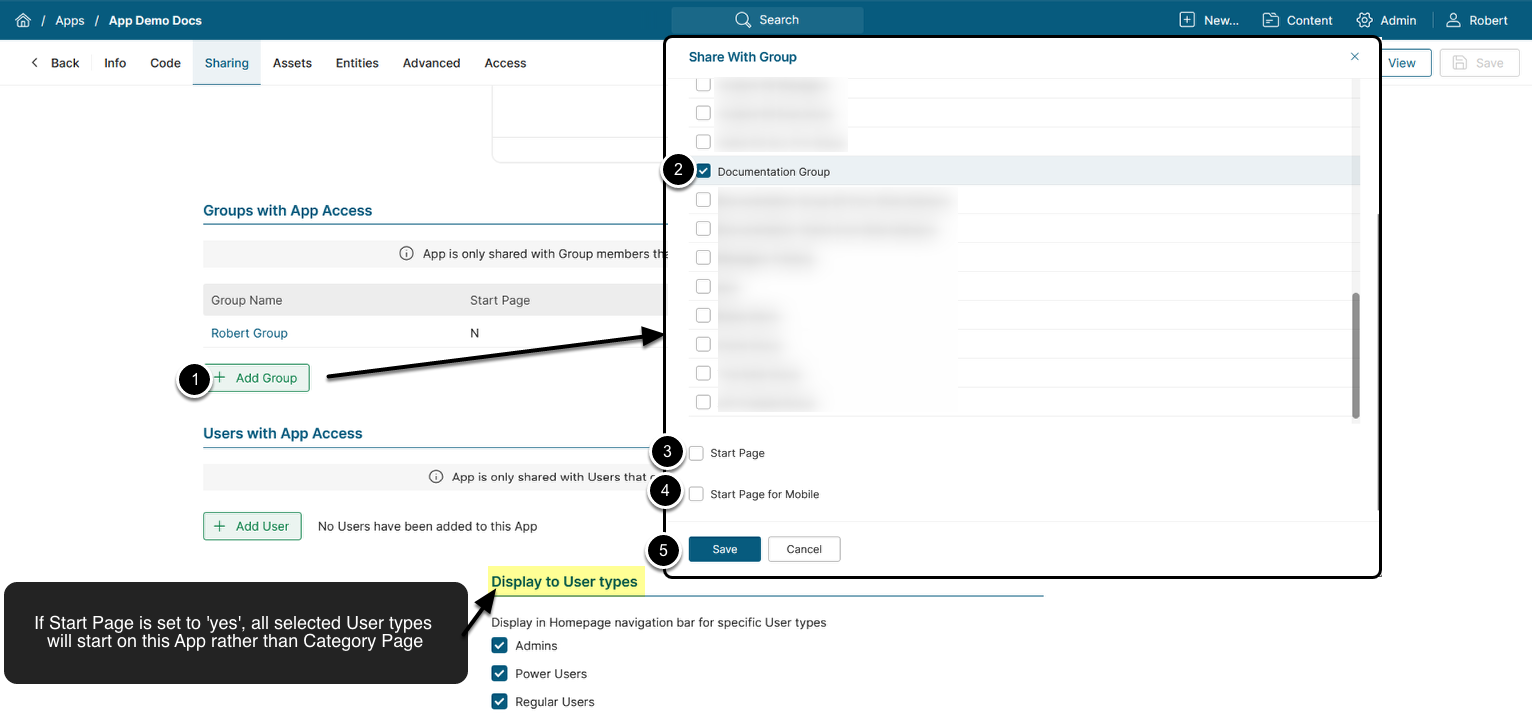
- [Add Group/User]
- Select Group/User
- Specify if the App will display when the User initially signs on to Metric Insights.
- Specify if the App will display when the User initially signs on to Metric Insights via the mobile app.
- [Save]
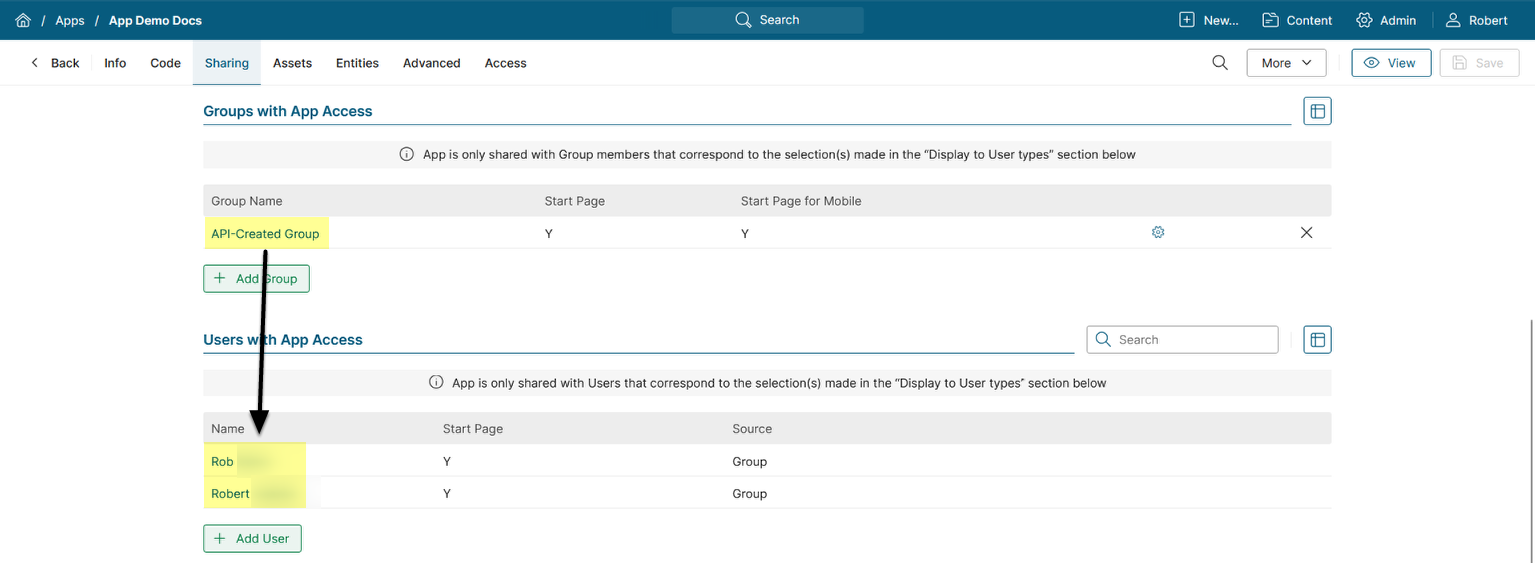
For each Group chosen from the drop-down, all Group members inherit App Access.
2. Share Apps from a Group or User Editor
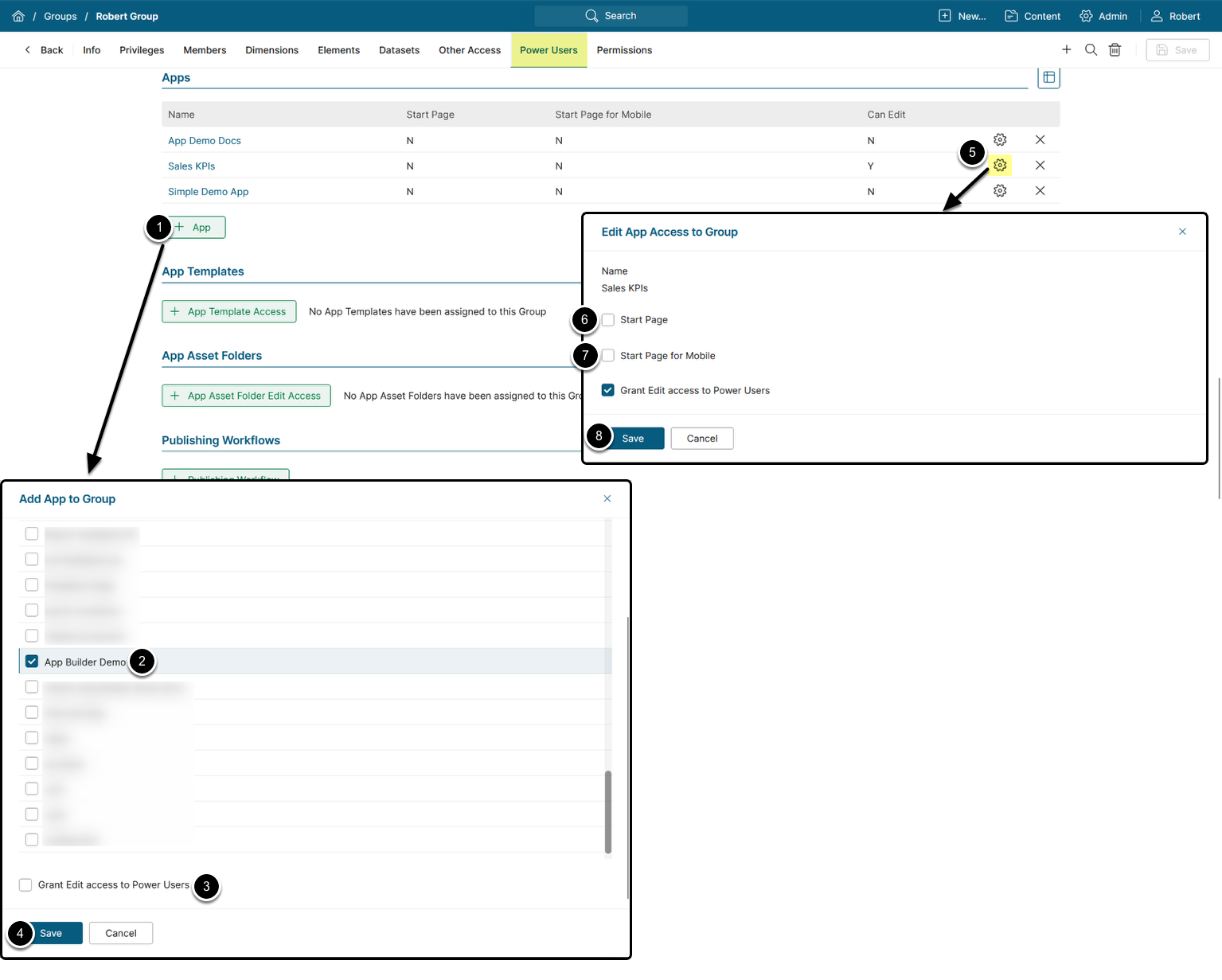
Access the Apps section on the Power Users tab on either the Group or User Editors. For Regular Users, access the Other Access tab.
- [+ App for Group/User]
- Select App from the drop-down.
- Specify whether to grant edit access for Power Users.
- [Save]
- Click on the gear icon near the App name.
- Specify whether the App is displayed to the User immediately after signing in to Metric Insights.
- Specify whether the App is displayed to the User immediately after signing in to Metric Insights via a mobile device.
- [Save]
On the User Editor, the App list shows both sharing inherited from the User's Groups and sharing assigned to the User directly:
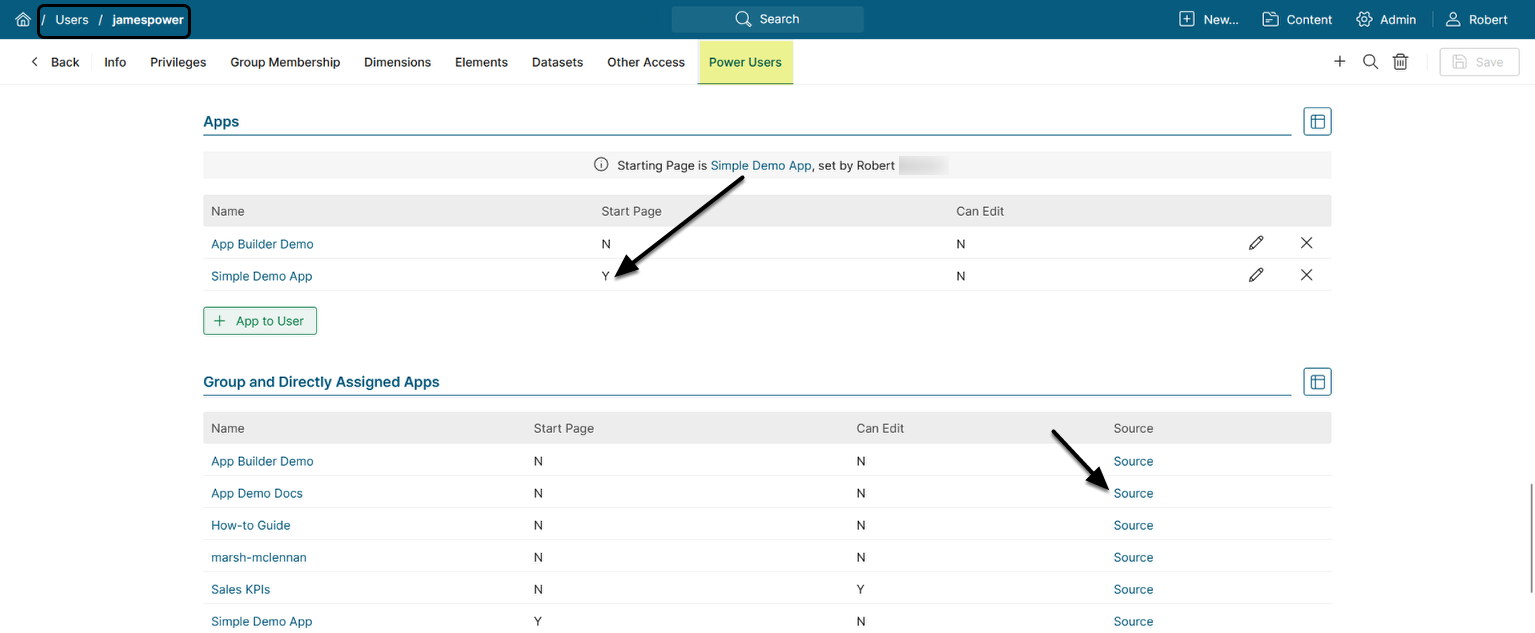
Which Start Page wins? When more than one Start Page is set, precedence is (highest first):
- The User's own choice in My Settings.
- The User Editor assignment.
- The Group or App assignment.
Once a User sets a Start Page in My Settings, it can't be overridden from the User Editor or the App. See Set Portal Page as Your Start Page.
3. Inherit Access from Another App

On the App's Sharing tab, enable Inherit Access from Another App and select the source App in the Source Access from drop-down. This App then inherits the source App's access/share rules, and any later changes to the source App's Share options apply here automatically.
Example: If App A inherits from App B, updates to App B's Share options are automatically applied to App A.
While Inherit Access is on, the restriction toggle, Access Denied message, and the share lists are hidden, since access comes from the source App.