Metric Insights has more than one way to know an External Report (or any Element) was clicked from an App. The applicable method depends on how the External Report is actually embedded. This article describes both the correct method selection and the configuration of a custom App Dataset Entity in full. App Dataset Entity is a data entity that is both writable and readable over REST directly from the App's own JavaScript, so you can log clicks and build a usage report inside the App itself, with no SQL access required. It is intended for App developers who hand-code Apps with HTML, CSS, and JavaScript.
PREREQUISITES:
- The Edit App privilege on the App whose Entities you want to configure.
- An existing App that you own or can edit.
- The App must be hand-coded (HTML, CSS, and JavaScript); the no-code App Builder has no surface for adding this kind of custom click-tracking code.
Table of contents :
1. Which Tracking Method Applies to You?
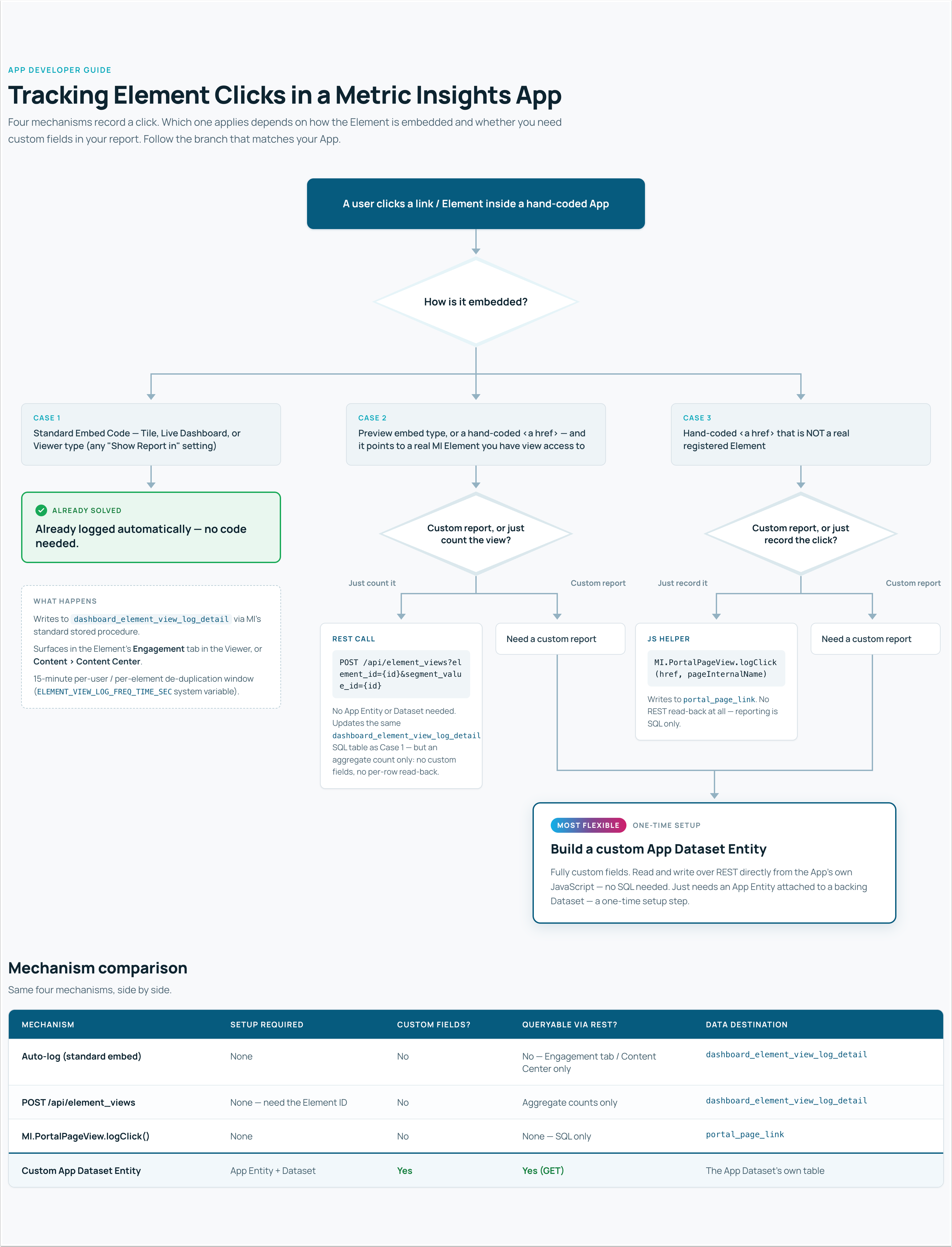
NOTE: Which mechanism applies depends on how the External Report is embedded in the App. The Element's own Show Report in setting (Viewer / External Webpage / App) does not by itself determine whether a view gets logged. Metric Insights logs a view on every load of the Viewer regardless of that setting, and the "External Webpage" click path logs explicitly before redirecting. The embed type used when the External Report was added to the App directly affects whether the view is logged.
- The report is embedded via the standard Embed Code as "Tile", "Live Dashboard", or "Viewer" (any "Show Report in" setting): Metric Insights already logs the view automatically; no custom tracking is needed.
- Check the Element's Engagement tab in the Viewer, or Content > Content Center, to confirm.
- The report is embedded via the "Preview" embed type, or hand-coded, and the link points to a real Metric Insights Element you have view access to (you know its Element ID and, if segmented, its Segment Value ID). You just want the click to count as a normal Engagement view: Call
POST /api/element_views?element_id={elementId}&segment_value_id={segmentValueId}from the App's JavaScript (credentials: 'include'to use the logged-in session). This is the simplest option with no App Entity or Dataset required. It writes into the exact same Engagement data as case 1.- It only increments a view count for that Element, with no REST read-back of individual click rows (only aggregate counts, self-scoped to the calling user, via a plain
GET;PUT/DELETEare not supported on this endpoint).
- It only increments a view count for that Element, with no REST read-back of individual click rows (only aggregate counts, self-scoped to the calling user, via a plain
- The link is hand-coded and isn't a real registered Element (an arbitrary external URL with no Element ID), or you do not need it in Engagement reporting specifically and just want to record that it was clicked: Use the built-in
MI.PortalPageView.logClick()instead. See How Do I Track Usage of a Portal Page for configuration details.- No App Entity or Dataset is required, but the logged data (
portal_page_link) has no REST read-back; querying it back needs direct SQL access to thedashboarddatabase.
- No App Entity or Dataset is required, but the logged data (
- You want a usage report built inside the App itself, queryable over REST with no SQL access, with your own custom fields: Cases 1 to 3 only tell you whether Metric Insights already counts the click as a view. If you need the click data as your own reportable Dataset (individual rows, custom fields, editable or deletable rows, or cross-user access without SQL), follow the rest of this article to build a custom App Dataset Entity.
NOTE: There is a 15-minute de-duplication window per user/element on all of the above, so rapid repeat test clicks will not each show up as a separate view.
Tip: Not sure which case you're in? Open the App's Code tab (or view source on the rendered page) and look for the link or iframe pointing at the report:
<iframe src="/service/iframe/index/type/tile/...">,.../type/viewer/..., or.../type/live_dashboard/...indicate case 1, already logged.<iframe src="/service/iframe/index/type/preview/...">, or a plain<a href="...">that points to a real MI Element URL indicates case 2 if you just need it in Engagement, or case 4 if you want a custom report.- A plain
<a href="...">to an arbitrary external URL with no Element behind it indicates case 3 if you just need the click recorded, or case 4 for a custom report.
2. Create an App Dataset Entity
Access App > Entities tab
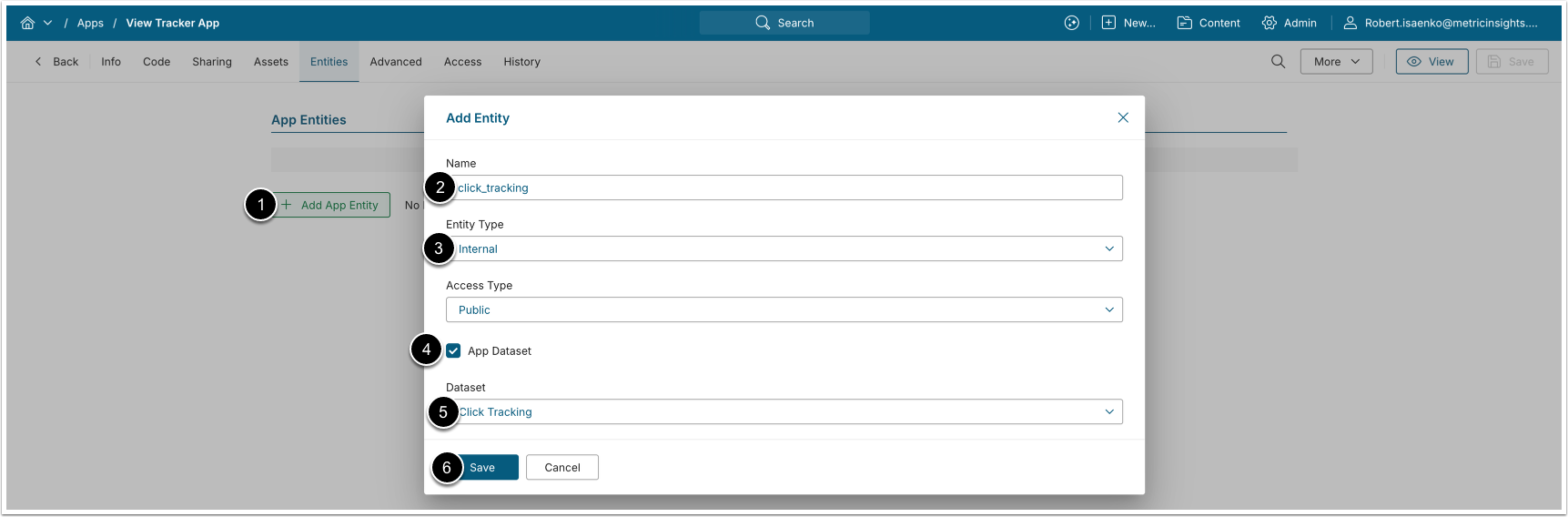
IMPORTANT: An App Dataset entity does not create its own backing Dataset. Attach an existing Dataset when you save the Entity. Create an empty Dataset to back this entity: access Content > Datasets > [+ New Dataset] and save without uploading any data. Its columns are added automatically as you insert rows later.
- [+ Add App Entity]
- Name: Enter an Entity name, for example
click_tracking. - Entity Type: Internal.
- Activate the Is App Dataset checkbox.
- In the Dataset field that now appears, select the Dataset you created in step 1.
- [Save]
3. Log Element Clicks Into the App Dataset
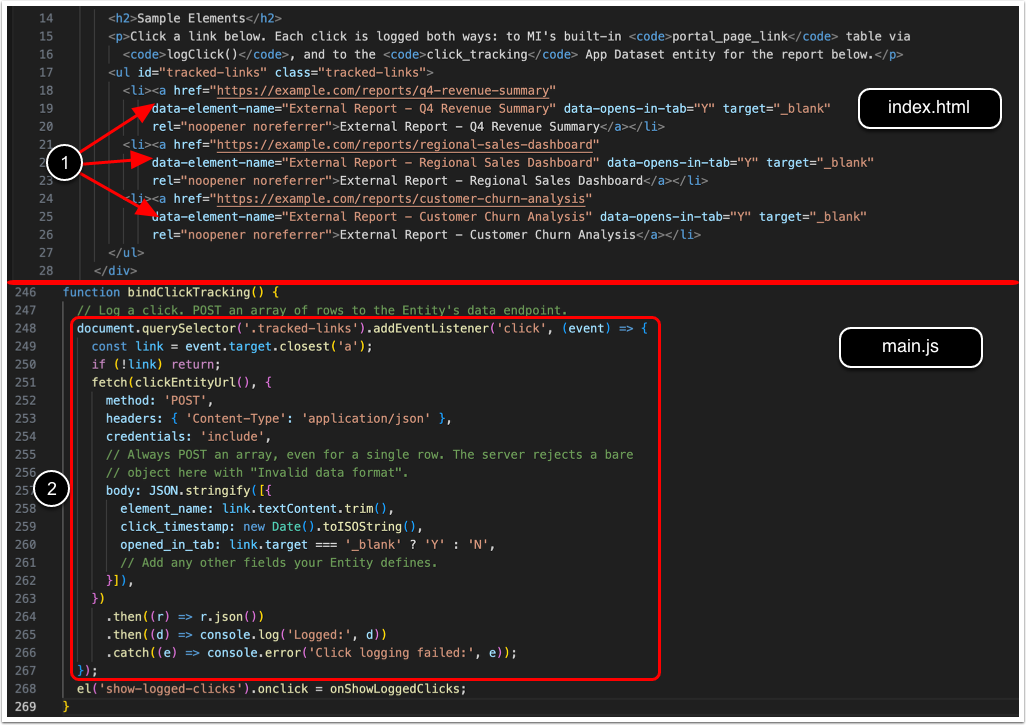
- Bind a single click handler to a container selector, not one handler per link, so any current or future link inside it is tracked automatically. Source the values you want to log however suits your own code:
<ul class="tracked-links">
  <li>
    <a href="https://example.com/reports/q4-revenue-summary"
       target="_blank" rel="noopener noreferrer">
      External Report - Q4 Revenue Summary
    </a>
  </li>
</ul>- Replace
{appName}with the App's "Name used in URL" (not its numeric ID) and{entityName}with the Entity name defined above. Do not include auser_idfield; the server stamps the owner automatically from the logged-in session.
// Log a click. POST an array of rows to the Entity's data endpoint.
document.querySelector('.tracked-links').addEventListener('click', (event) => {
  const link = event.target.closest('a');
  if (!link) return;
  fetch('/data/page/{appName}/{entityName}', {
    method: 'POST',
    headers: { 'Content-Type': 'application/json' },
    credentials: 'include',
    // Always POST an array, even for a single row. The server rejects a bare
    // object here with "Invalid data format".
    body: JSON.stringify([{
      element_name: link.textContent.trim(),
      click_timestamp: new Date().toISOString(),
      opened_in_tab: link.target === '_blank' ? 'Y' : 'N',
      // Add any other fields your Entity defines.
    }]),
  })
    .then((r) => r.json())
    .then((d) => console.log('Logged:', d));
});

// Read the logged rows back with a GET to the same endpoint.
// PUT and DELETE are also supported on this endpoint.
fetch('/data/page/{appName}/{entityName}', { credentials: 'include' })
  .then((r) => r.json())
  .then((rows) => console.log('Logged clicks:', rows));
The fields you send here are exactly what you'll query back and report on in the next section. Because the App Dataset auto-detects its schema, any keys you include become columns. Send a consistent set of fields on every click so the report stays uniform, for example the Element name, a timestamp, and whether the Element opened in a new tab. The row's owner (owner_user_id) is added automatically by the server and does not need to be sent. See Overview of Apps (Portal Pages) for more on configuring App Entities generally.
Tip: This approach works regardless of how the link got there, whether hand-coded or embedded via the "Preview" type, for the cases where Metric Insights' built-in engagement logging does not already cover it (see Which Tracking Method Applies to You?). Attach the click handler to every tracked link so no interaction is missed.
4. Report on the Captured Click Data
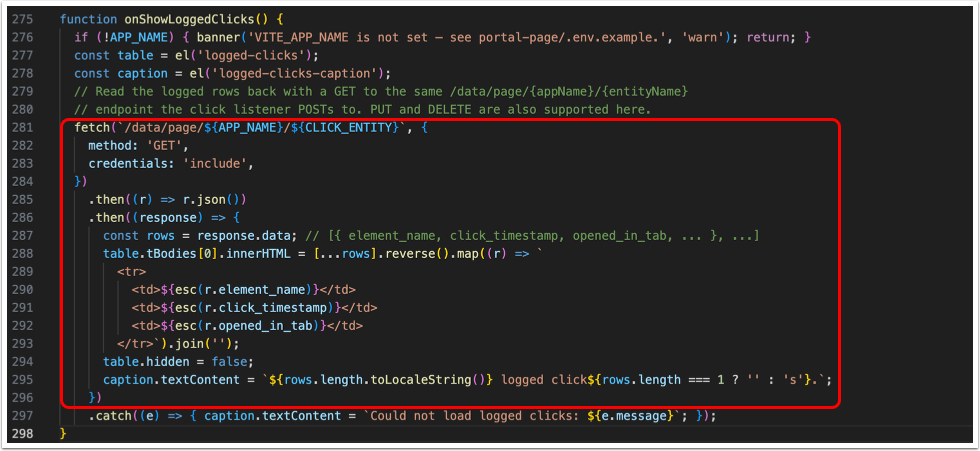
fetch('/data/page/{appName}/{entityName}', {
  method: 'GET',
  credentials: 'include'
})
.then(r => r.json())
.then((response) => {
  const rows = response.data; // [{ element_name, click_timestamp, opened_in_tab, ... }, ...]
  console.log('Usage summary:', rows);
});
The same data path also supports updating and deleting rows: send a PUT request to modify existing records and a DELETE request to remove them. Use the returned rows to render tables, charts, or aggregated usage metrics directly within the App.