In Metric Insights, Microsoft SharePoint Plugin allows Users to create External Content.
For file Plugins, such as Microsoft SharePoint and Local Filesystem, it is strongly recommended to use External Content rather than External Report. This will ensure the proper image display. Also, SharePoint Cloud doesn't support External Reports.
This article details how to create External Content to be linked to files from MS SharePoint.
PREREQUISITES:
Established connectivity to Microsoft SharePoint.
1. Add New External Content Element
Access +New > External Content
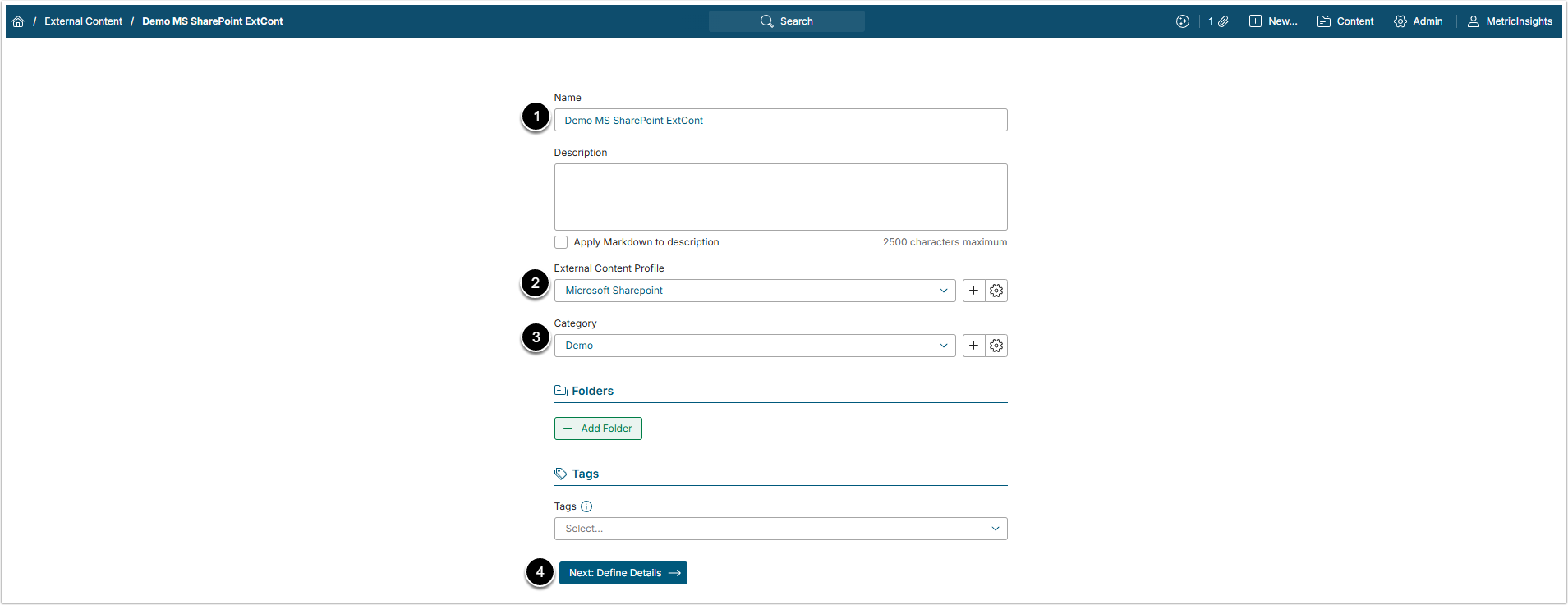
- Name: Give the External Content a descriptive name.
- External Content Profile: Choose "Microsoft SharePoint" from a drop-down menu.
- Category: Choose Category for the Element.
- [Next: Define Details]
2. Define Image Collection Details
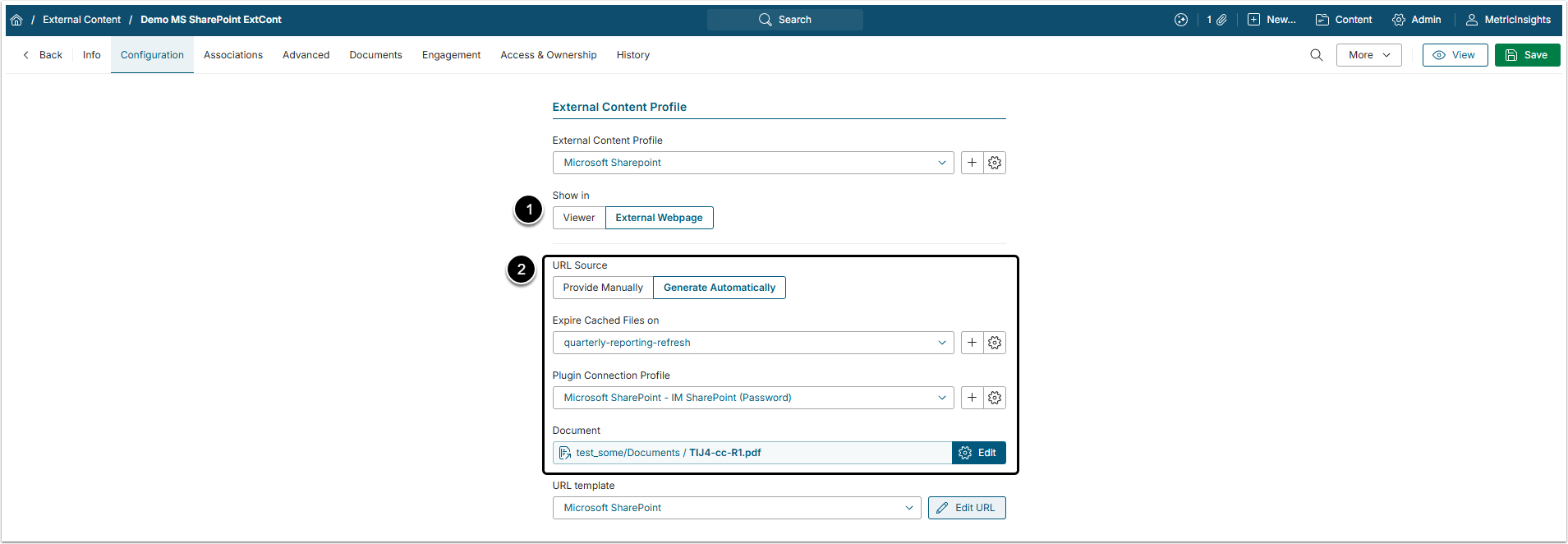
- Show in: Define how the content is shown:
- If it is set to "External Webpage", the External Content will open in SharePoint Online as a separate browser window.
- If set to "Viewer", shows options for viewing content in Metric Insights. See the capability matrix below.
- URL Source: Select Generate Automatically and configure the following additional steps as required:
- Expire Cashed Files on: Controls how long files are stored in cache after bursting. Cache clearing guarantees that users will receive the most recent files in Bursts. For details, refer to this article.
- Plugin Connection Profile: Select the MS SharePoint Data Source.
- Document: Select the necessary document.
3. Advances Settings
Go to Advanced tab
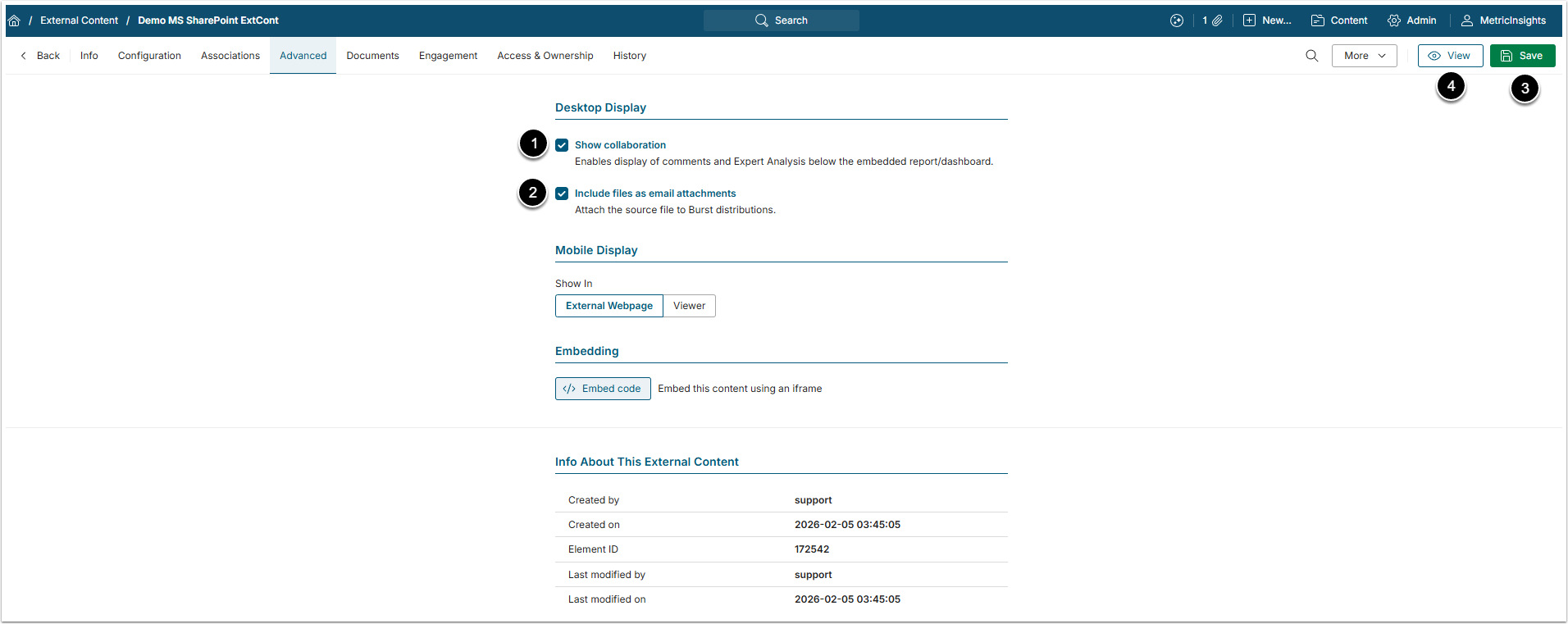
- Show collaboration: This checkbox is selected by default and allows User to leave comments attached to this External Content.
- Include files as email attachments: Specify if you want to include SharePoint files as attachments to emails.
- The default value for this setting can be controlled by the ATTACH_EXTERNAL_CONTENT_FILES_DEFAULT System Variable
- [Save] and [View] the External Content Element that will be displayed according to the settings.
- Next, you may be asked to sign in to the Microsoft account.
"Display in Viewer" Options Based on the Selected File Type
Depending on a value set for MAX_FILE_SIZE_FOR_PREVIEW_AND_VIEWER and EDITOR_MAX_FILE_TO_IMAGE_TIME_SEC System Variables, users may not see the selected file in Viewer. The capability matrix below assumes that there are no restrictions on max file sizes.
| File Type |
Display in Viewer "External web page" |
Display in Viewer "Uploaded image" |
Display in Viewer "As PDF document"* |
|---|---|---|---|
| Excel | Displayed as a spreadsheet with limited interactivity, such as moving between sheets, selecting/editing fields, expanding columns, but the changes won't be saved |
Displayed as a static image of the first sheet's top contents, which downloads the file when clicked |
Displayed as a PDF with the standard browser PDF viewer functionality |
| Displayed as PDF with the standard browser PDF viewer functionality |
Displayed as a static image of the first page, which opens the file in a browser PDF viewer as a new tab when clicked | – | |
| PowerPoint | Displayed as PDF with the standard browser PDF viewer functionality |
Displayed as a static image of the first presentation slide, which opens a PDF version of the presentation in a browser PDF viewer as a new tab when clicked | – |
| Word | Displayed as PDF with the standard browser PDF viewer functionality |
Displayed as a static image of the first page, which opens a PDF version of the file in a browser PDF viewer as a new tab when clicked |
– |
| CSV | Not available in Viewer |
Depending on a file size, can be displayed as a static image of top contents, which downloads the file when clicked |
– |
| Image | Not available in Viewer | Displayed as a static image, which downloads the file when clicked |
– |
*This option is displayed only when an Excel file is selected for Document.