File Groups allow for having a single Tile with multiple versions of the file/multiple independent files instead of creating a separate Tile for each File.
File Groups work based on folders that exist on the Microsoft SharePoint/the user's local file system side by mirroring them and their contents. File Groups can be selected as an object for External Content creation. Files from the selected group will then appear in the drop-down in External Content Viewer, with the most recent file at the top of the list.
PREREQUISITES:
Established connection with Microsoft SharePoint/Local Filesystem
NOTE: This article is focused on File Groups for Microsoft SharePoint, but the functionality is essentially the same for Local Filesystem.
1. Enable File Groups
Access Admin > Collection & Storage > Data Sources > click Microsoft SharePoint Data Source Name Link
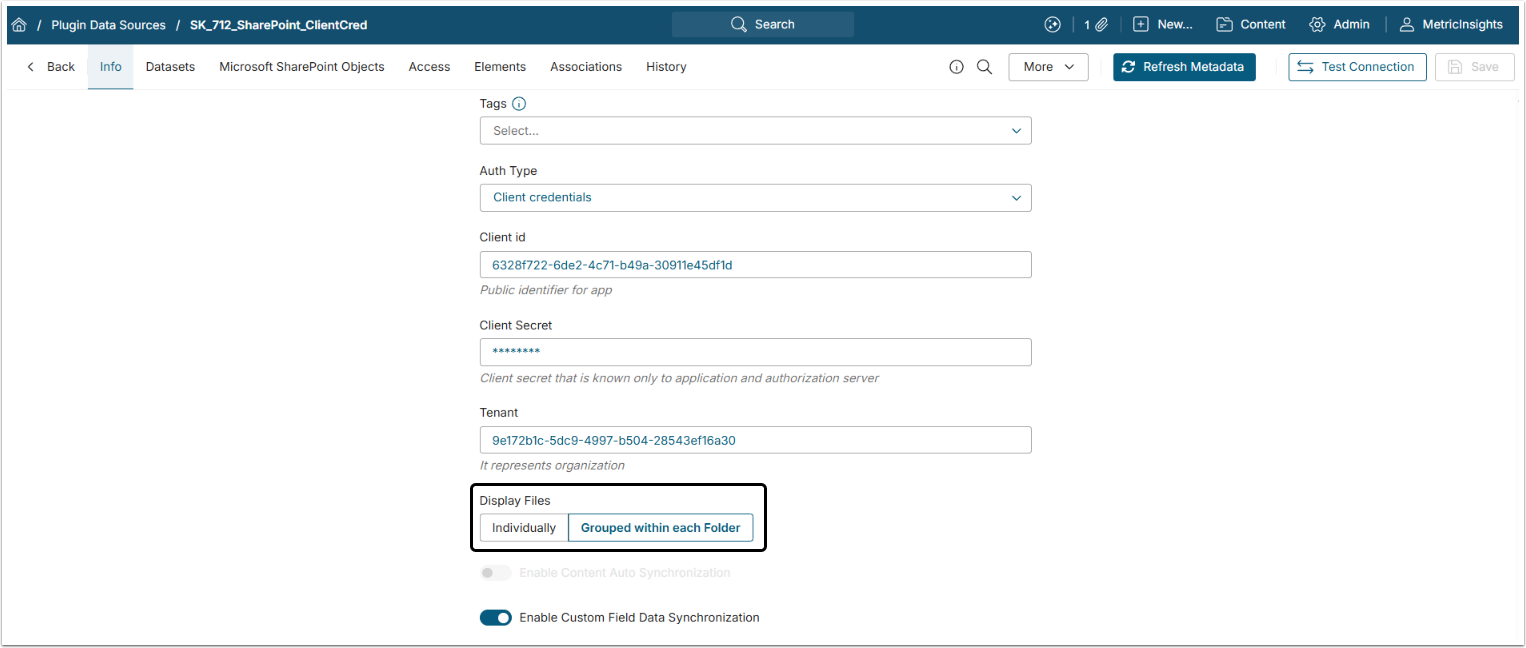
Set Display Files to "Grouped within each Folder".
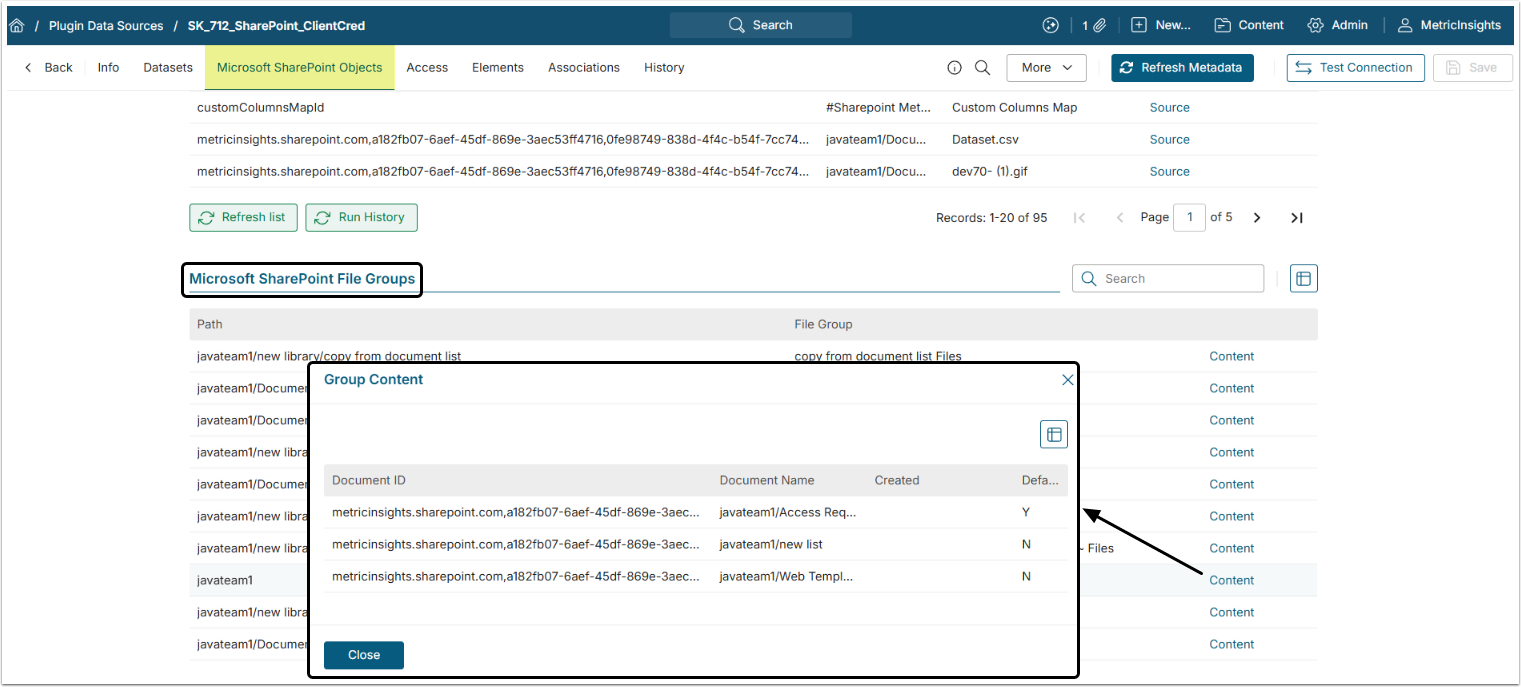
Once objects are collected, the Microsoft SharePoint Objects Tab will include an additional grid displaying Microsoft SharePoint File Groups as exemplified below. Clicking the Content button with display the contents of the Group.
2. Create External Content
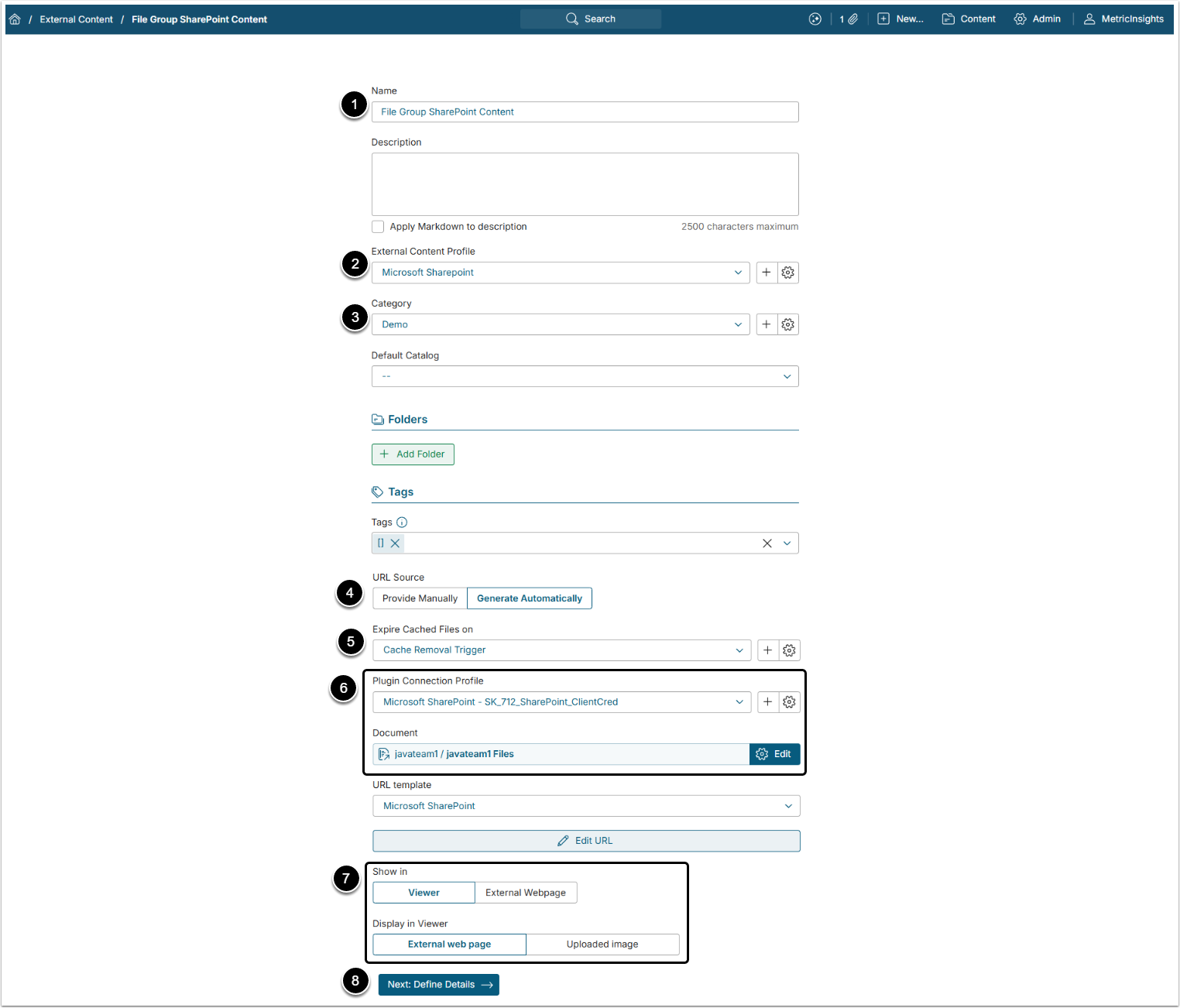
- Name: Give the External Content a descriptive name.
- External Content Profile: Choose "Microsoft SharePoint" from a drop-down menu.
- Category: Choose Category for the Element.
- URL source: Select Generate Automatically.
- Expire Cached Files on: Select a Trigger to expire cached files and prevent slowing down the files updating.
- Select the Data Source in Plugin Connection Profile and a File Group in Document fields.
- Show in: Set to Viewer.
- NOTE: File Groups work only with Show in set to "Viewer" and Display in Viewer set to "External web page". You can further configure the Show in settings on the Configuration tab.
- [Next: Define Details]
3. Verify the Result
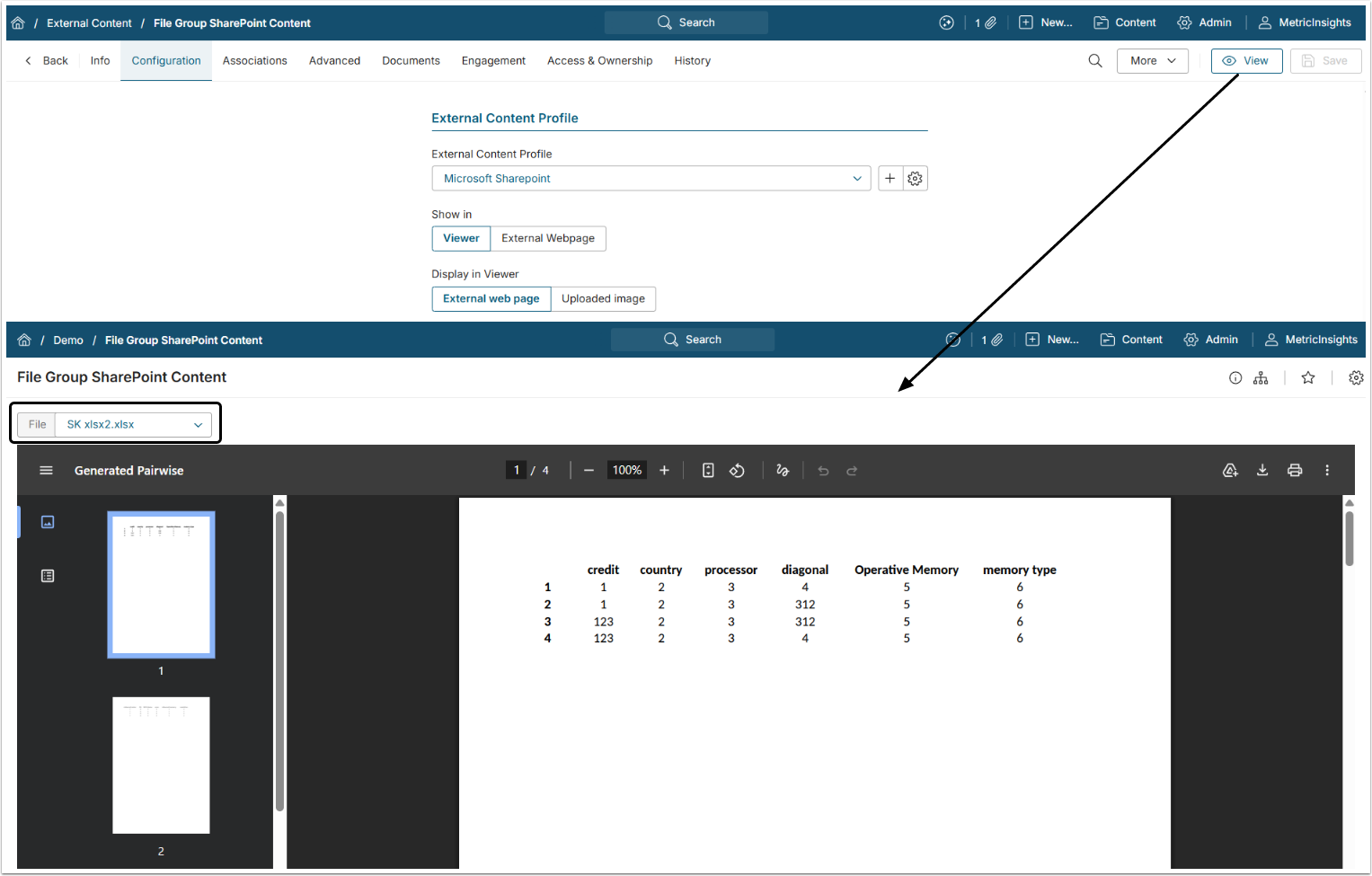
Click [View] to proceed to Viewer. All the files of the Group will be listed in the File drop-down menu.