This article details how to build an External Report in Metric Insights that is linked to a Dashboard on your Databricks server.
PREREQUISITE:
TABLE OF CONTENTS:
1. Create New External Report
Access [+New] > External Report > Databricks Lakeview Dashboards
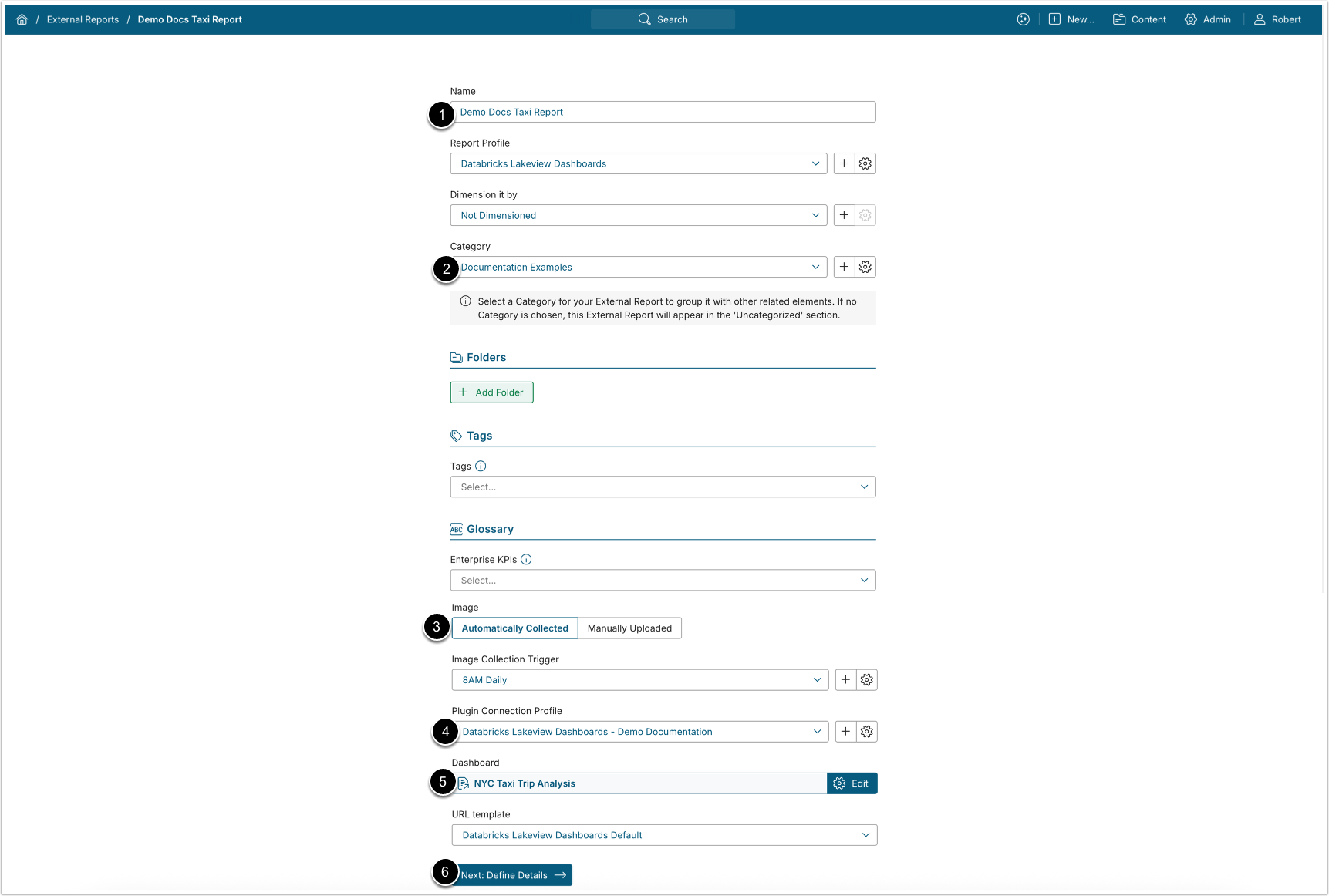
- Name: Enter a name for your External Report.
- Category: Place your Report in a relevant Category.
- Image: Define whether you want the report Image to be uploaded manually or automatically. For Automated Collection, define the following settings:
- Choose the Image Collection Trigger from the drop-down list.
- Plugin Collection Profile: Select the Plugin Connection Profile you have created for Databricks Lakeview Dashboards.
- Dashboard: Select the Databricks Lakeview Dashboard from which the image will be collected.
- [Next: Define Details]
2. Configure External Report
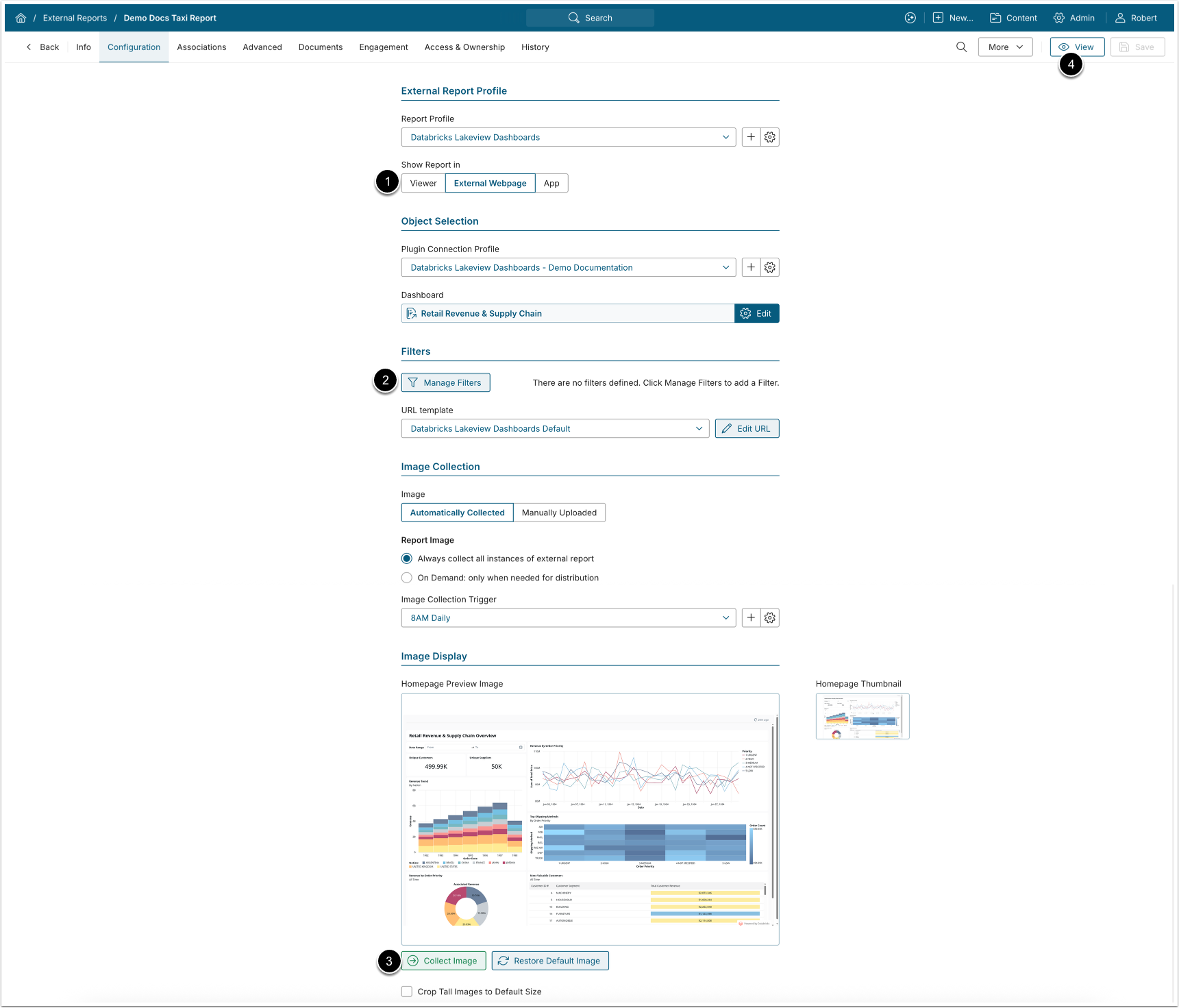
- Show Report in: Select how the External Report is displayed:
- Viewer: The collected static dashboard image is displayed.
- External Webpage: The External Report is opened in Databricks.
- App: Select an App to which users will be redirected when accessing the External Report.
- Apply filters to your Report data by clicking [+Manage Filters].
- For details, see Configure Filtering for Databricks Lakeview Dashboards External Reports.
- [Save and Collect Image]