This article details how to establish connectivity to Databricks Lakeview Dashboards to use it as Data Source for creating External Reports in Metric Insights.
- See Databricks Lakeview Dashboards Plugin Capabilities for details on plugin capabilities.
PREREQUISITES:
- Collect Client ID and Client Secret from the Databricks Lakeview account.
- Enable embedding in Databricks Lakeview account to make viewing Databricks Dashboards in the Viewer possible.
1. Add New Data Source
Access Admin > Collection & Storage > Data Sources

- [+New Data Source]
- Choose "Databricks Lakeview Dashboards" from Plugin drop-down list.
- [Next]
2. Provide Required Parameters
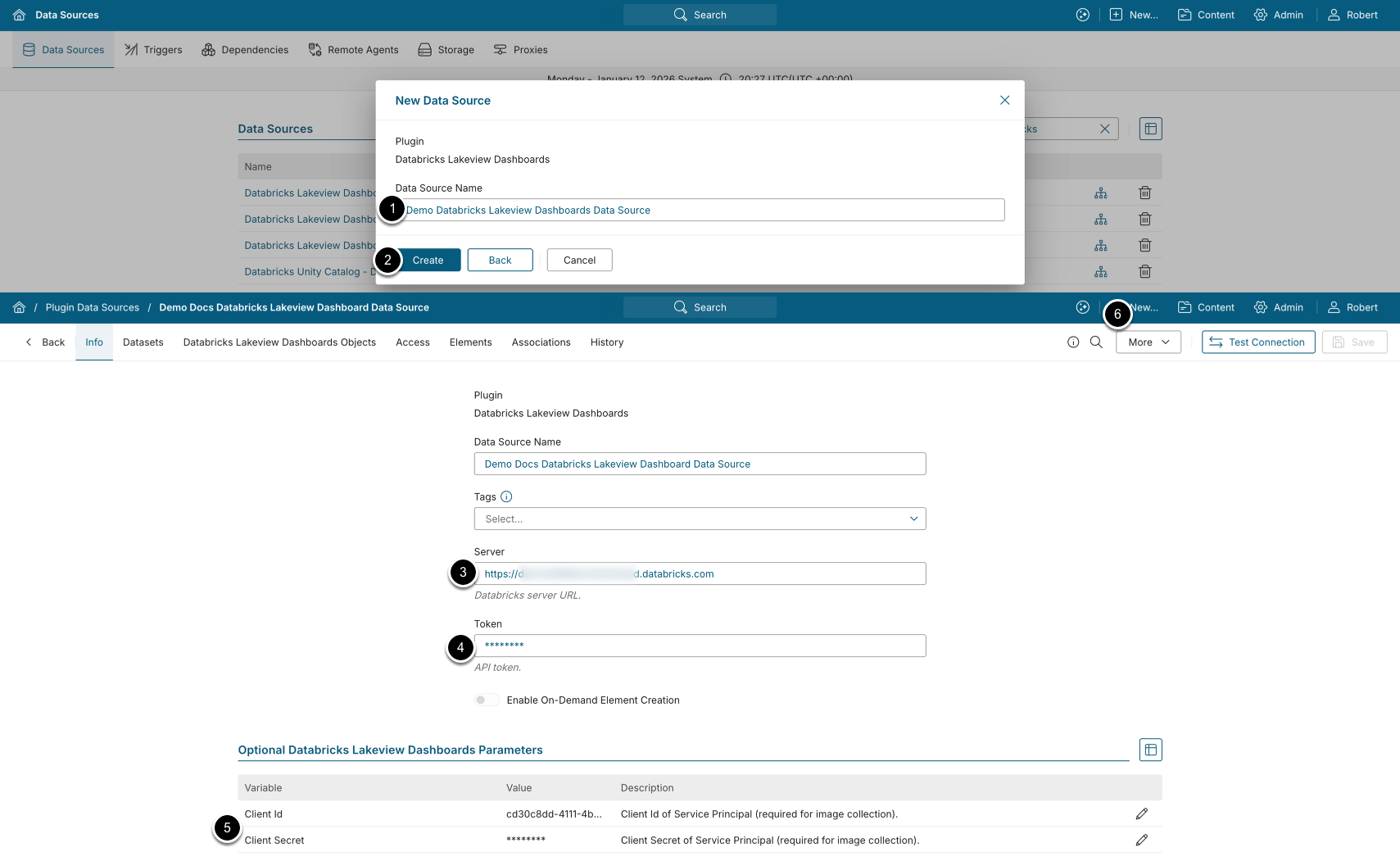
- Data Source Name: Enter a Data Source name.
- [Create]
- Auth Type: Select the authentication type:
- Service Principal: This is the default option. Authentication requires creating a Service Principal and is performed via the Client ID and Client Secret, generated in the Databricks Unity Catalog account.
- OAuth: Authentication is performed via the Client ID and Client Secret, generated in the Databricks Unity Catalog account. The Token is generated by clicking [Get Token].
- Server: Enter the Databricks server URL.
- [Test Connection], this will also save your entries.
3. Configure Advanced Settings
Advanced Configuration settings can be set to default values unless Data Source requires more precise tuning. For more details on how to proceed, refer to Advanced Data Source Configuration.