BETA FEATURE: This is a beta feature introduced in v7.2.1. It can change as the feature evolves.
When using Concierge, Users can create Datasets not by collecting data from an external tool, but by analyzing Datasets that exist in Metric Insights or by collecting various types of publicly available information. It also allows the User to write a prompt instead of an SQL query to fill the Dataset with values.
This article describes how to create a Dataset using Concierge.
PREREQUISITES:
NOTE: Be aware that using Concierge as a Data Source involves sending data to the Concierge and, consequently, to the LLM. Exercise caution when handling sensitive information.
1. Add New Dataset
Access +New >Dataset > Create New
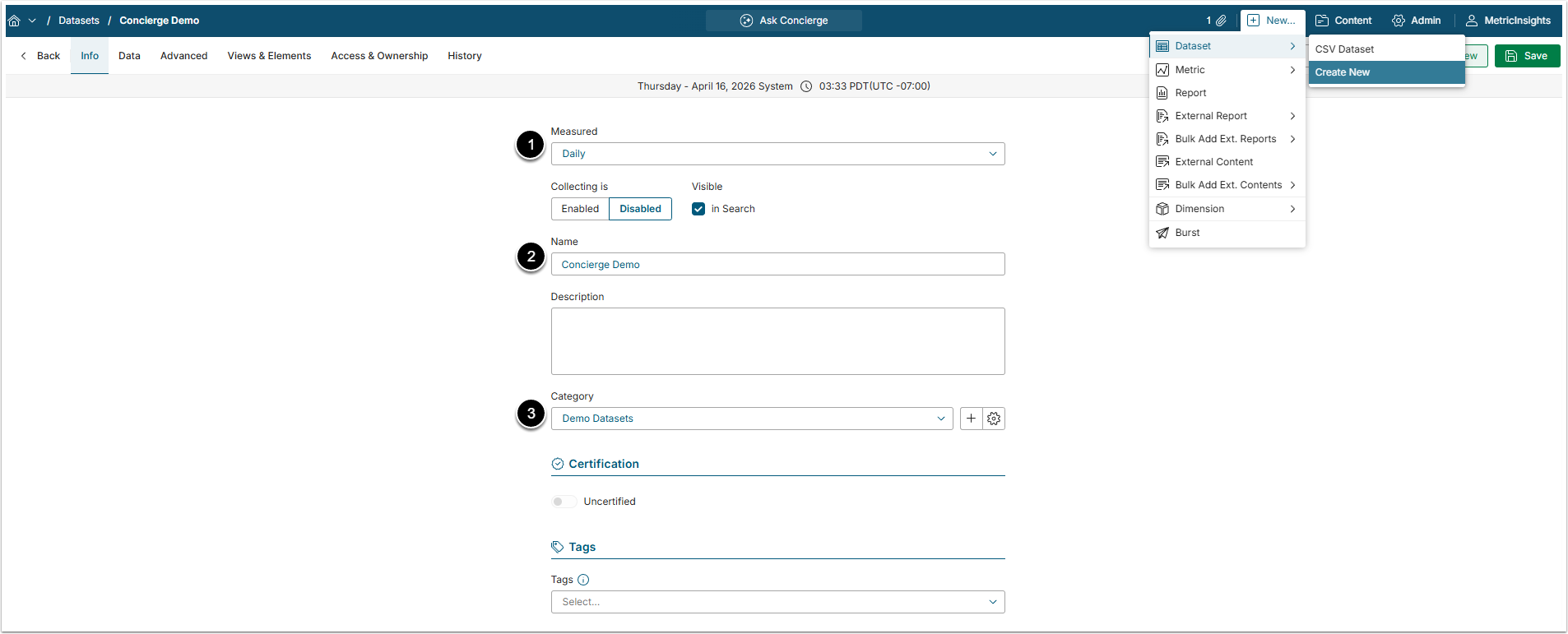
- Measured: Select the measurement interval that applies to the level of aggregation that you want in your result set.
- Name: Give the Dataset a descriptive name.
- Category: Specify the Category to place the Dataset.
2. Complete the Data Tab
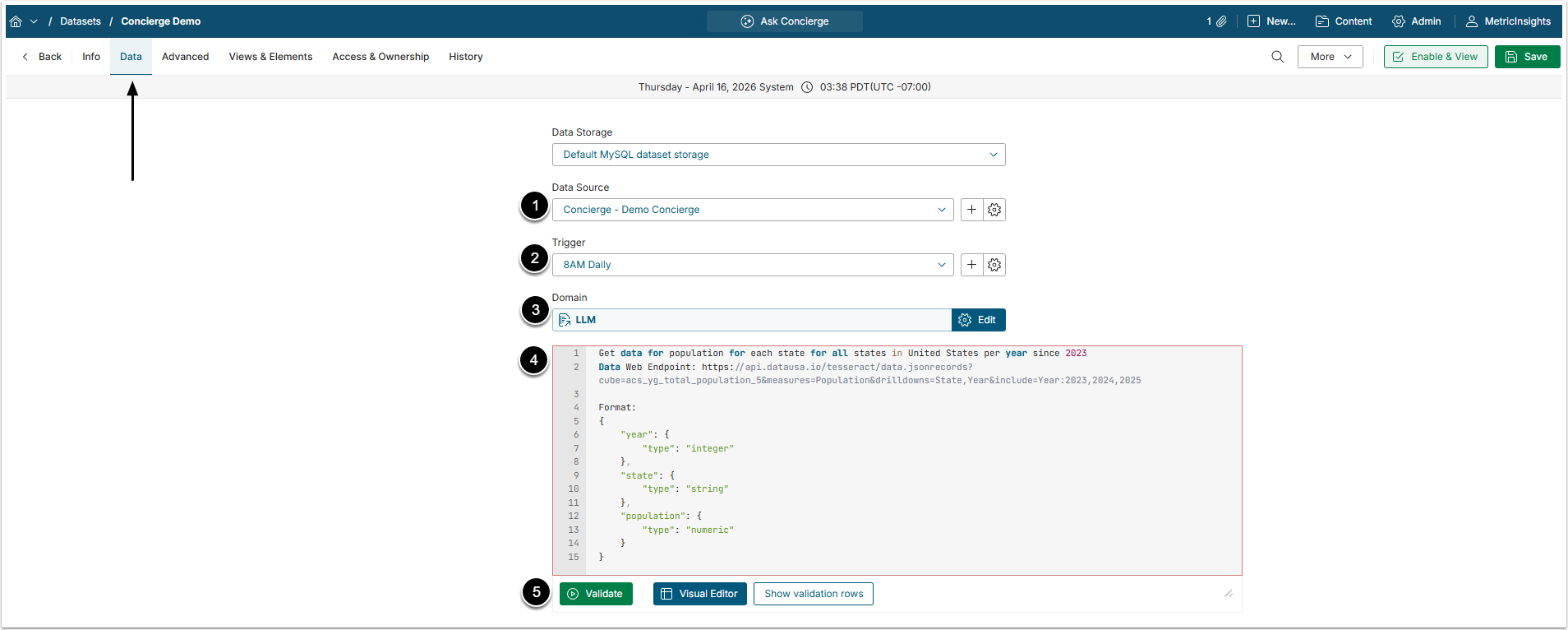
- Data Source: Select the Concierge Data Source.
- Trigger: Specify the Data Collection Trigger that will be used to collect data for Dataset.
- Domain: Select the Domain that will serve as a basis for Dataset.
- Concierge won't send queries to any of the External Resources unless the corresponding Domain is selected here. The LLM Domain is a general use Domain, best for Public Data Datasets.
- Prompt: Write the prompt as you would normally do for Concierge, describing what to place into the Dataset.
- The prompt has to contain the Format part, where you describe what columns the Dataset has to contain and what type of values to put in them.
- [Validate]
2.1. Public Data Dataset
If you want to create a Dataset from publicly available information, like weather forecast or currency values, add a Data Web Endpoint from the website you want to collect data from. Websites with open public data usually have endpoints listed for users.
You also have to enable the LLM_ALLOWED_DOMAINS System Variable.
2.1.1. Enable System Variable
Access Admin > System > System Variables
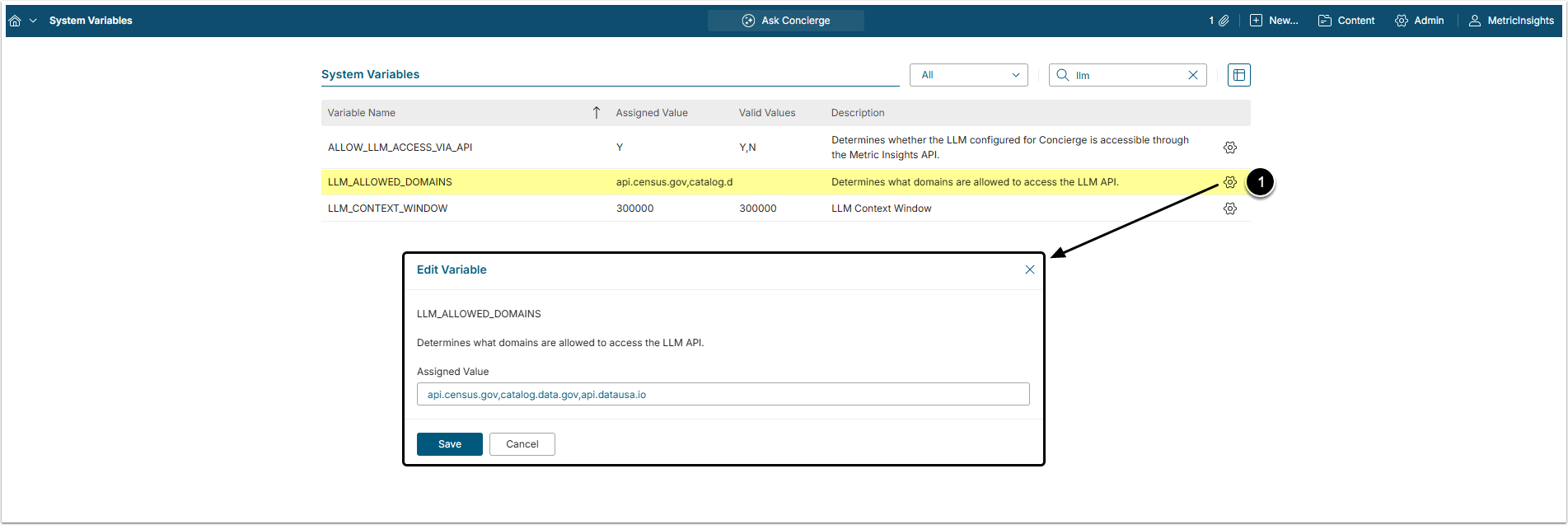
- Find LLM_ALLOWED_DOMAINS Variable and click the gear icon to open the Edit Variable window.
- Assigned value: List all domains with public data you would be using.
- [Save]
- [Commit Changes]
For more information on how to work with System Variables, refer to Setting System Variables.
2.2. Analytics Dataset
If you need Concierge to analyze existing Datasets, you will need to mention them in the prompt and after that enable their usage in the separate editor.
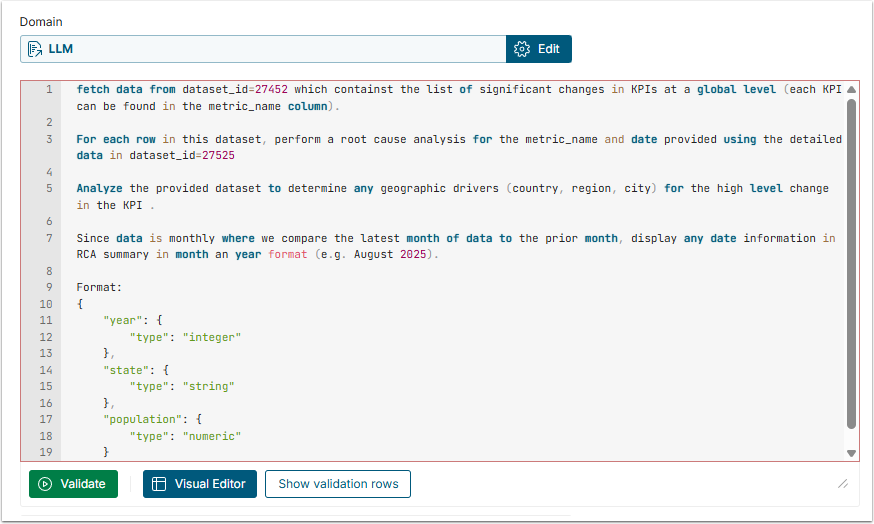
Reference Datasets via dataset_id=#####.
2.2.1. Enable Datasets
[Save] the Dataset and open the Editor by typing the [instance]/editor/llm/dataset/[dataset_id] into the browser bar.
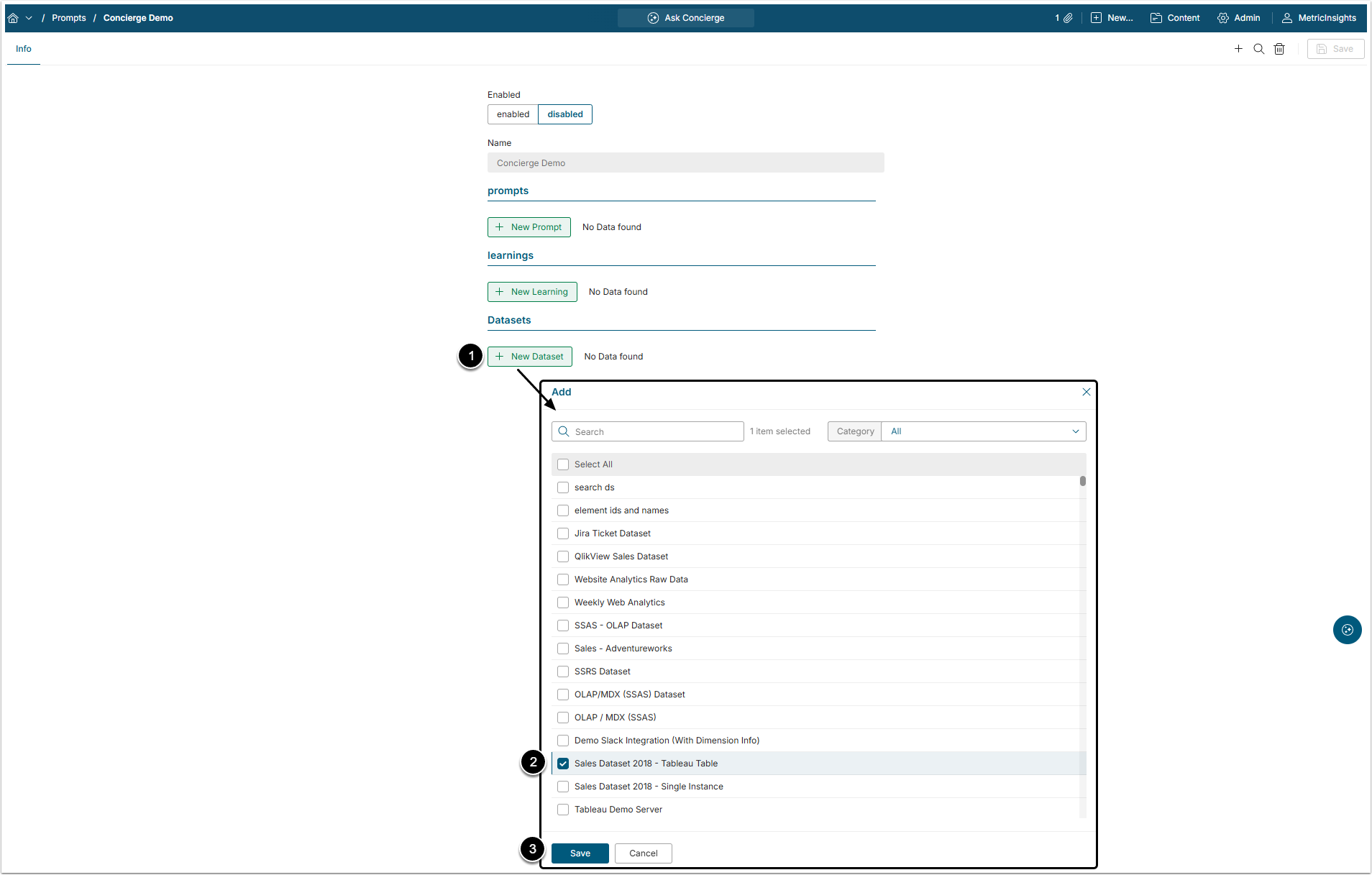
- [+ New Dataset]
- Select the Dataset(s) from the list.
- [Save]
By doing this you allow the Concierge to analyze data stored in those Datasets and use it to create a more specific Dataset.