This article describes how to create an External Content sourced from Remote Filesystem files.
PREREQUISITE:
1. Create New External Content
Access New > External Content
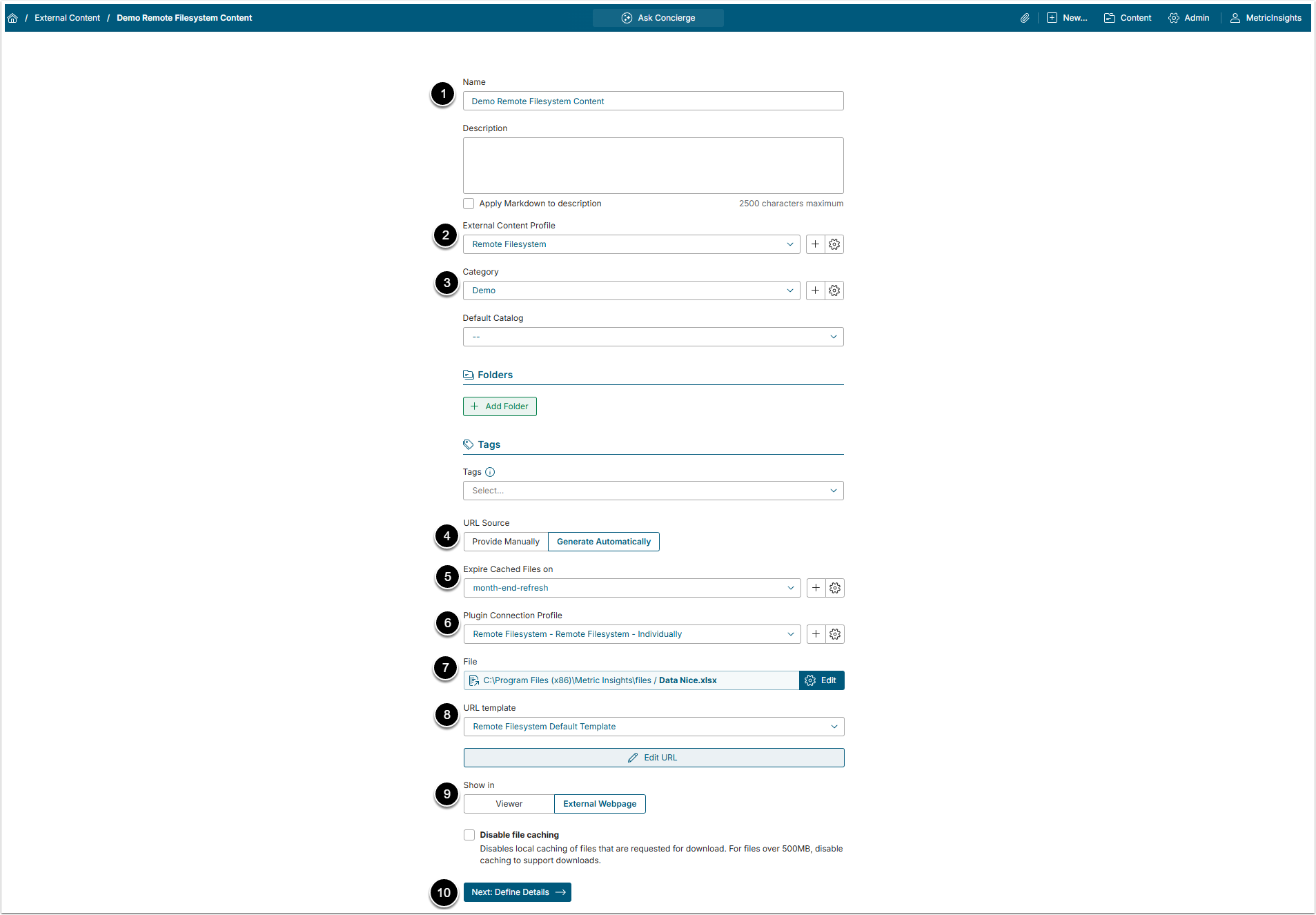
- Name: Give the External Content a descriptive name.
- External Content Profile: Choose "Remote Filesystem" from drop-down menu.
- Category: Choose a Category where the External Content will be placed.
- URL Source: Set to Generate Automatically or Provide the URL Manually.
- The recommended option is Generate Automatically. The Remote Filesystem Data Source should contain a list of files to choose from.
- Expire Cached Files on: Select how often cached files are marked as expired by selecting the Trigger from the drop-down list.
- Plugin Connection Profile: Select a plugin Data Source.
- File: Choose a file that will serve as a source for External Content.
- URL template: Select a template for the URL of the External Content.
- Show in: Specify whether to show the External Content in Viewer on in External Webpage.
- [Next: Define Details]
2. Viewing the External Content
Open Configuration tab

- Show in: The default value for this field is External Webpage for viewing content in a browser.
- Viewer: Select whether to display the file as External Webpage (on desktop or mobile) or Uploaded image within the iframe of Metric Insights UI.
- [View]
2.1. Previewing Files
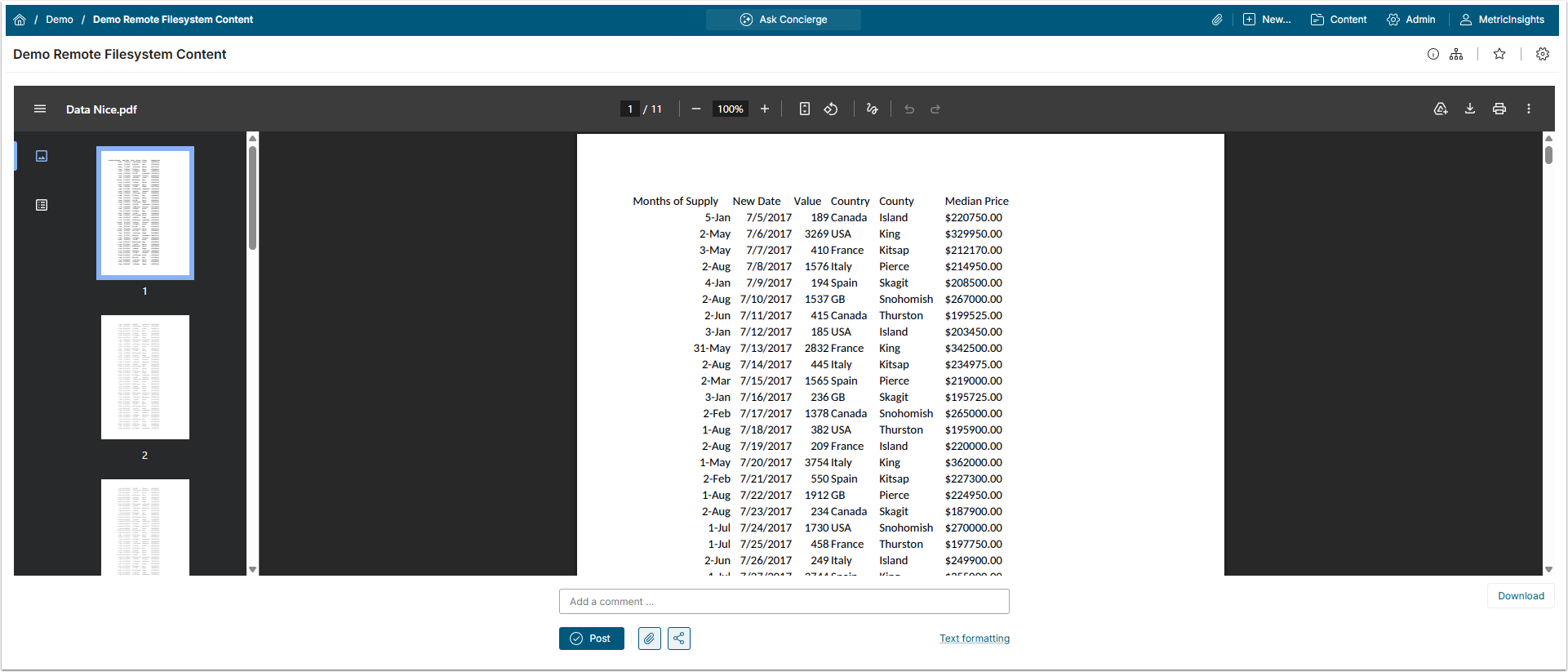
External Content can show a real preview of files with the .xlsx, .xls, .doc, .docx, .pdf, .ppt and .pptx extensions in the Viewer.
To preview the real file, go to the Configuration tab and set the features as shown below:
- Show in: Set to "Viewer".
- Display in Viewer: Set to "External web page".
Afterwards, click [View].
NOTE: For Excel files, the Preview won't be created if the file exceeds the assigned maximum file size of 1MB.
NOTE: The following features are not supported for Excel file display:
- Format cell alignment;
- Sheets formatting;
- Some numeric and date display masks as well as currency;
- Conditional formatting;
- Formatting as Table;
- Pictures;
- Shapes/SmartArt/Screenshots;
- Pivot Tables;
- Charts;
- Hyperlinks.