This article details how to connect to Microsoft SSRS to build Elements in Metric Insights.
PREREQUISITES:
- Specific user roles must be enabled on both SSRS UI and server side. See instructions below.
- Opened ports: 1433, 1434.
SSRS UI
Access <SSRShostname>/10034/browse > Manage Folder
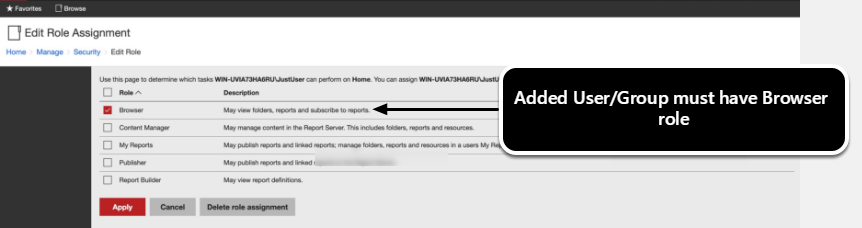
The service account requires the "Browser" role.
SQL Server Management Studio
From Object Explorer, access the Server instance name > Security > Logins
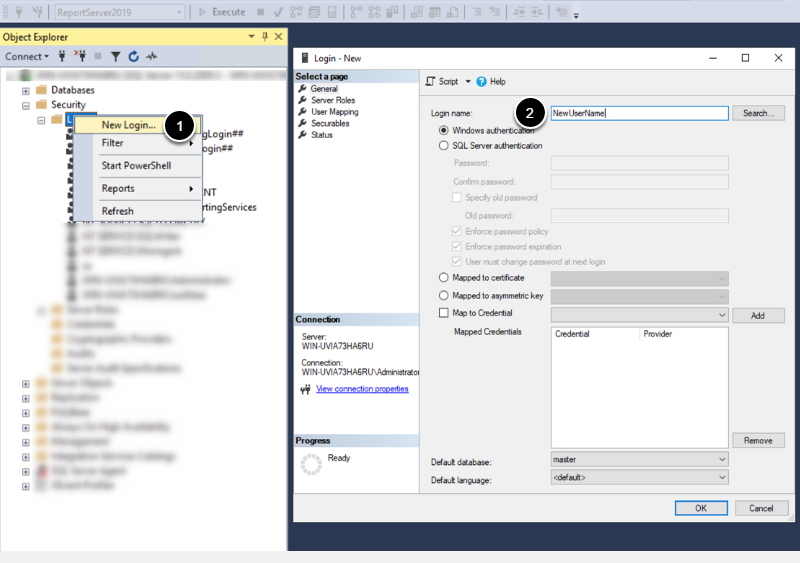
- Create a new user.
- Input a name for the user.
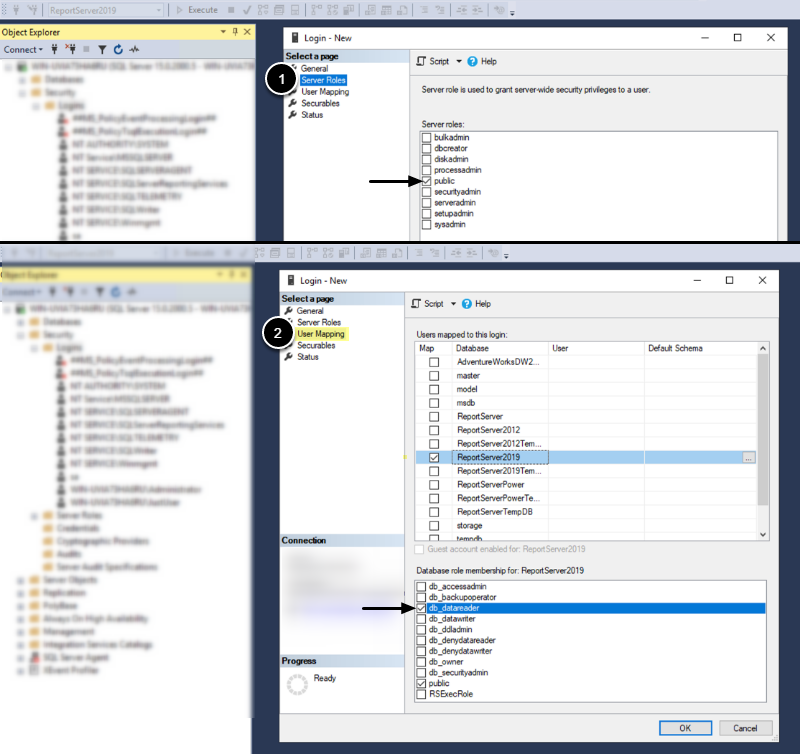
- Under Server Roles, enable "public".
- Under User Mapping, enable "db_datareader" for the required database.
1. Add New Data Source
Access Admin > Collection & Storage > Data Sources
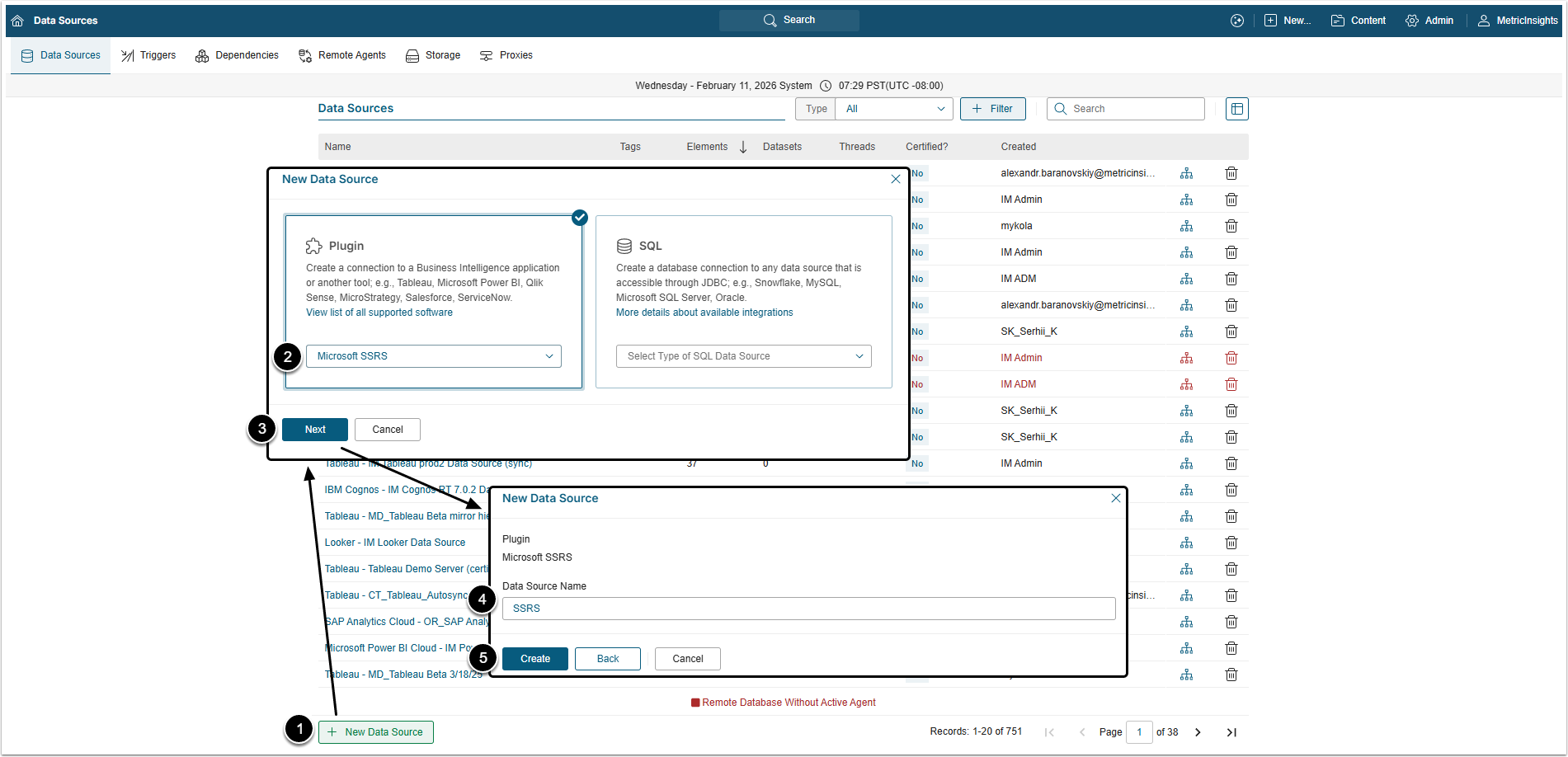
- [+New Data Source]
- Plugin: Choose Microsoft SSRS from the drop-down list.
- [Next]
2. Provide the Required Microsoft SSRS Parameters
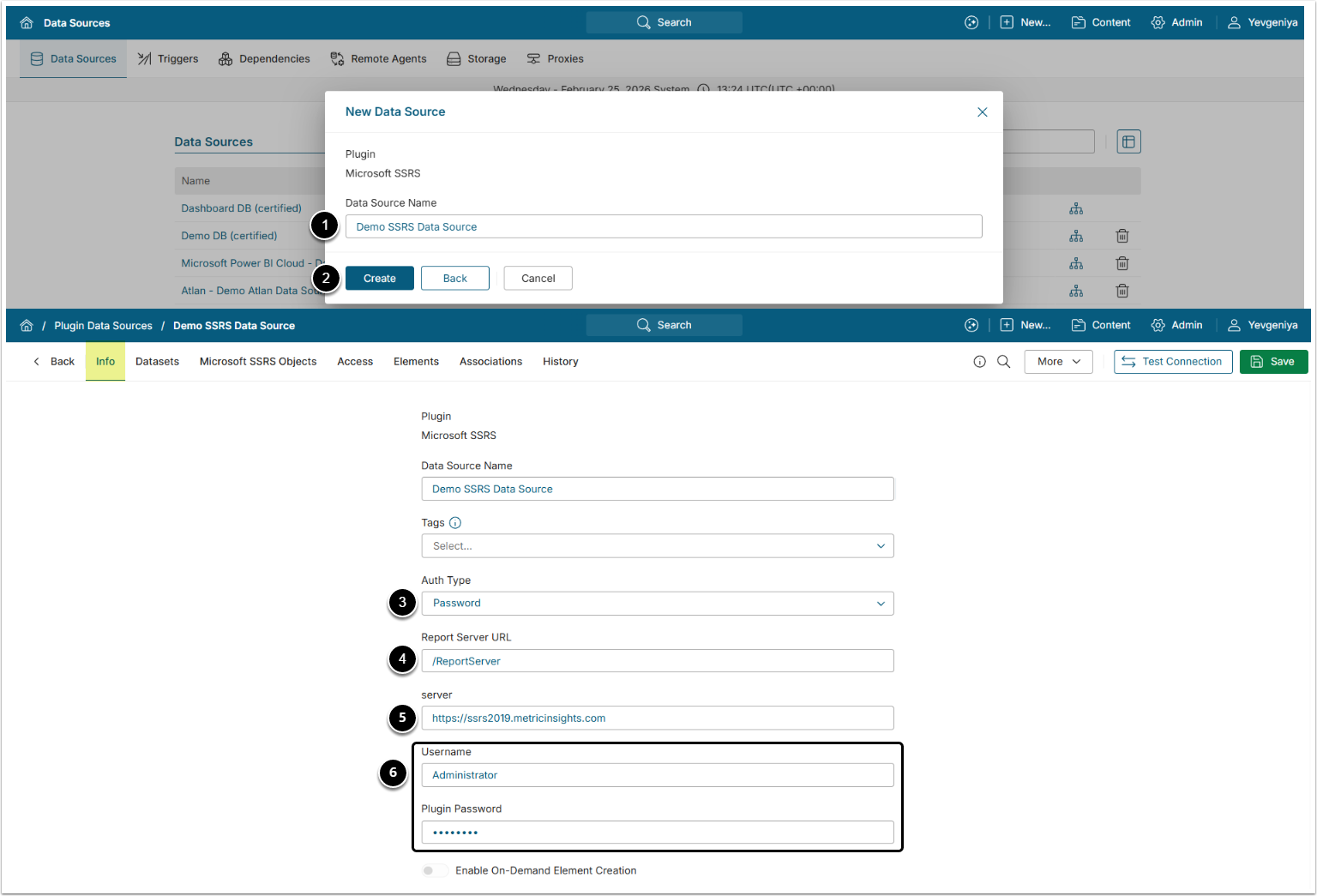
- Data Source Name: Input a descriptive phrase.
- [Create]
- Auth Type: Select the authentication type.
- Password: Provide Microsoft SSRS account credentials (Username and Plugin Password).
- Identity Profile: Select the Identity Profile from drop-down menu.
- Report Server URL: Provide address of the server for accessing the SSRS reports.
- Server: Specify the host name of the SSRS Server.
- Depending on the choice in Auth Type field, enter Username and Plugin Password or select the Identity Profile.
Optionally, toggle on Enable On-Demand Element Creation.
3. Specify Optional Microsoft SSRS Parameters
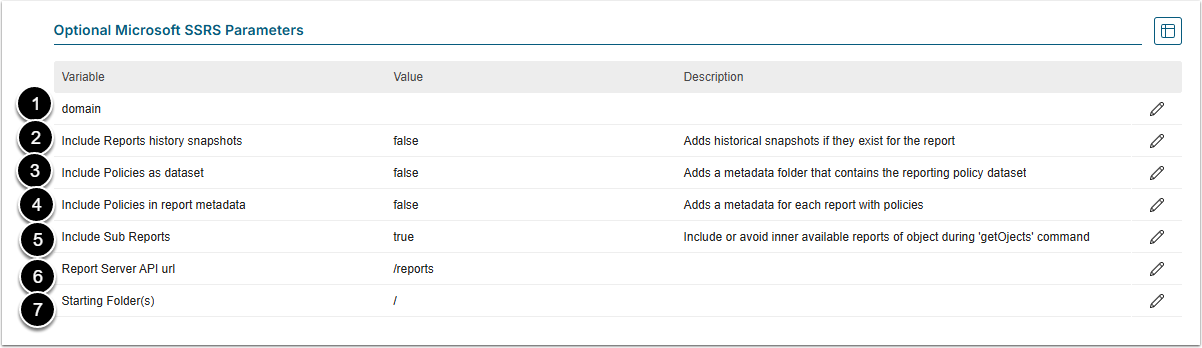
| Parameter | Description | |
|---|---|---|
| 1 | Domain | Enter a domain if SSRS login requires it |
| 2 | Include Reports history snapshots | Set to "true" to include History Snapshots (versions) of SSRS Reports on Dataset Object List |
| 3 | Include Policies as dataset | Set to "true" to include itemType, report, userGroupName, and roles to a separate #Metadata folder on Dataset Object List |
| 4 | Include Policies in report metadata | Set to "true" to include itemType, report, userGroupName, and roles in external_report_reference |
| 5 | Include Sub Reports | Set to "true" to return Tablixes of Reports as separate objects to Metric Insights |
| 6 | Report Server API url | Enter the address of server where Reports are stored. |
| 7 | Starting Folder(s) | Specify if you want to use specific SSRS folders only |
4. Advanced Configuration
Advanced Configuration settings can be set to default values unless Data Source requires more precise tuning. For more details on how to proceed, refer to Advanced Data Source Configuration.
Click [Test Connection] in the upper right corner.