This article details how to establish connectivity to Looker Plugin.
PREREQUISITES:
- For OAuth 2, generated Client ID and Client Secret. See details below.
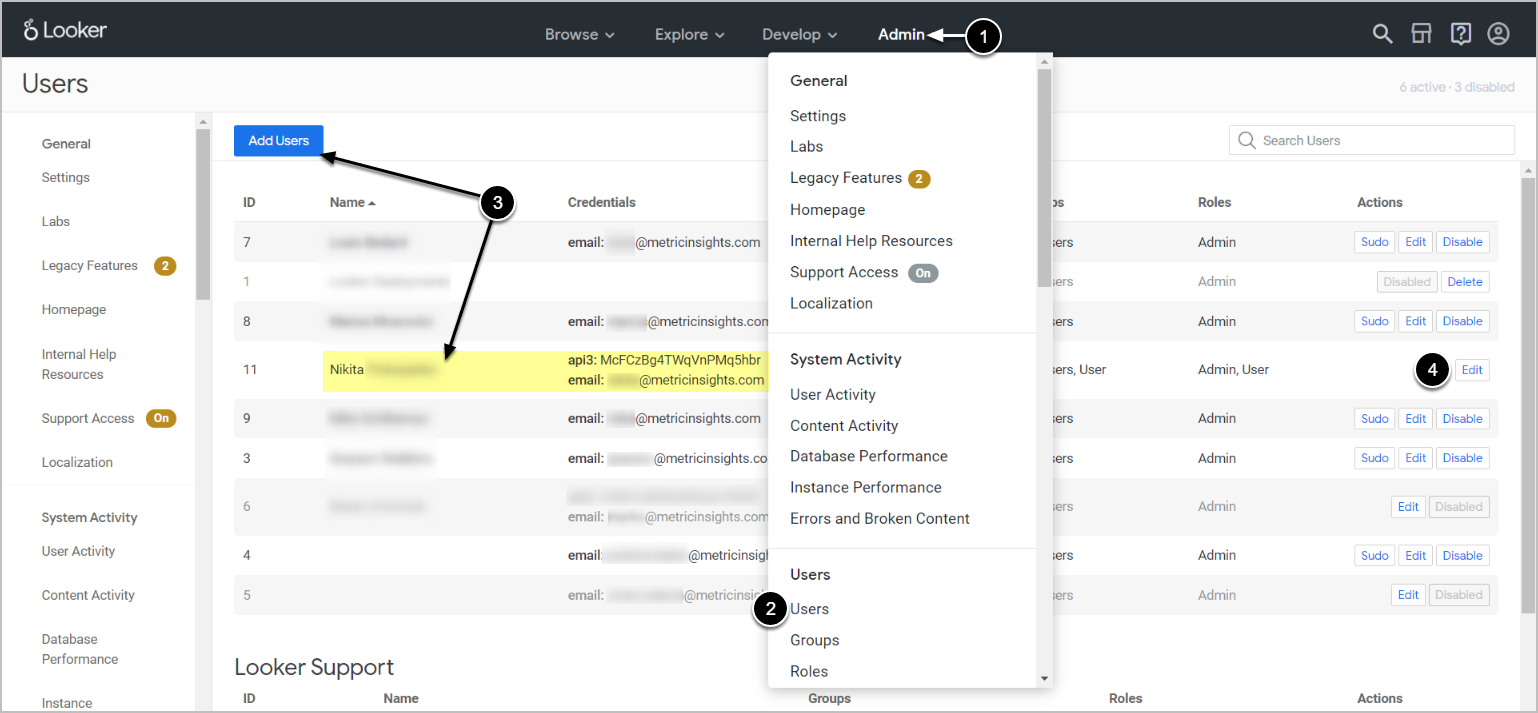
- From the Looker homepage, access the Admin drop-down.
- Go to Users.
- From the Users page, find the user and click Edit from the Actions column.
- To create a new user, click [Add Users]. For more information on Users and Roles, refer to this article.
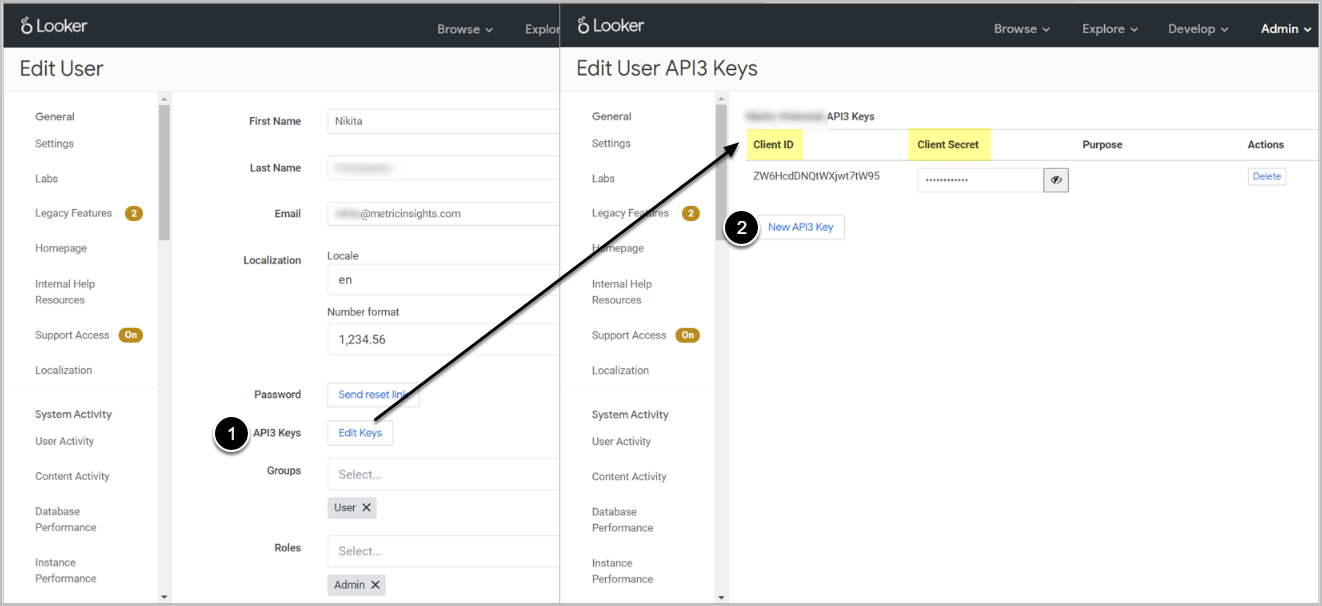
- [Edit Keys]
- Client ID and Client Secret will be displayed on the Edit User API3 Keys page.
- To create new keys, click [New API3 Key].
2. Create New Data Source
Access Admin > Collection & Storage > Data Sources
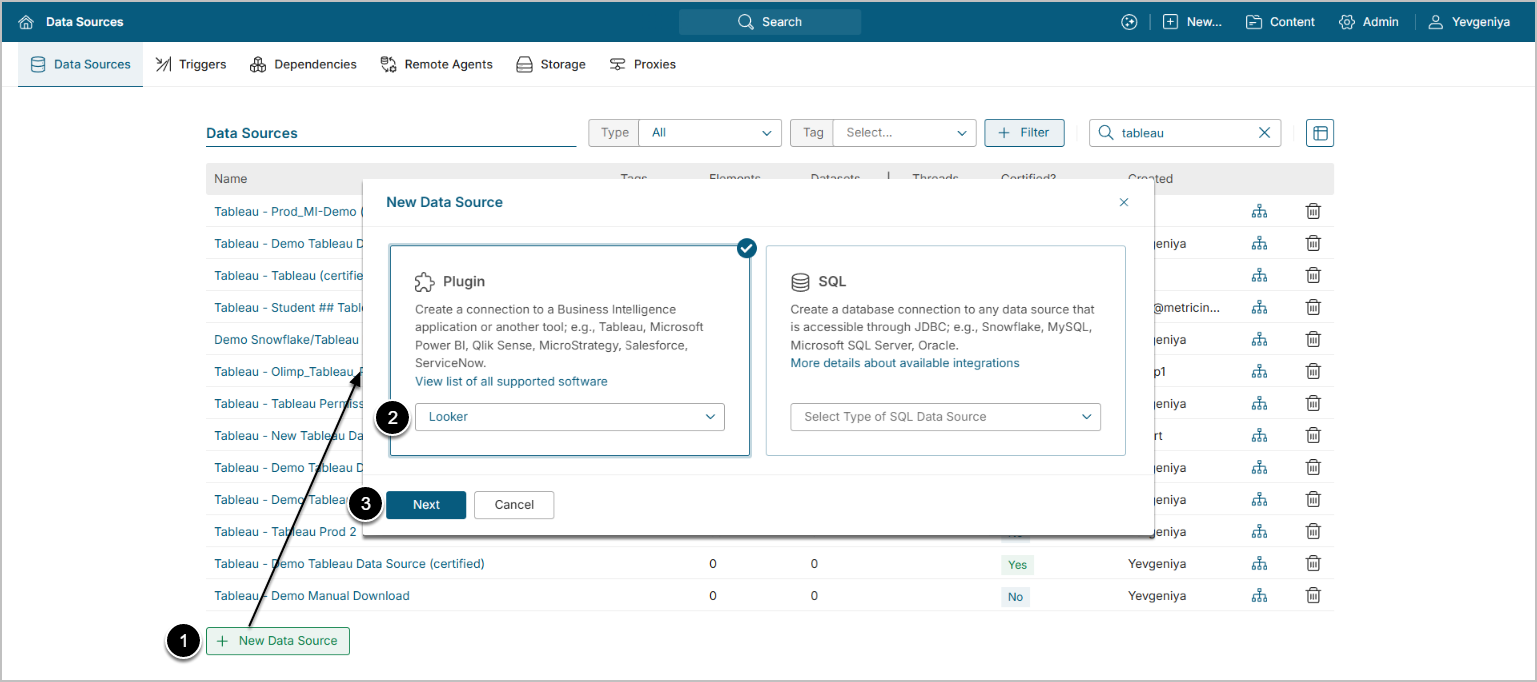
- [+ New Data Source]
- Choose "Looker" from the Plugin drop-down list.
- [Next]
3. Provide Required Parameters
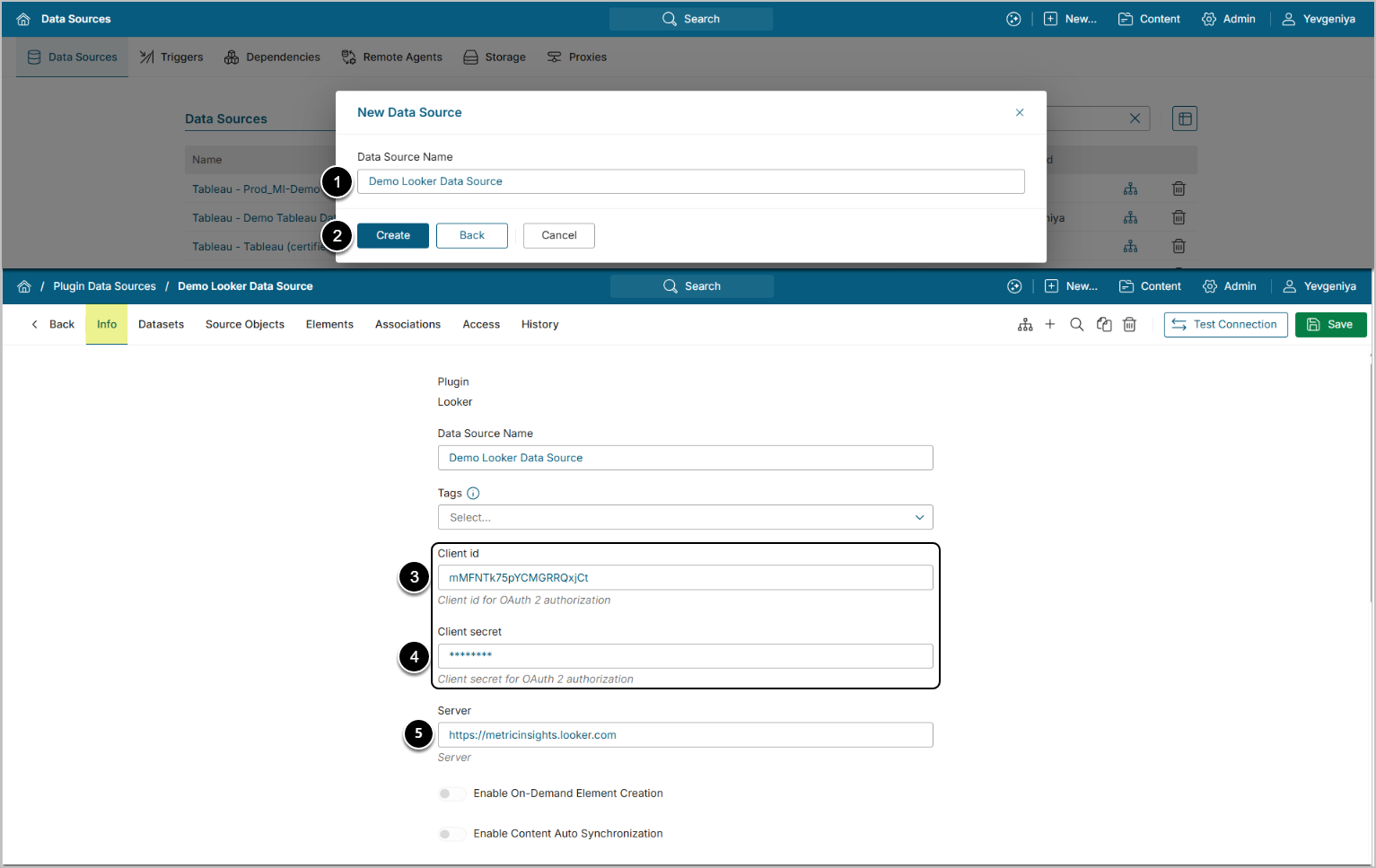
- Data Source Name: enter a descriptive phrase.
- Client id/secret: provide the values from Looker. Refer to this section for instructions.
- Server: specify the Looker server (your Looker account URL).
Optionally, toggle on:
4. Configure Optional Parameters

| Parameter | Description |
|---|---|
Exclude personal folders | Defaults to false. When true, all Looker personal folders and everything in them (Looks, Dashboards, subfolders) are excluded from collection and Content AutoSync. |
Folder filter | Provide a comma-separated list of include/exclude patterns matched against each folder's full path. Leave blank to collect all folders. See Folder Filter Syntax below. |
Object type filter | Provide a comma-separated list of object types. Leave blank to collect all supported types.
|
Each folder is matched by its full path, with levels separated by / — for example, Shared/ABC Sales/ABC Sales Dev. Only Looks and Dashboards inside folders that pass the filter are collected.
Pattern rules:
*matches any number of characters;?matches exactly one character.- Prefix a pattern with
!to exclude matching folders. - Separate multiple patterns with commas.
- Matching is not case-sensitive.
- Patterns must match the entire path, so use * at the start and end to match a name anywhere in the path (e.g., *ABC Sales*).
How patterns are evaluated:
Patterns are checked left to right, and the first one that matches decides the result. Because of this, list exclude patterns before include patterns.
- If a folder matches an exclude pattern (
!), it's excluded. - If it matches an include pattern, it's included.
- If it matches nothing, it's included when the filter has only exclude patterns, and excluded when the filter has any include pattern.
Examples:
- Exclude every folder with "AdHoc" in its path:
!*AdHoc* - Include only "ABC Sales" and its contents:
*ABC Sales* - Include "ABC Sales" but exclude its AdHoc and Dev folders:
!*AdHoc*,!*Dev*,*ABC Sales* - Include only one folder by full path:
Shared/ABC Sales*
NOTES:
*ABC Sales*,!*AdHoc*does not exclude "ABC Sales AdHoc." That folder matches the include pattern first, so it's kept.- A subfolder is collected only if its parent folder also passes the filter. When including a folder by name or path, make sure its parent folders are covered too. For example, use
Shared,Shared/ABC Sales*rather thanShared/ABC Sales*alone.
5. Proceed with Advanced Configuration
Advanced Configuration settings can be set to default values unless Data Source requires more precise tuning. For more details on how to proceed, refer to Advanced Data Source Configuration.
Use the [Test Connection] button, in the upper right corner to verify connectivity.