This article describes how to connect to Domo in order for the tool to be used as Data Source in Metric Insights.
PREREQUISITES:
1. Create New Data Source
Access Admin > Collection & Storage > Data Sources
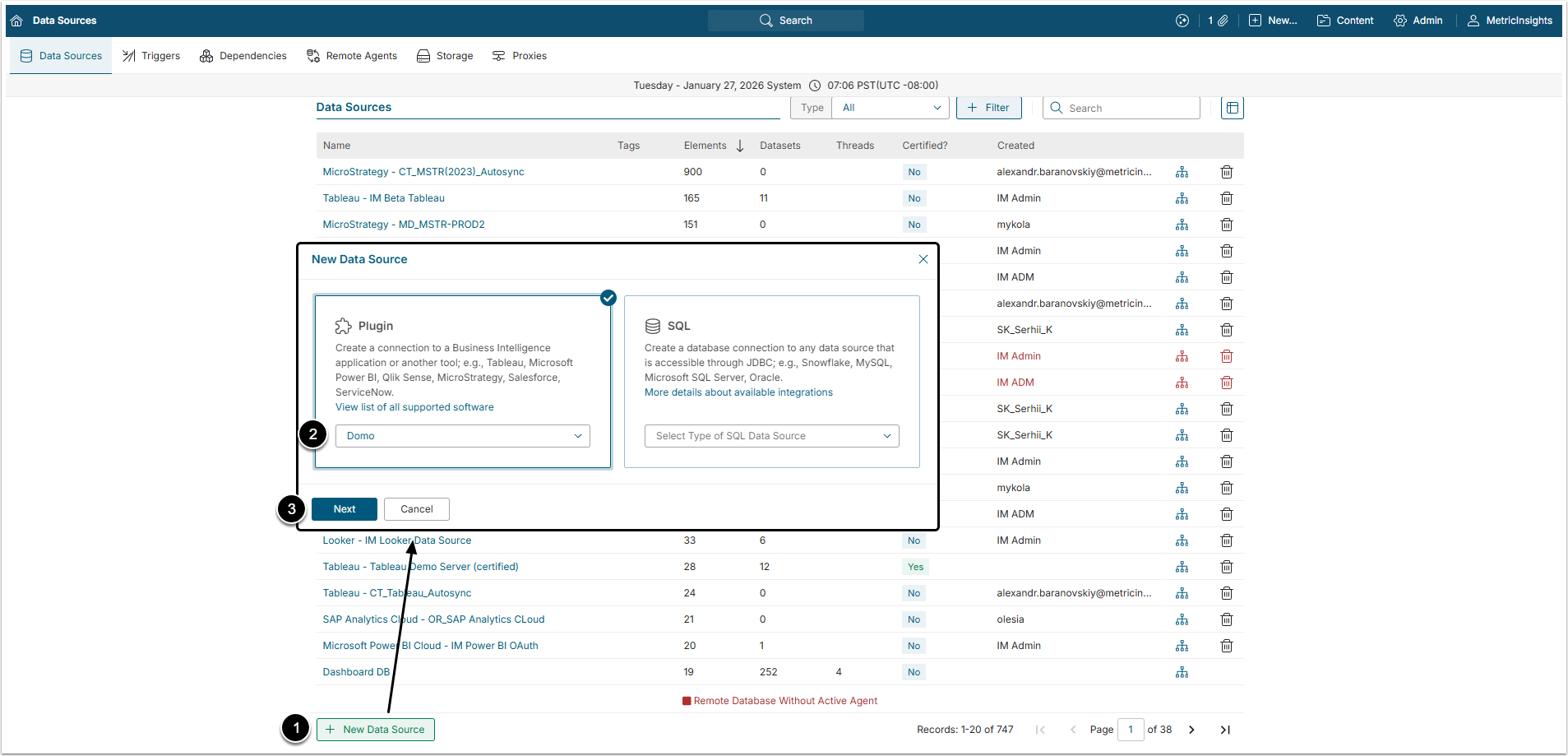
- [+New Data Source]
- Choose "Domo" from Plugin drop-down list.
- [Next]
2. Provide Required Parameters
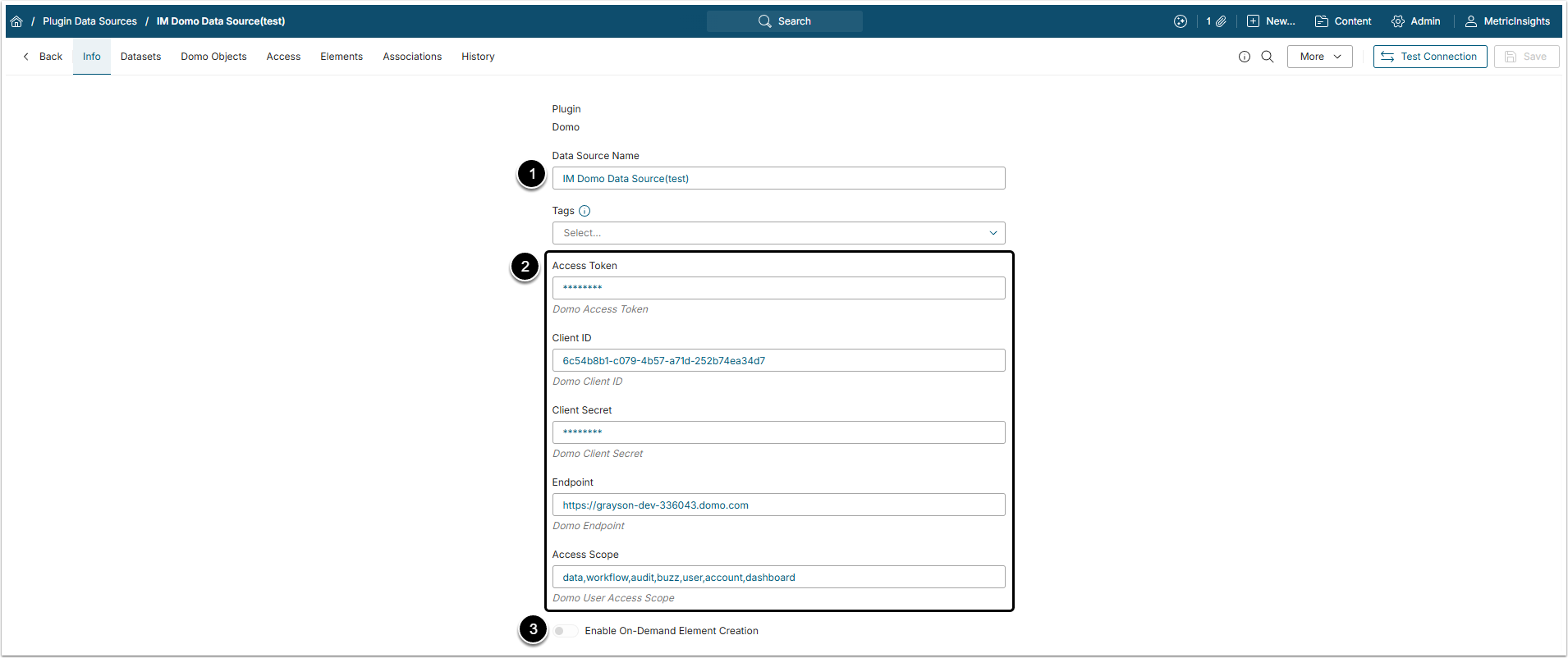
- Name: Give the Data Source a descriptive name.
- Provide Access Token, Client ID, Client Secret, Endpoint (this is the protocol and domain that are used to log in to the Domo account) and Access Scope, copied from the Domo account.
- Optionally, toggle on Enable On-Demand Element Creation.
3. Define Optional Parameters
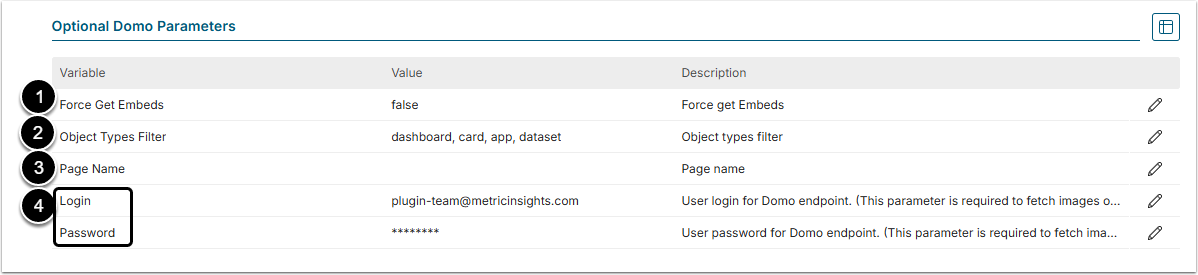
| Name | Description | |
|---|---|---|
| 1 | Force Get Embeds | Boolean value that is used to get embeds only for Cards. If set to "true", the plugin will return embeds for all Cards, even if embedding was not enabled. NOTE:
|
| 2 | Object Type Filter | Narrow down the list of documents to fetch in a comma-separated list. Available values are: dataset, dashboard, app, card. NOTE: If left blank, the Plugin will return all object types except for Apps. To return all of the available object types, specify all of them (dataset, dashboard, app, card). |
| 3 | Page Name | Specify the name of the page (Dashboard) for which you want to get a list of objects. |
| 4 | Login/Password | Specify credentials to the Domo account to view images of objects that are set to "Private" in Domo. |
4. Proceed with Advanced Configuration
Advanced Configuration settings can be set to default values unless Data Source requires more precise tuning. For more details on how to proceed, refer to Advanced Data Source Configuration.
Click [Test Connection] in the upper right corner to check if the Metric Insights connects to the Data Source correctly.