This article describes how to connect to Salesforce using Salesforce SOQL plugin in order to get data and create Elements in Metric Insights.
PREREQUISITES:
1. Create New Data Source
Access Admin > Collection & Storage > Data Sources
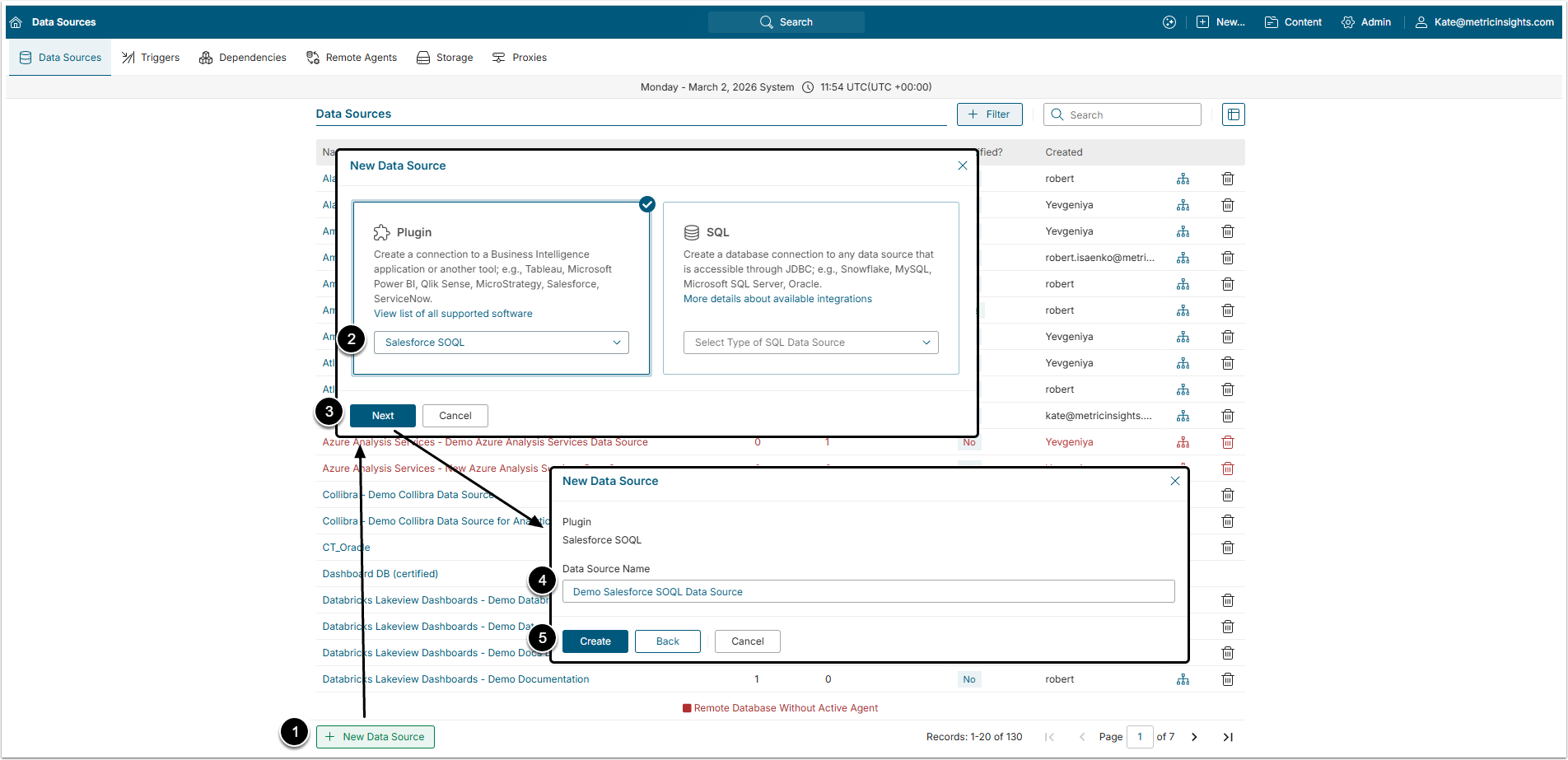
- [+ New Data Source]
- Select "Salesforce SOQL" option from the Plugin dropdown menu.
- [Next]
- Data Source Name: Give the data Source a descriptive name.
- [Create]
2. Provide Required Parameters
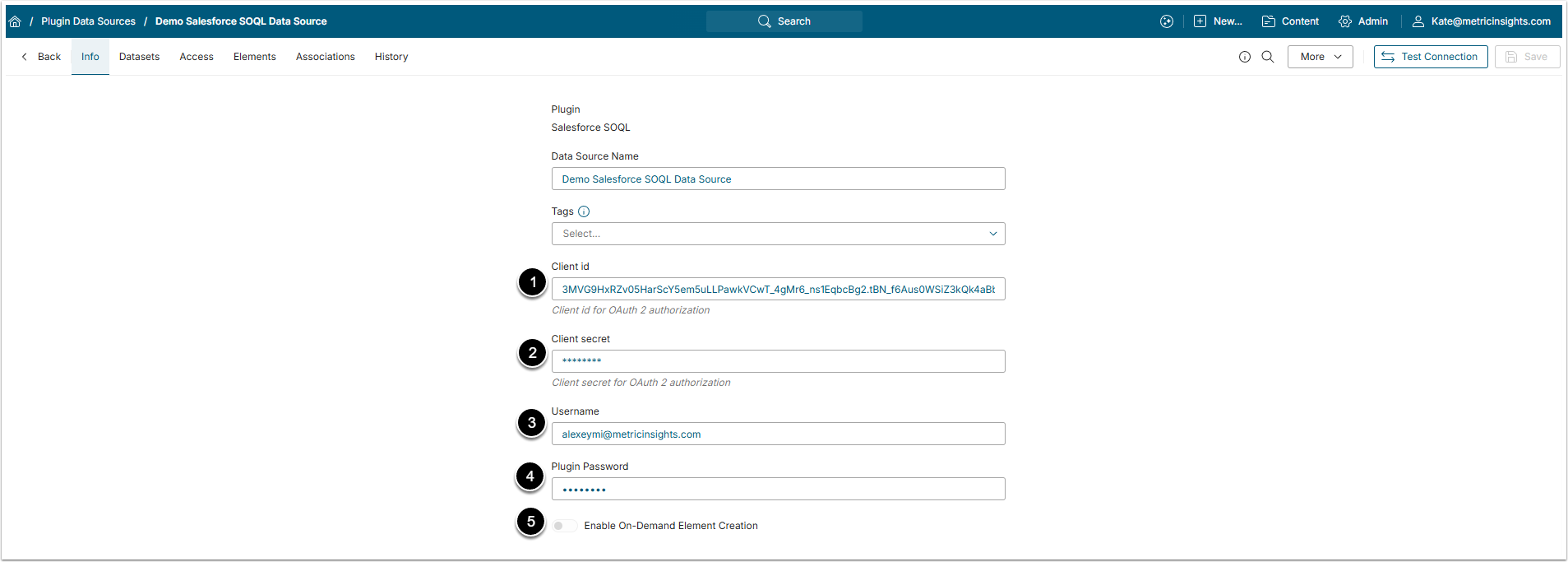
- Client ID: Insert Consumer Key from Salesforce account.
- Client secret: Insert Consumer Secret from Salesforce account.
- Username: Insert the Username from Salesforce account credentials.
- Plugin Password: Insert the Password from Salesforce account credentials.
- Optionally, toggle on Enable On-Demand Element Creation.
2.1. Finding Consumer Key and Consumer Secret in Salesforce (Classic UI)
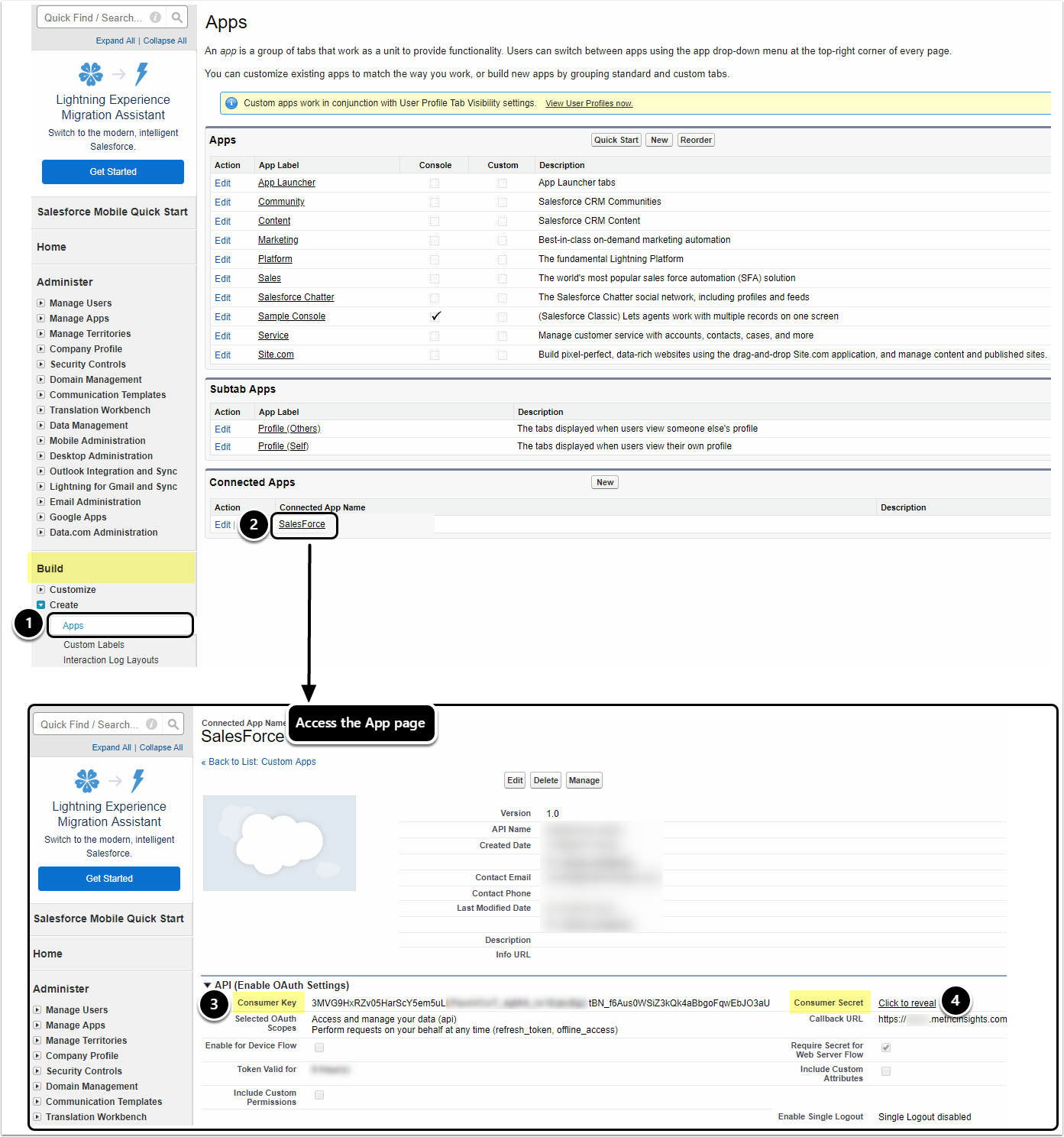
- Go to Build > Create > Apps.
- Under Connected Apps, open the App link.
- In the API section, copy Consumer Key.
- Click the link to reveal and copy Consumer Secret.
3. Configure Optional Parameters

| Name | Description |
|---|---|
| Server | Specify the name of your custom Salesforce Server that you want to use instead of the default one |
4. Proceed with Advanced Configuration
Advanced Configuration settings can be set to default values unless Data Source requires more precise tuning. For more details on how to proceed, refer to Advanced Data Source Configuration.
[Test Connection] in the upper right corner to check if everything work correctly.