This article describes what are Privileges and Permissions and how to assign them to the Group.
Table of contents:
- Privileges and Permissions in General
- Assigning Privileges
- Assigning Access to Different Objects
- Assigning Permission to Edit Group
1. Privileges and Permissions in General
Privileges and Permissions assigned to a Group are inherited by all Group members.
- Privileges define what Users can do and what features they can use;
- Permissions give Users a View or Edit access to specific Objects.
A set of Privileges is assigned automatically to the Default Group and All access Groups. Regular Groups are created without any Privileges or Permissions. For more details about those Group types, check the Group Types Overview article.
NOTE: If the User inherited the Privilege or Permission from one Group, that User will still have it even after additionally becoming a member of another Group.
2. Assigning Privileges
Access Group Editor and open the Privileges tab.
2.1. Assigning Privilege Sets
It is recommended to assign Privilege Sets to Groups rather than single Privileges to the User. This will help to avoid missing some important Privileges.
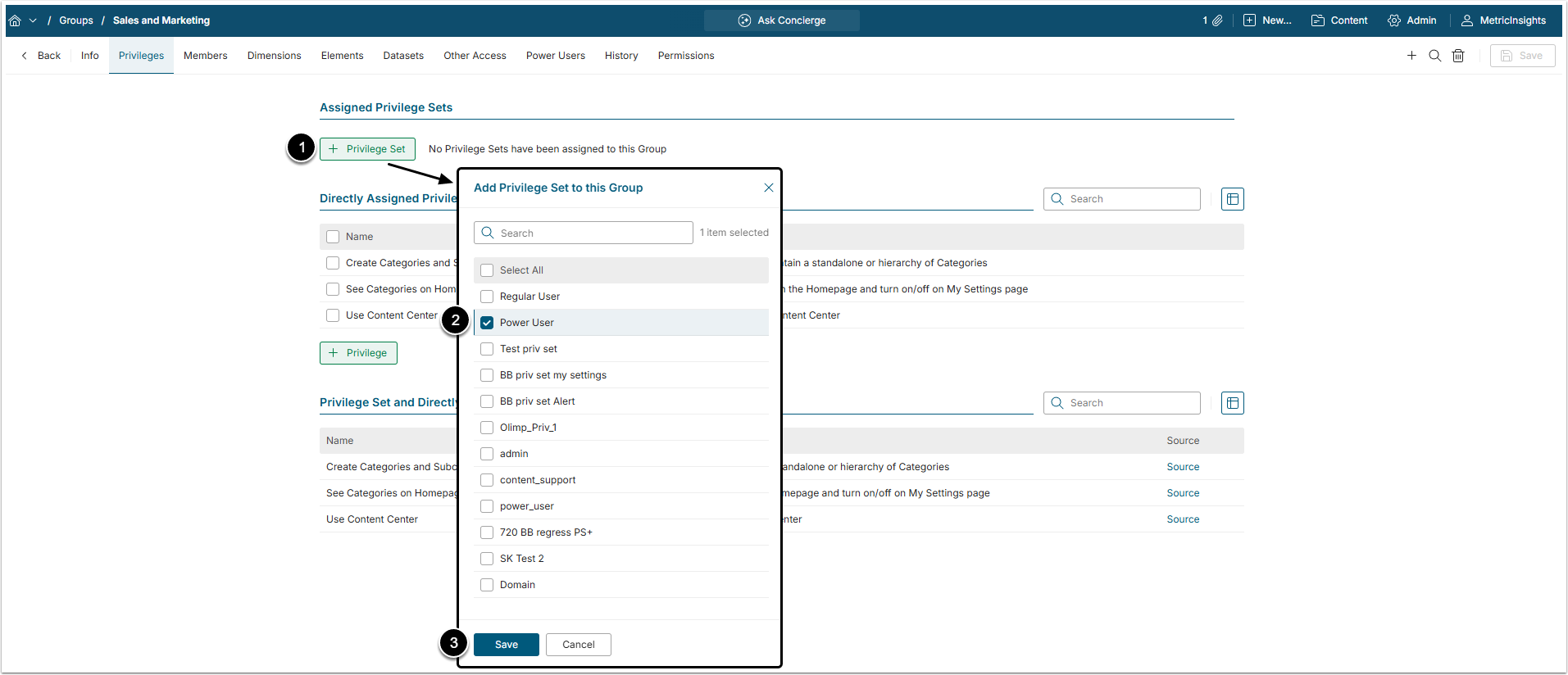
- [+Privilege Set]
- Privilege Set: Select the Privilege Set.
- [Save]
2.2. Assigning Individual Privileges
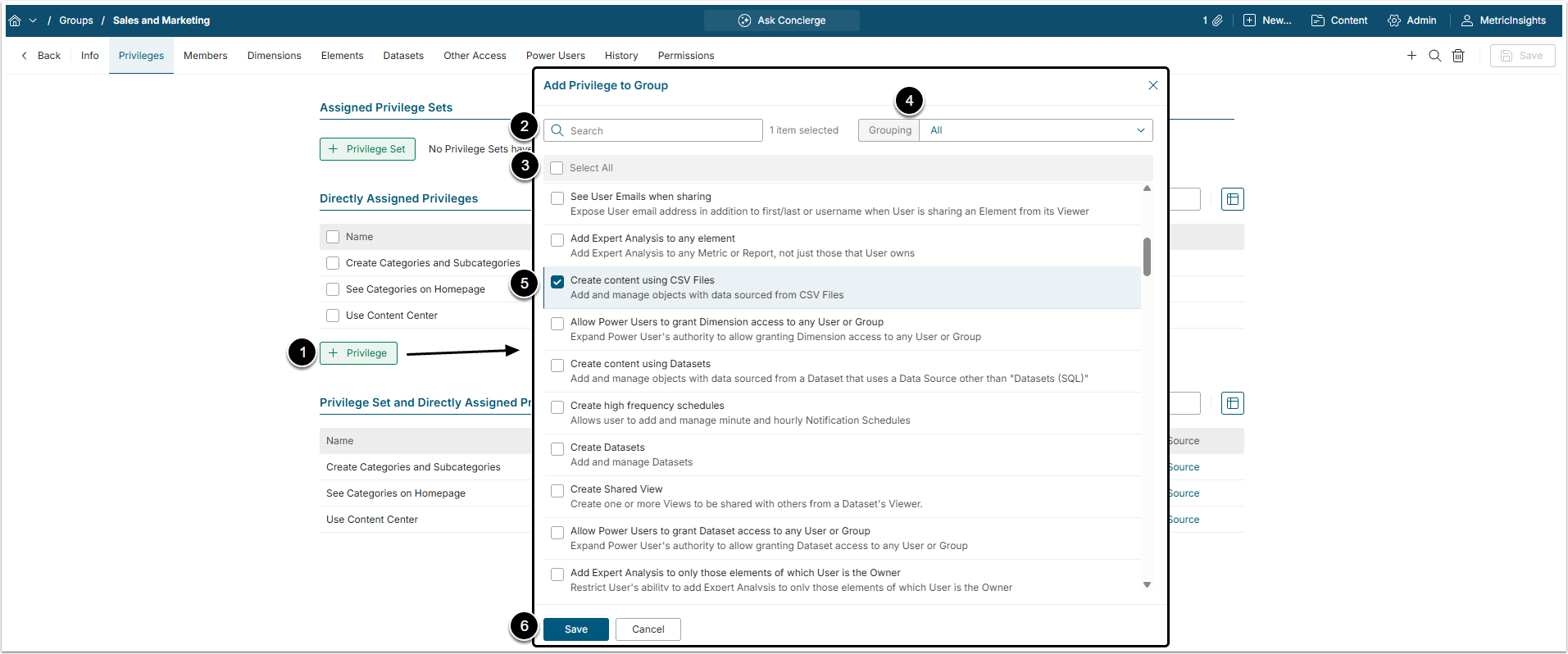
- [+ Privilege]
- Use Filter to shorten the list of Privileges.
- Click Select All to select all Privileges.
- Grouping: Select the group of Privileges to limit the display:
- Collaboration: Here are Privileges that allow the User to interact with other Users' content, e.g. add comments and annotations;
- Data Governance: Privileges in this group are connected to Workflows;
- Personal Settings: These Privileges allow the User to set some personal preferences, like create Bursts and maintain "My Settings";
- Power User Content Security: Privileges gathered here are all created for Power Users;
- Viewer Access: Here are Privileges that give the User View Access to different Objects.
- Select individual Privileges using checkboxes.
- [Save]
The list of all available Privileges is in the Privileges List article.
NOTE: Power Users may be granted an optional Privilege: Create Groups. It allows a Power User to create new Groups. However, the User has Edit Access only to the Groups that he has special Permission to edit.
NOTE: When a User is removed from a Group, they may temporarily retain Privileges assigned through that Group due to caching. Refresh the User Editor page to ensure the Privileges are removed after the User is removed from the Group.
3. Assigning Access to Different Objects
3.1. Dimensions
Open Dimensions tab
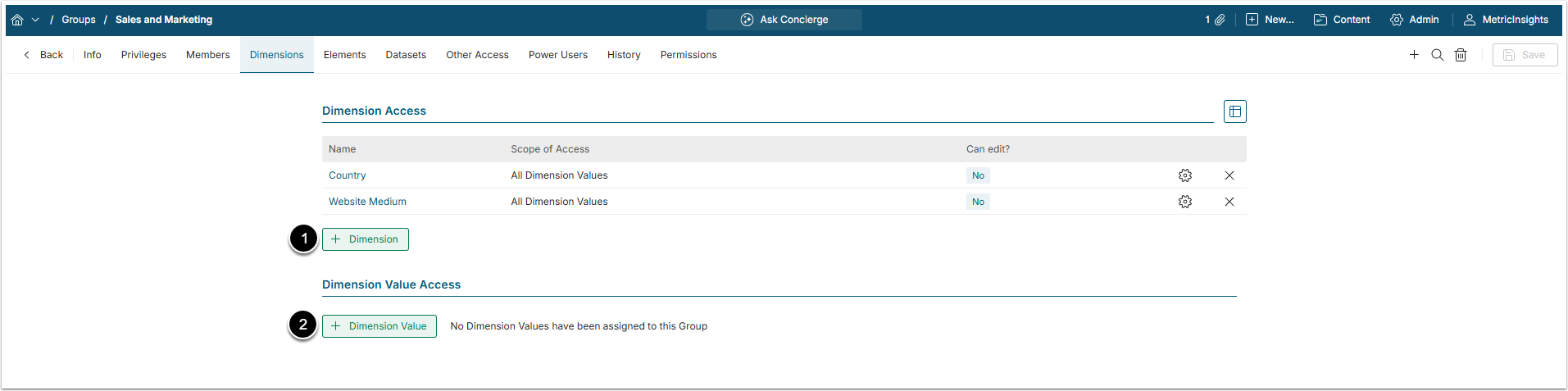
- [+Dimension] to assign a Dimension to the Group.
- [+Dimension Value] to assign specific Dimension Values for each Dimension added above. If no Dimensions are assigned to the Group, it is impossible to assign Dimension Values.
For more details on granting access to Dimensions, check Grant Access to a Dimension article.
3.2. Categories
Open Elements tab
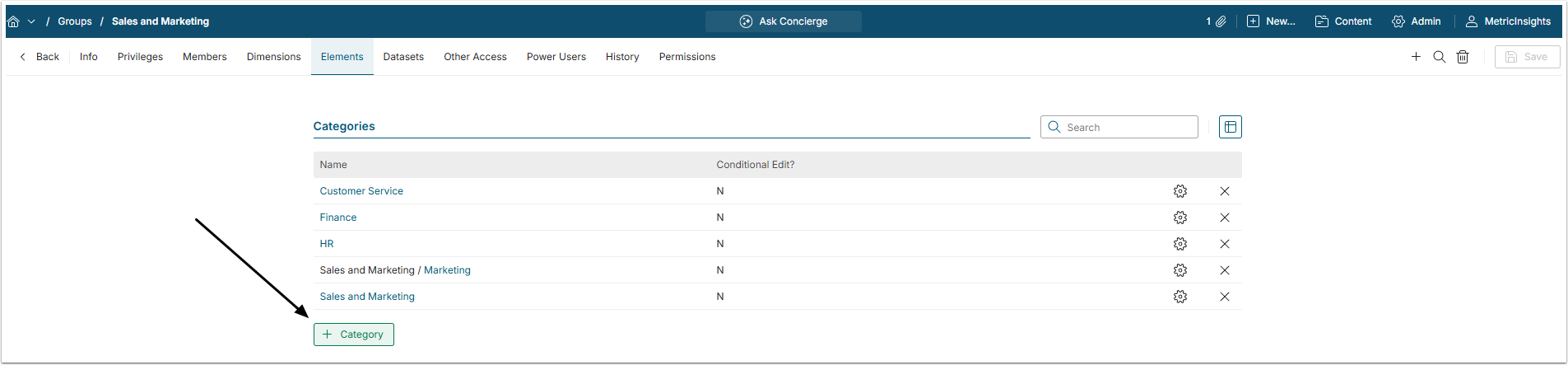
[+Category] to assign a Category to the Group.
For more details about granting access to Category, check the Grant Access to a Category article.
3.3. Elements
Open the Elements tab and scroll the page to Elements section
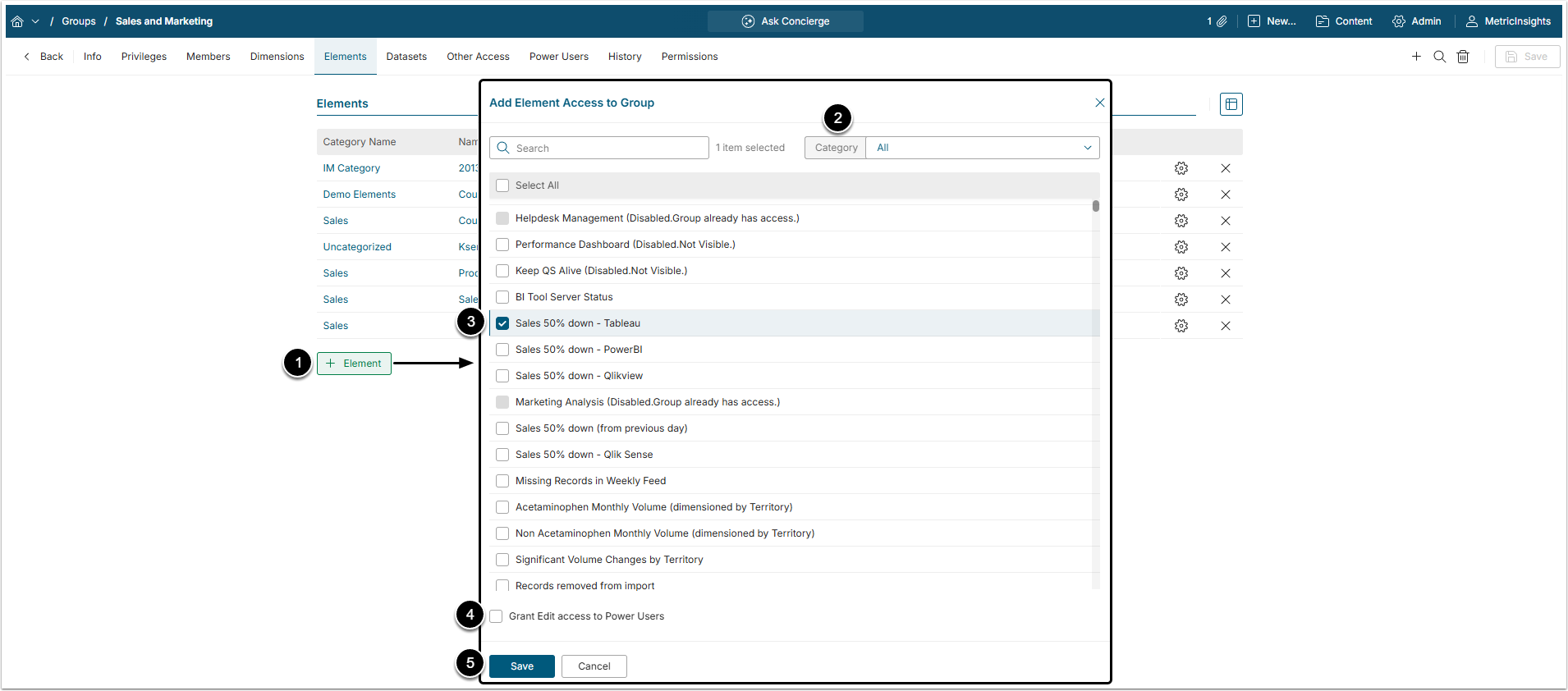
- [+Element]
- Category: Select the Category to which the Element is added.
- Choose the Element.
- Grant Edit access to Power Users: Select this option to grant Edit Access to this Element to all Power User members of the Group and View access to all Regular User members.
- [Save]
3.4. Datasets
Open Datasets tab
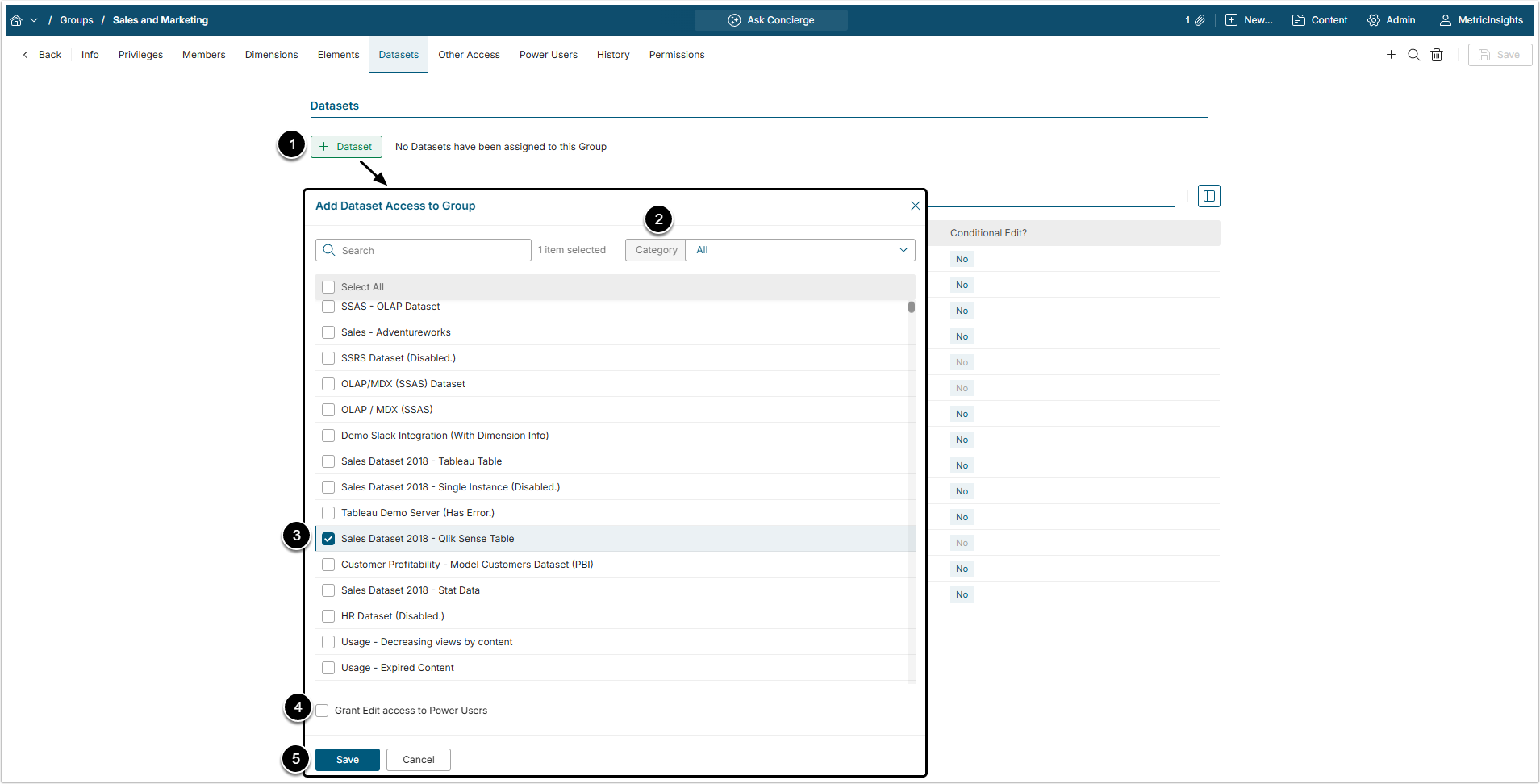
- [+Dataset]
- Category: Select the Category to which the Dataset is added.
- Choose the Dataset.
- Grant Edit access to Power Users: Select this option to grant Edit Access to this Dataset to all Power User members of the Group. This will also grant Power Users the Permission to use Dataset's Data Source.
- [Save]
3.5. User Maps
Open the Datasets tab and scroll the page to the User Maps section
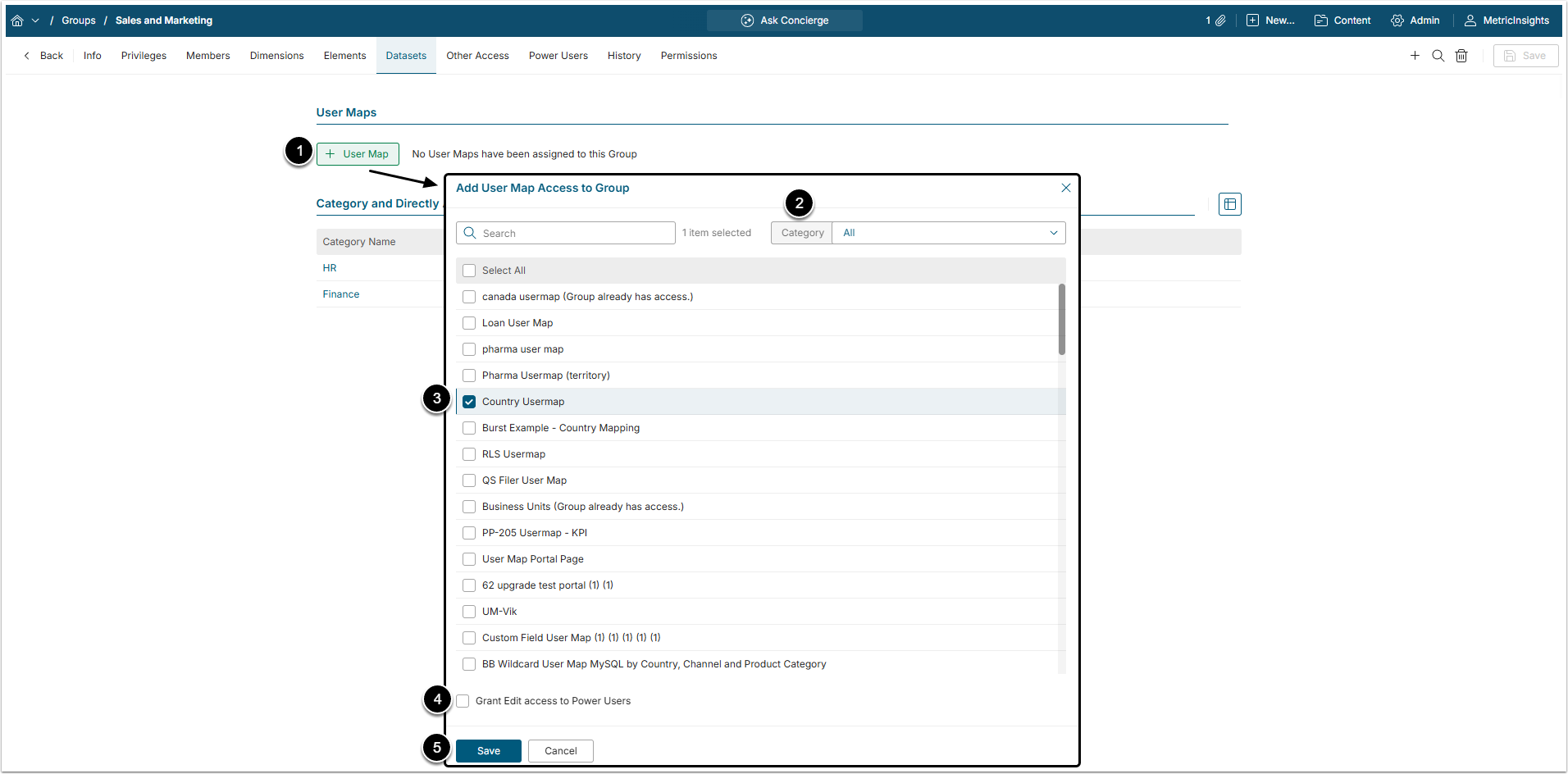
- [+User Map]
- Category: Select the Category to which the User Map is added.
- Choose the User Map.
- Grant Edit access to Power Users: Select this option to grant Edit Access to this User Map to all Power User members of the Group.
- [Save]
3.6. Other Objects
In the Other Access tab you can assign Bursts, Folders, Shared Folders, FTP Connections and Shared Drives to the Group
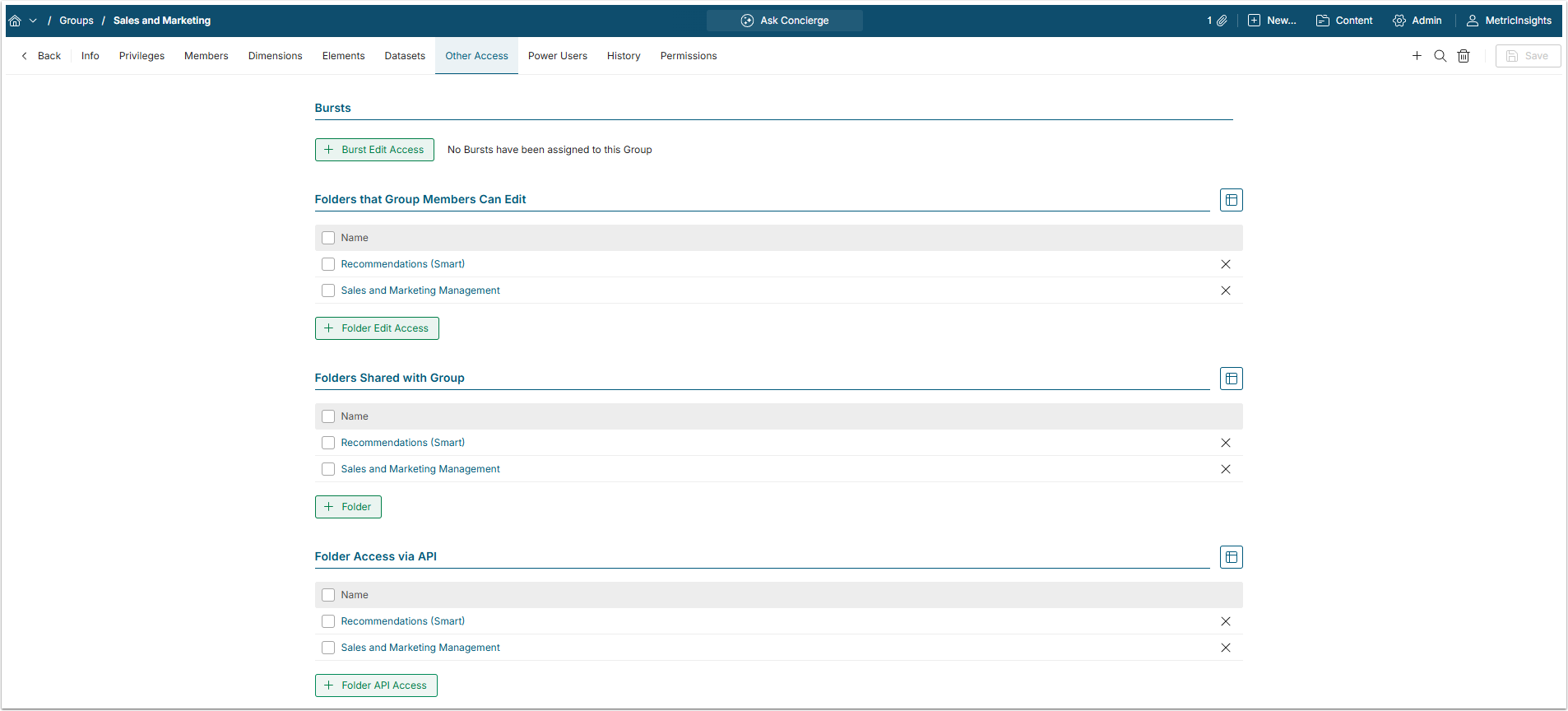
Click [+Object], select the Object's name and [Save].
3.7. Objects for Power Users
Access assigned in the Power Users tab only applies to Power User members of the Group. Here you can assign access to:
- Announcements
- Custom Field Sections
- Data Collection Triggers (allows to choose either to give the Group Edit Access or not)
- Data Dependencies
- Data Sources (allows to choose either to give the Power User members Edit Access or not)
- Data Storage Uses
- Email Templates
- Event Calendars (allows to choose either to give the Group Edit Access or not)
- Glossary Sections
- Groups to which Member Power User can Assign Permissions
- Identity Profile Use Accesses
- JavaScript Chart Templates
- KPI Alert Rules
- Managed Alert Workflows
- Notification Schedules (allows to choose either to give the Group Edit Access or not)
- Portal Pages (allows to choose whether the Portal Page is a Start Page and either to give the Group Edit Access to it or not)
- Portal Page Templates (allows to choose either to give the Group Edit Access or not)
- Portal Page Asset Folders
- Publishing Worklfows (allows to choose either to give the Group Edit Access or not)
- Publishing Workflow Stages
- Tags
- Targets
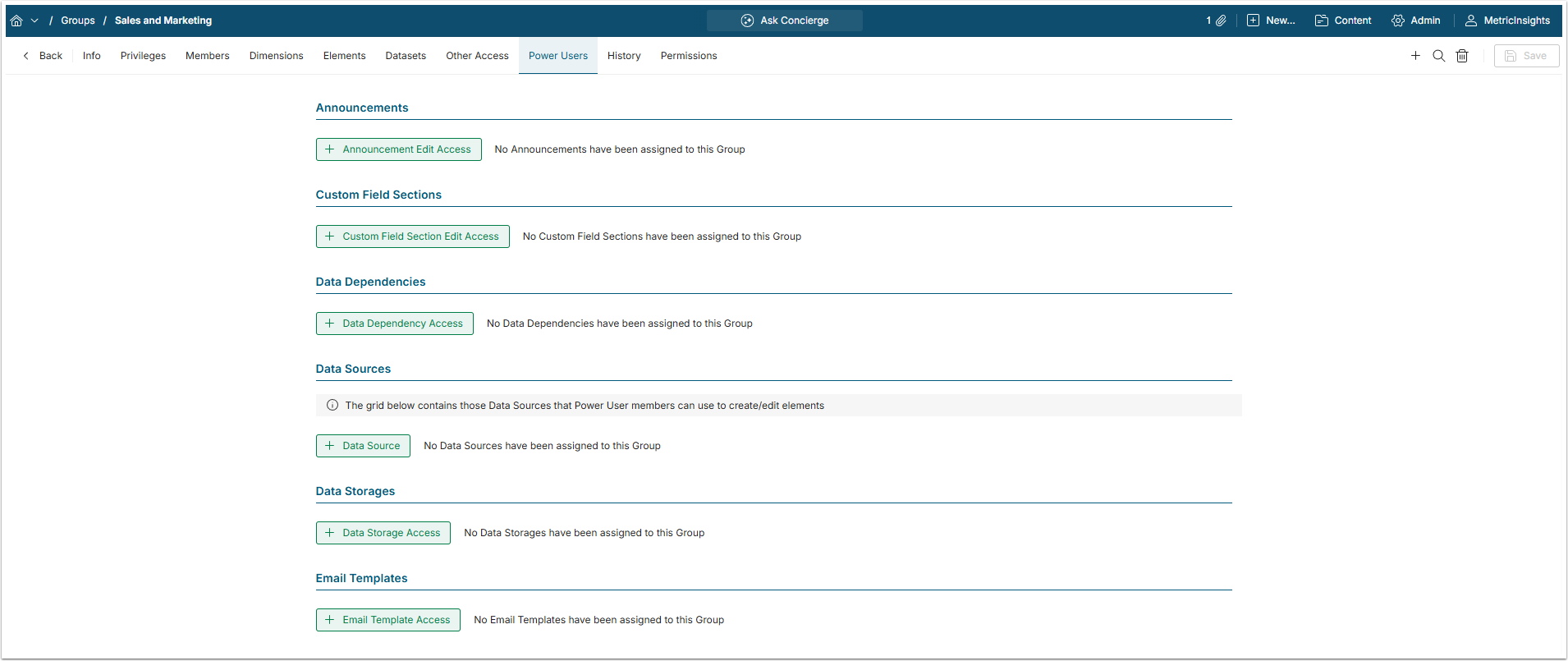
This tab contains many sections that all follow a similar format and contain buttons to allow Use, View or Edit Access Permissions for specific objects. As new types of objects are added to Metric Insights, those with Permissions are included in this tab.
4. Assigning Permission to Edit Group
Assigning Permissions is ONLY available to Admins and Power Users with Edit Access. It grants Users an Edit Permission to the Group.
Access Permissions tab
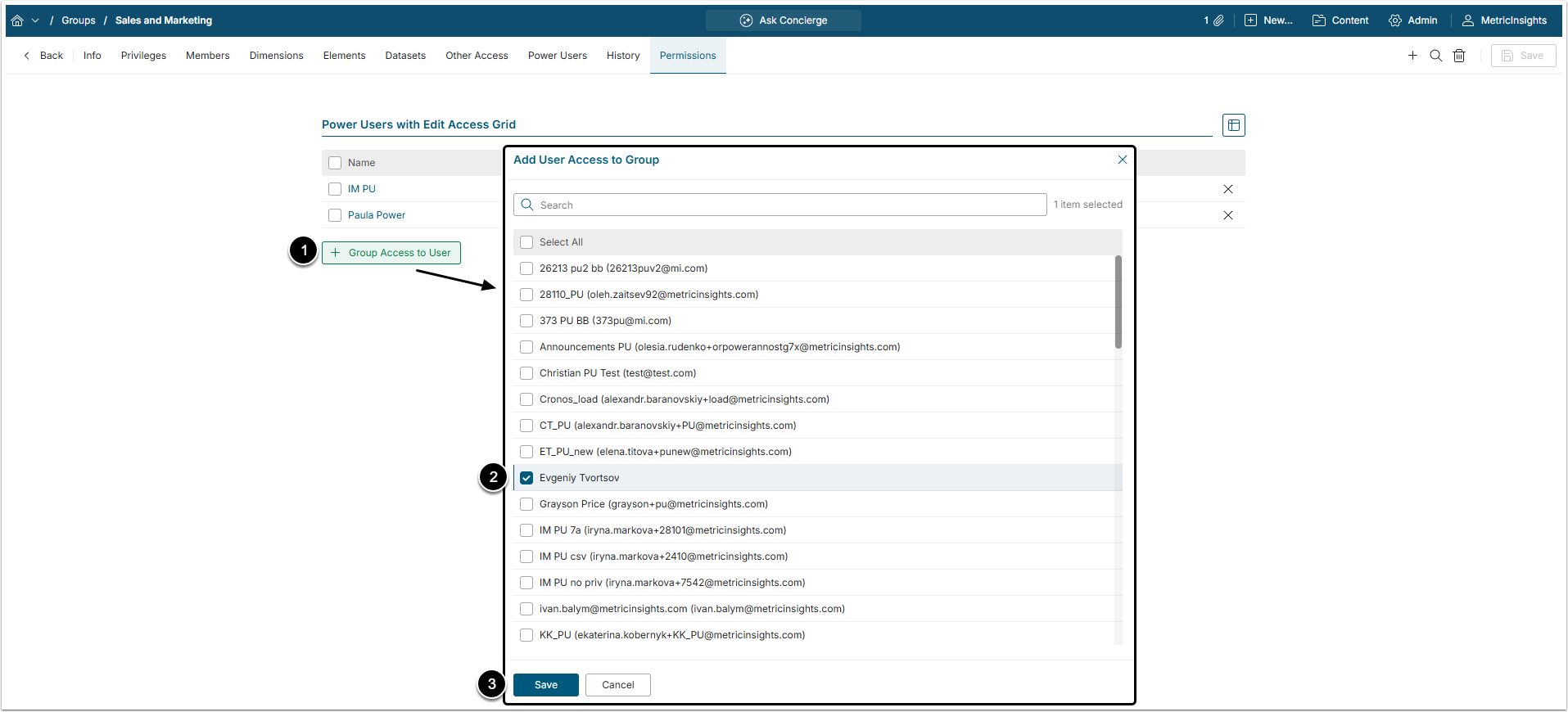
- [+Group Access To User]
- Select a User from the list. Only Power Users will be listed here.
- [Save]
NOTE: The selected Power User must also have the Privilege "Create Groups" to be able to Edit this Group.